Secret Store 1.2 is here: free, and on iPhone and iPad
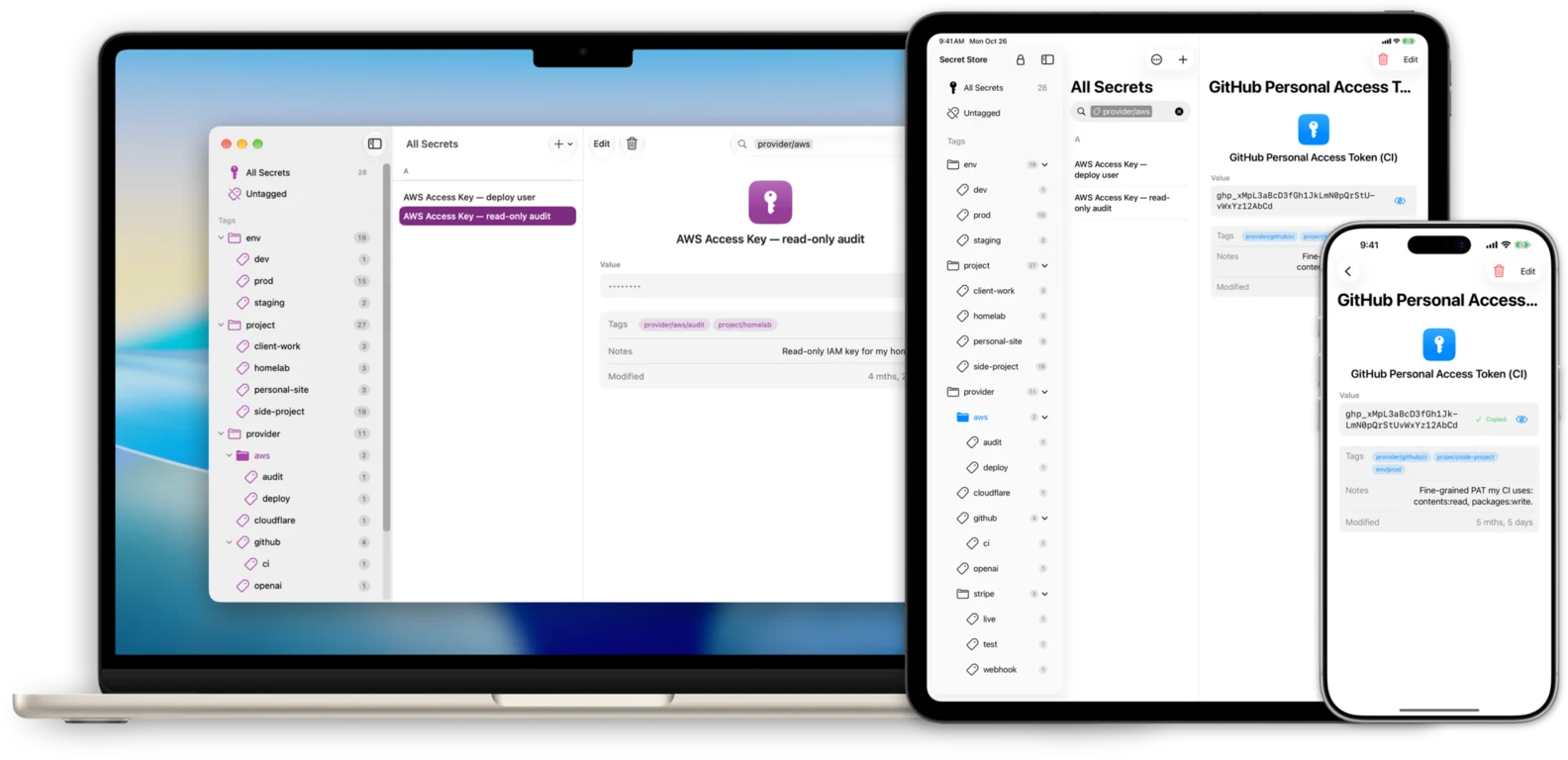
Secret Store 1.2 is out. Two things changed that matter more than any feature: it’s completely free, and it’s on iPhone and iPad as well as the Mac.
Free. All of it.
Until now, Secret Store was free for your first 10 secrets, and a one-time $4.99 purchase, Secret Store Unlimited, removed the cap and unlocked importing from files.
That’s gone. In 1.2 there’s no in-app purchase, no cap on how many secrets you keep, and nothing behind a paywall. The usage counter, the paywall and the Unlock Secret Store Unlimited… menu item are all removed from the app.
In June I wrote about how the cap worked with no server behind it. It worked fine. It just wasn’t worth having. Secret Store has no server, no account and no subscription to pay for: your secrets live in Apple’s iCloud Keychain, and Apple carries the cost of storing and syncing them. A cap of 10 was a cap on how much of your stuff you were allowed to keep safe, which is the opposite of what the app is for. Secret Store is free has the details.
On iPhone and iPad
Secret Store is now a universal app: one App Store download for Mac, iPhone and iPad. It’s the same app on all three, built on the same core, and your secrets sync between them through iCloud Keychain. There’s still no account to make and nothing to sign in to. Add an API key on your Mac and it’s on your phone.
It’s as careful on the phone as on the Mac:
- Unlock with Face ID, Touch ID or your passcode.
- Nothing shows in the app switcher. A cover goes up before iOS takes the app-switcher snapshot, with revealed values masked first. Come back after more than five minutes and the app locks before the cover comes down, so your secrets never flash on screen.
- Copied values stay on the device and expire after 90 seconds, so they don’t reach Universal Clipboard or linger.
- The value stays masked until you tap the eye button. An open Edit sheet masks its value too when you leave the app.
- Backups go through the share sheet, so you can save one to Files or anywhere else. The app only says “Backup Complete” once you’ve actually saved or shared it, and the temporary copy is removed either way. Restore picks a backup from Files.
Importing from RTF, PDF and plain-text files works on iPhone and iPad. Word
(.docx) import is Mac-only for now. iPad hardware keyboards get the Mac’s
shortcuts: ⌘L to lock, ⇧⌘N for a new secret, ⇧⌘B to back up, and so on.
How the port worked, and the Mac assumptions it shook out, is in Taking Secret Store from the Mac to iPhone and iPad.
Tags, and nested tags
1.2 adds tags, and they nest: tag a key provider/aws/deploy and it shows up
under provider ▸ aws in a collapsible tag tree in the sidebar, with a count
on every group.
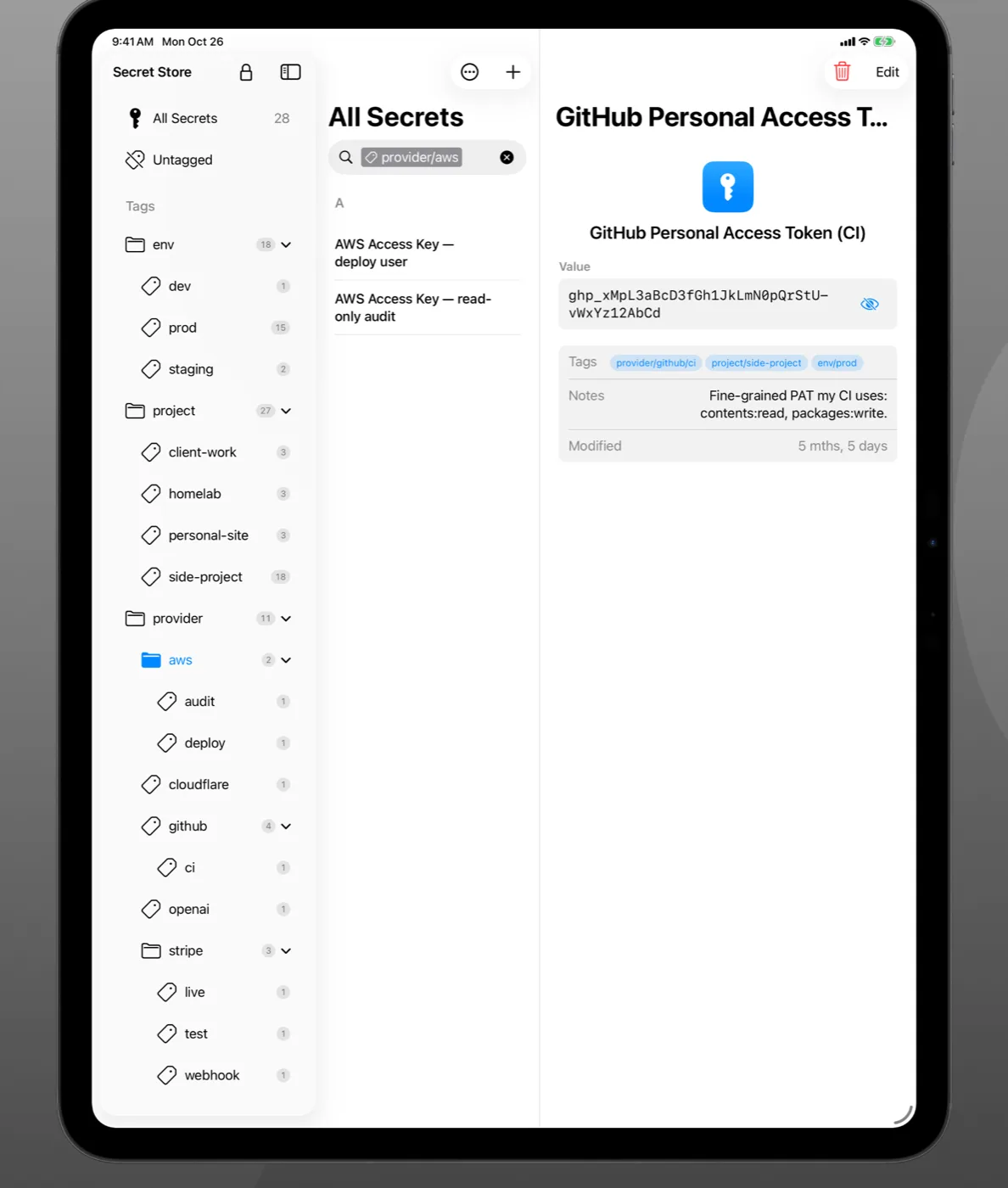
- Filter by clicking tags. Pick several and you see the secrets that have all of them. Pick a group and you see everything under it. Tags also show up as tokens in the search field, and Untagged finds what you haven’t sorted yet.
- Manage them in place. Right-click a tag for Rename Tag… or Delete Tag…, or a group for Rename Group…, which renames everything under it. On the Mac, select several secrets to add or remove a tag on all of them.
- Tag on import. Bulk import can tag every imported secret, and can strip
file extensions from the names (
stripe.txtbecomesstripe). - Tags are kept tidy. “AWS Prod” becomes
aws-prod.
The design, including why tags are still stored as plain strings, is in Hierarchical tags from a flat list of strings, and Tags in the help covers how to use them.
A new layout
On the Mac and iPad, the window is now three panes: tags, the list, and the selected secret. The detail view is redesigned, Notes gets a full-height editor with a character counter (up to 2,000 characters), and the value gets a size counter too. When a search or filter matches nothing, you get a Clear Filters button instead of an empty list. Back Up… and Restore… are now Back Up Secrets… and Restore Secrets…, so it’s clear what they act on.
On the Mac there’s more:
- Rename a secret right in the list: press Return, type, press Return again.
- Passwords-style Edit menu commands: Copy Secret Name (⇧⌘C), Copy Secret Value (⌥⌘C) and Edit Secret (⇧⌘E).
Privacy and security fixes on the Mac
A tool for secrets should be fussy about where they show up. 1.2 tightens a few places:
- Copied values stay on this Mac. They were already flagged so clipboard history skips them; now they’re also kept off Universal Clipboard, so they don’t appear on your iPhone or iPad.
- Backing up every secret asks you to authenticate with Touch ID or your password, even when Secret Store is already unlocked. It was meant to, but didn’t.
- The auto-lock really locks. Before, after five idle minutes the window stayed unlocked and a value could still be revealed. Now it locks and hides its secrets.
- The Edit sheet masks its value when you switch to another app, so it isn’t left visible in the window or in Mission Control.
- Backups keep secrets whose names start with a dot. A secret named
.envin a plain-files backup didn’t get its value back on restore. It does now, including from older backups, and a backup with a missing file fails instead of restoring an empty secret.
Get it
Secret Store is on the App Store, free, for Mac (macOS 14.6 or later), iPhone and iPad (iOS and iPadOS 17 or later). The Secret Store page has the rest, and the help covers every feature.
If it’s useful to you, a review helps more than anything else. On the Mac, Help ▸ Write a Review… takes you straight there. Questions, bugs and ideas go straight to me at corey@coreydaley.dev.
What do you keep in a notes file or a .env that should really be somewhere
safer?