
How to open RAR files on a Mac, free
Your Mac can already open most RAR files, with nothing to install.
Finder can’t: double-clicking a RAR hands it to Archive Utility, which
doesn’t support RAR. But the tar command built into macOS reads ordinary
RAR files. Open Terminal in the folder with the RAR and run:
tar -xf "file.rar"The files come out in the folder Terminal is in. I tested this on macOS 27.2.1 with RAR5, solid RAR5 and RAR4 archives; the RAR5 files matched the originals byte for byte.
tar can’t open a password-protected or multi-part RAR. For those,
use a free app: The Unarchiver, Keka or Purrchiver.
Quick answers
| You have | What works, free |
|---|---|
An ordinary .rar | tar -xf in Terminal (built in), or any app below |
| A password-protected RAR | The Unarchiver, Keka, Purrchiver, or unar -p |
A multi-part RAR (.part1.rar, .r00) | The Unarchiver, Keka, Purrchiver, or unar |
A .cpgz you didn’t expect | Delete it; your RAR is still there (see below) |
| A need to make RAR files | Only RARLAB’s paid rar tool; see WinRAR for Mac? |
Why double-clicking a RAR makes a .cpgz
Archive Utility, the app Finder uses for archives, doesn’t support RAR.
Instead of extracting file.rar, it compresses it into a new
file.rar.cpgz next to it, and nothing comes out. Double-click the .cpgz
and you get a copy of the RAR back (file 2.rar), so the loop never ends. I
saw both on macOS 27.2.1. Your RAR is fine. Delete the .cpgz and open the RAR with one of
the options on this page. More about this loop:
Why a ZIP turns into a .cpgz.
Open a RAR without installing an app
macOS’s tar (bsdtar, built on libarchive) reads RAR as well as tar and ZIP.
- Open Terminal (in Applications ▸ Utilities).
- Type
cd(with a space), drag the folder that holds the RAR onto the Terminal window, and press Return. - Run
tar -xvf "file.rar", using your file’s name. Thevlists each file as it comes out, into that folder.
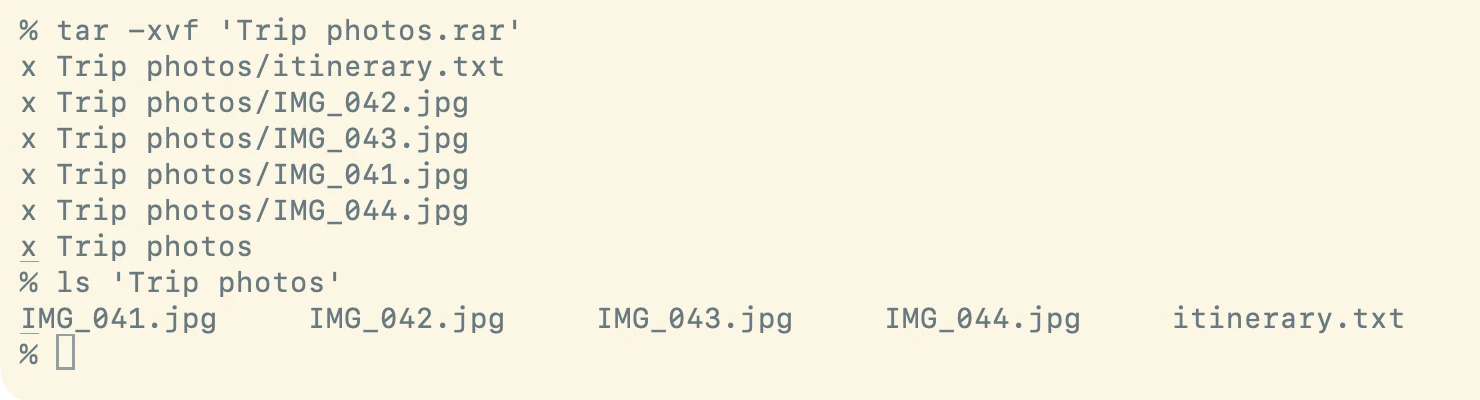
tar replaces any file of the same name without asking. To be safe, or to put
the files somewhere else, extract into a new, empty folder with -C:
mkdir -p "Extracted" && tar -xf "file.rar" -C "Extracted"To look inside without extracting, use tar -tvf "file.rar".
Where tar stops (all tested on macOS 27.2.1 with archives made by
RAR 7.23):
- Encrypted file names: it refuses with
Encryption is not supportedand writes nothing. - Encrypted contents (password, file names visible): it stops with a
Block checksum error … Inappropriate file type or formaterror, but only after writing a damaged file. Delete what it wrote. - Multi-part sets: opening
part1.rarfails partway withToo small block encountered … Inappropriate file type or format. In my test it skipped one file and wrote another at full size with the wrong contents. Don’t trust anythingtarextracts from a multi-part set.
If tar prints any error, treat everything it wrote as suspect and use an app
instead.
Free apps that open any RAR
- The Unarchiver (Mac App Store, free): extracts the whole archive, including password-protected and multi-part RARs. See Purrchiver vs The Unarchiver.
- Keka: free from keka.io, or $6.49 on the Mac App Store. See Purrchiver vs Keka.
- Purrchiver (Mac App Store, free to open and extract): RAR4 and RAR5, password-protected and multi-part, and you can look inside and take out only the files you need. More below.
Unrar on a Mac from Terminal
For a command-line tool that handles every RAR, install unar (the engine
behind The Unarchiver) with Homebrew:
brew install unar
unar "file.rar"For a multi-part set, run it on the first part (file.part1.rar) and it
reads the rest. lsar "file.rar" lists the contents. For a
password-protected RAR, unar takes the password with -p, as in
unar -p 'your password' "file.rar". That leaves the password in your shell
history, so for an archive that matters, use an app that asks for it instead. I tested unar 1.10.7 with ordinary,
encrypted, header-encrypted and multi-part RAR5 archives; all extracted
correctly.
RARLAB’s own unrar also works, but it’s part of RAR for macOS, which isn’t
notarized and isn’t in Homebrew any more. See
WinRAR for Mac?.
Open a RAR with Purrchiver
- Open the RAR in Purrchiver: double-click it if Purrchiver is your default for RAR, or drag it onto the Purrchiver window or Dock icon.
- Browse the contents. Press Space to preview a file without extracting it.
- Extract everything, or drag just the files you want into Finder.
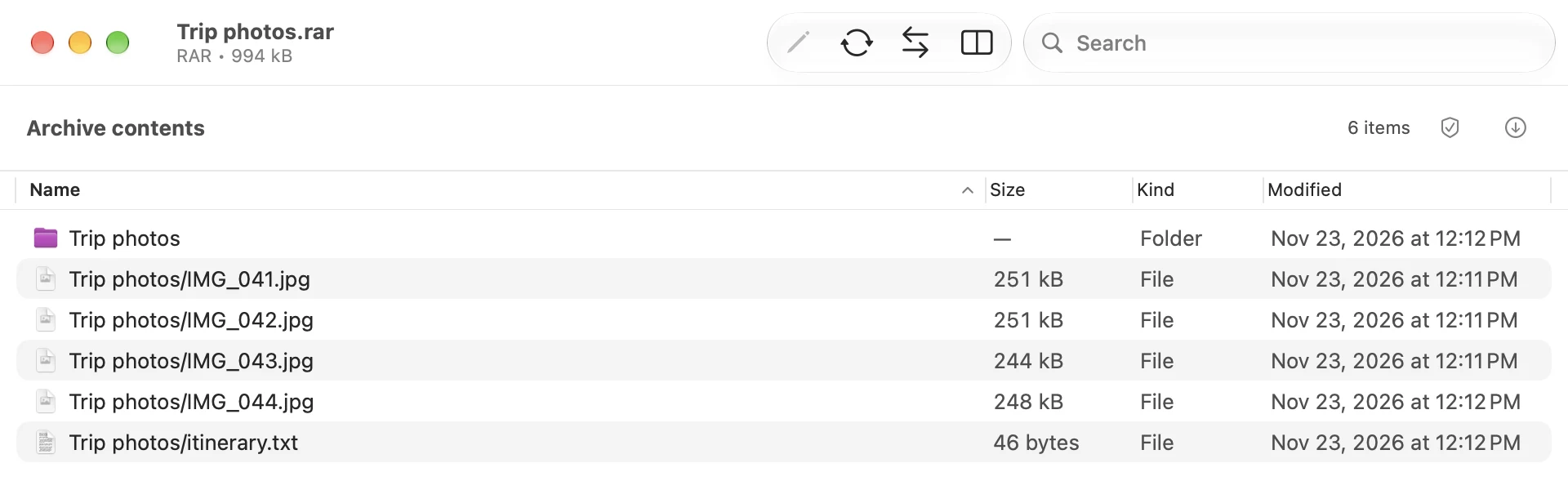
Opening and extracting RAR is free in Purrchiver, with no trial. It can’t create RAR files.
Make a Mac open RAR files with one app every time
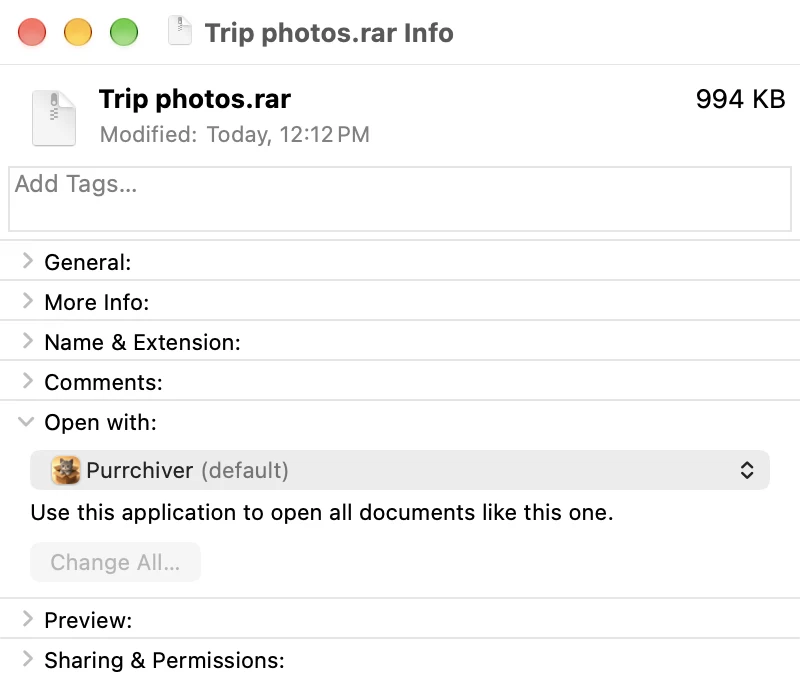
- Select a RAR in Finder and choose File ▸ Get Info.
- Under Open with, pick the app (The Unarchiver, Keka or Purrchiver).
- Click Change All, and confirm.
Password-protected RARs
The built-in tar can’t open these. The Unarchiver, Keka and Purrchiver ask
for the password when you open the archive; with unar, pass it with -p.
Some RARs also encrypt the list of files, so you can’t see what’s inside until you enter the password. Purrchiver asks for it before showing the list.
There’s no way to open an encrypted RAR without its password. If you’ve lost it, see Forgot an archive password?
Multi-part RARs (.part1.rar, .r00)
A download split into name.part1.rar, name.part2.rar, … (or the older
name.rar, name.r00, name.r01, …) is one archive in several pieces.
Put every part in the same folder and open the first one: part1.rar,
or the plain .rar in the older scheme. The Unarchiver, Keka, Purrchiver and
unar find the rest. Don’t use tar on these.
If a part in the middle of the set is missing, Purrchiver names it before it starts reading. More in Multi-part archives on macOS.
Making RAR files
None of the free options can create RAR. RAR compression is proprietary;
the only way to make a RAR on a Mac is RARLAB’s command-line rar, a 40-day
trial and then $29. For sending files, a ZIP opens almost everywhere and a 7z
opens in most archive apps, with no license. Details, and why there’s no
WinRAR app for Mac, are in WinRAR for Mac?

Free forever to open and extract anything. $9.99 once for the advanced tools. No trial, no subscription.