
Opening an archive
There are several ways to open an archive in Purrchiver. Use whichever fits the moment — they all land you in the same place: a Loaded session showing the archive’s contents.
1. Double-click in Finder
If Purrchiver is set as your default app for the archive format, just double-click. What happens next is governed by a three-way setting under Settings → General → “When I double-click an archive”: Open in Purrchiver to inspect it (the archive loads in a session window), Extract immediately to the parent folder (or, in Purrchiver 1.1, to the Extract to folder if you set one New in 1.1), or Ask each time.
The easiest way to set defaults is Settings → File Types, where you can toggle Purrchiver on per format — or flip every type at once with Make Purrchiver the default for all. See Settings → File Types.
You can also set a single format from Finder:
- Right-click the archive file in Finder.
- Choose Get Info (⌘I).
- Expand Open with, pick Purrchiver, and click Change All….
Repeat once per format (one for .zip, one for .rar, etc.) — or just use
the File Types tab to do them in bulk.
2. Drag onto the dock icon
Drag an archive onto the Purrchiver icon in the Dock — it opens in a new window. Dragging two or more archives at once routes them to Batch Extract instead of opening each in its own window.
3. Drop onto the Welcome window
When Purrchiver is showing the Welcome window, drop an archive anywhere on it — the archive opens in a session window. Dropping two or more archives at once routes them to Batch Extract, the same as dropping multiple onto the dock.
4. File menu → Open Archive…
Choose File → Open Archive… (or press ⌘O) to open the standard macOS file picker. Just like the drop target, you can pick anything and Purrchiver decides what to do — an archive opens, and any other file or folder starts a new archive.
5. Finder right-click → Services
Right-click an archive in Finder and look under the Services submenu (you may need to scroll), then choose Open using Purrchiver — smart dispatch that, for a single archive, honors your Settings → General → “When I double-click an archive” preference (Open in Purrchiver to inspect / Extract immediately to the parent folder / Ask each time). It also handles mixed Finder selections: multiple archives go into Batch Extract, and anything that isn’t an archive opens in a new Compress staging window.
If you don’t see the Services submenu, enable the items under System Settings → Keyboard → Keyboard Shortcuts → Services → Files and Folders.
The Services menu also offers Extract using Purrchiver and Compress using Purrchiver — see Finder integration for all three (and Extracting files / Creating a new archive for those workflows).
Opening a multi-part archive
For .partN.rar, .r00/.r01/…, .7z.001/.002, or any other split set —
point Purrchiver at any one of the parts. It will scan the parent folder,
find the rest of the set, sort them in order, and open them as a single
archive. You don’t need to select them all.
See Multi-part archives for the full story.
Files that hold an archive
New in Purrchiver 1.1. If you don't see it, update Purrchiver from the App Store.
Purrchiver 1.1 also opens files that are archives under another name, or that wrap one:
- Comic books —
.cbz,.cbr,.cb7, and.cbtare ZIP, RAR, 7z, and tar, and often not the one the name says (a.cbris often a ZIP). Purrchiver opens them by their contents. .zipx, WinZip’s ZIP with newer compression, including split sets (name.zx01,name.zx02… plusname.zipx), opened from any part, read-only. See How to open a .zipx file.- Self-extracting
.exefiles that are a ZIP, RAR, or 7z with a Windows program in front, including encrypted ones and multi-part sets such asSet.part1.exe+Set.part2.rar. Purrchiver reads the archive and never runs the program. See Windows .exe and .msi. winmail.dat(orATT00001.dat) from Outlook: the attachments inside, with the message text. See Open winmail.dat on a Mac.- An Archive Utility
.cpgzholding a single archive opens as that archive, read from a private copy; Purrchiver says what happened and can move the.cpgzto the Trash after asking (File → Move .cpgz to Trash…). See Why a ZIP turns into a .cpgz. - Apple
.xipfiles list and extract their contents, and a.pkglists the files it installs, with the package’s own parts a choice away (View → Package Contents). Neither signature is checked, and Purrchiver says so. - A stray
.001that’s a part of a split file rather than an archive: Purrchiver says so and offers to join the parts.
Archive comments
New in Purrchiver 1.1. If you don't see it, update Purrchiver from the App Store.
If a ZIP or RAR has a comment of its own, Purrchiver 1.1 shows it in a strip under the file list when the archive opens: the first line there, and all of it, selectable, under Show Comment…. Purrchiver doesn’t read 7z comments. You can give a new ZIP a comment when you create it.
Opening an encrypted archive
If the archive is password-protected, Purrchiver shows a password prompt before listing the contents:
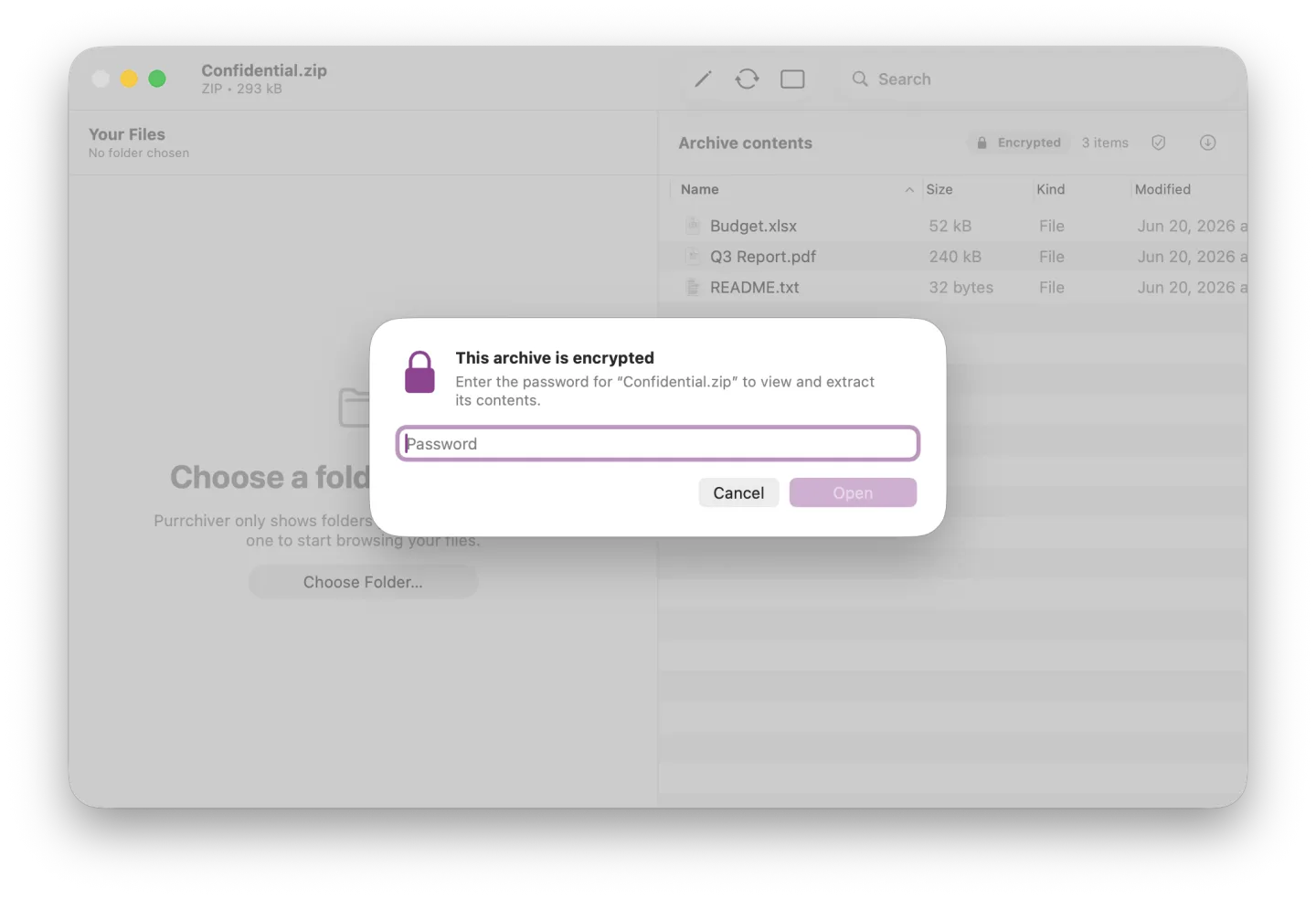
Passwords stay in memory for the open session only — Purrchiver doesn’t persist them between launches.
See Encrypted archives for password best practices.
What if Purrchiver doesn’t recognize the file?
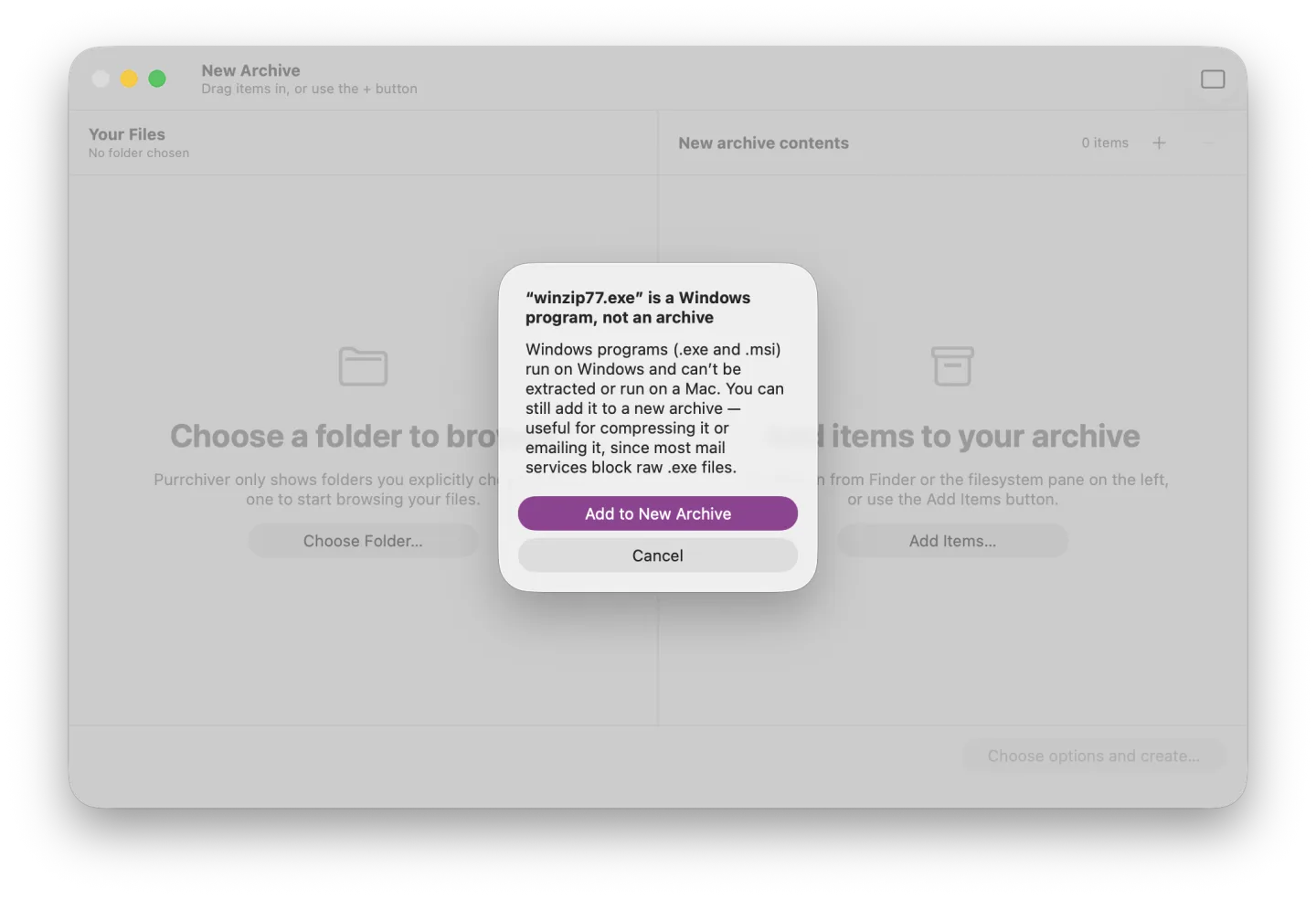
Sometimes a file with an archive-shaped name isn’t actually an archive — it
might be a Windows installer (.exe / .msi), a StuffIt X file, or a
corrupt download. Purrchiver detects each of these and gives you a specific
message — This is a Windows program, not an archive Purrchiver can open,
This is a StuffIt X (.sitx) archive, etc. — instead of a generic “extraction failed”.
See Common errors for what each one means and what to do.
Opening a disk image (.dmg)
Purrchiver opens and extracts .dmg files like any other archive — a
clean, non-mounting HFS+ parse, no Finder mount required. If the disk
image is AES-256-encrypted, Purrchiver prompts for the password
before listing its contents, the same as any encrypted archive.
What Purrchiver doesn’t open
- StuffIt X (
.sitx), password-protected StuffIt archives, and before 1.1 any StuffIt file. Purrchiver 1.1 opens.sitand.seaNew in 1.1. See StuffIt files for what to use instead. - Windows installers (
.exe/.msi) — not archives in the relevant sense. Purrchiver recognizes both and offers to add them to a new archive (handy for emailing, since most mail services block raw.exe). A self-extracting.exeis the exception: Purrchiver 1.1 opens the archive inside New in 1.1. - ACE / ARJ — proprietary and effectively unmaintained.
Format support has the complete read/write matrix.
Related
- How to open RAR files on a Mac and 7z files — the overviews, including free alternatives
Don't have Purrchiver yet? It's free on the Mac App Store.