Mac security settings to turn on (macOS 27)
Each setting below has its location on macOS 27 and, where there is one, a read-only Terminal command to check it. I ran those commands on my own Mac (an Apple silicon MacBook Pro on macOS 27.2); none of them changes anything. The setting names match the text in macOS 27.2, and the screenshots are from the same Mac.
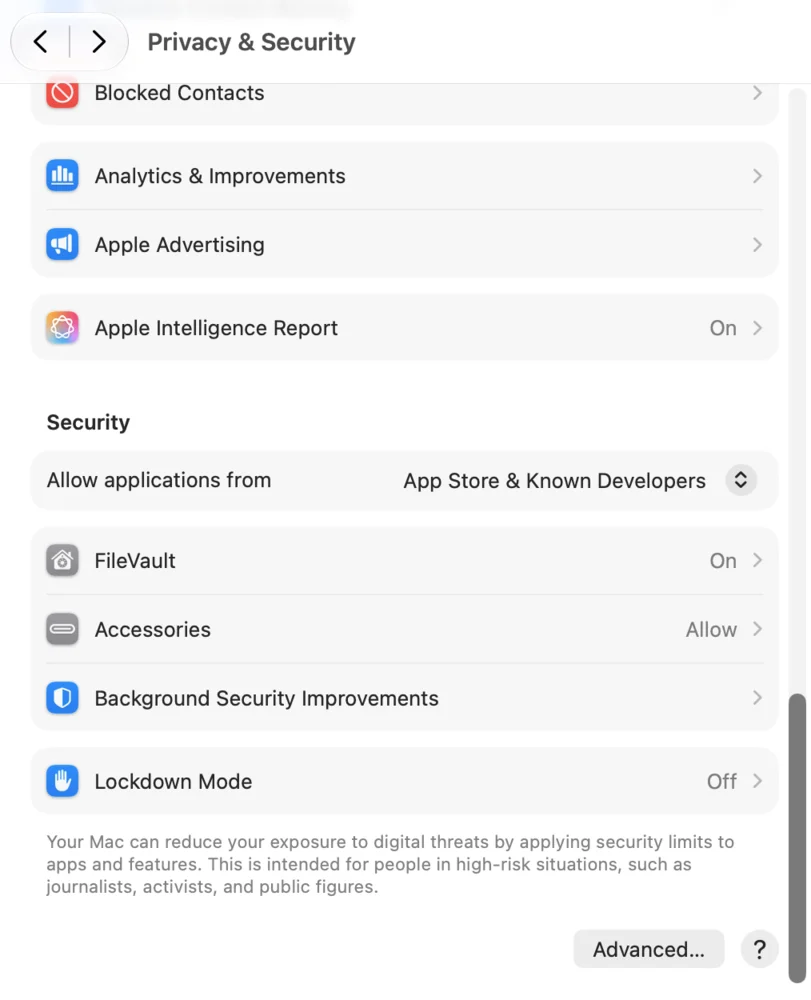
FileVault
Protects against: someone with a stolen Mac reading its disk. FileVault ties the disk’s encryption to your login password. Costs: forget your password and lose the recovery key, and Apple says your files “will be lost forever.” You also type your password at startup.
Where: System Settings > Privacy & Security > FileVault.
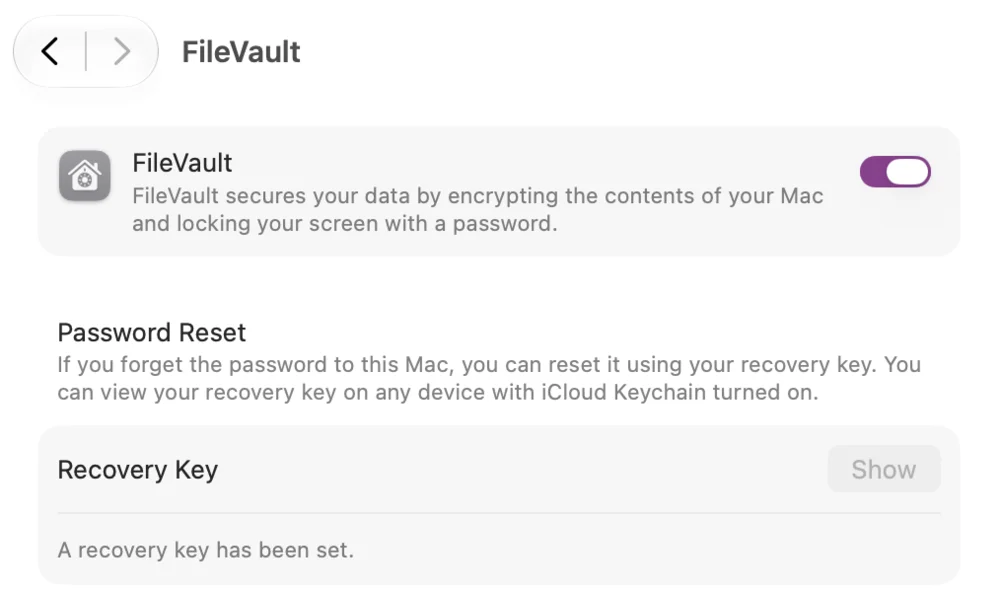
fdesetup status # FileVault is On.Apple’s Passwords guide says the FileVault recovery key can appear in the Passwords app. Wherever it’s kept, have a copy somewhere other than the Mac itself.
Automatic updates
Protects against: known security bugs, which attackers use once they’re public. Costs: occasional overnight restarts.
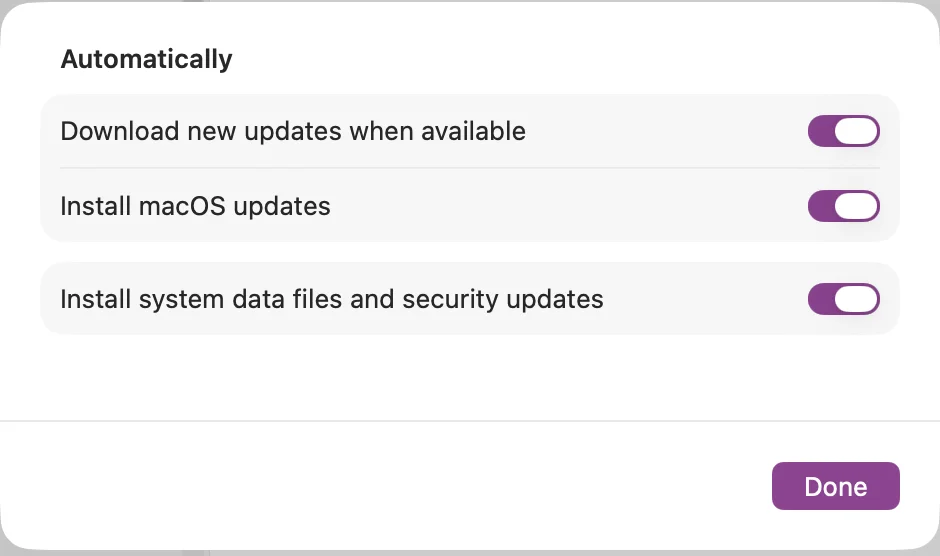
Where: System Settings > General > Software Update > the (i) next to Automatic Updates. Turn on Download new updates when available, Install macOS updates and Install system data files and security updates.
Background Security Improvements are Apple’s smaller security fixes between full updates, available since macOS 26.1. They have their own switch: System Settings > Privacy & Security > Background Security Improvements > Automatically Install.
softwareupdate --schedule # Automatic checking for updates is turned onFirewall
Protects against: unsolicited incoming connections, for example on public Wi-Fi. It filters incoming traffic only. Costs: some apps ask to accept connections.
Where: System Settings > Network > Firewall. Under Options…, Enable stealth mode stops the Mac answering probes such as ping. Avoid Block all incoming connections unless you need it; it breaks screen and file sharing.
/usr/libexec/ApplicationFirewall/socketfilterfw --getglobalstate   # Firewall is enabled. (State = 1)
/usr/libexec/ApplicationFirewall/socketfilterfw --getstealthmode # Firewall stealth mode is offGatekeeper
Protects against: malware posing as a downloaded app. Costs: an app from outside the App Store that isn’t from a known developer is blocked. Treat that block as a warning: only use Open Anyway in Privacy & Security for an app you trust, from a source you’ve checked.
Where: System Settings > Privacy & Security > Security > Allow applications from > App Store & Known Developers (or App Store for stricter).
spctl --status -v # assessments enabled / developer id enabledSystem Integrity Protection, which stops even administrator-level software
changing protected system files, has no setting to turn on; just check it’s
on with csrutil status (“enabled”).
Touch ID and the lock screen
Protects against: someone using your Mac while you’re away from it. Costs: unlocking more often; Touch ID makes that painless.
Where: System Settings > Lock Screen > Require password after screen saver begins or display is turned off > Immediately. Touch ID is in System Settings > Touch ID & Password, with Use Touch ID to unlock your Mac and, with an Apple Watch, the option to unlock with the watch.
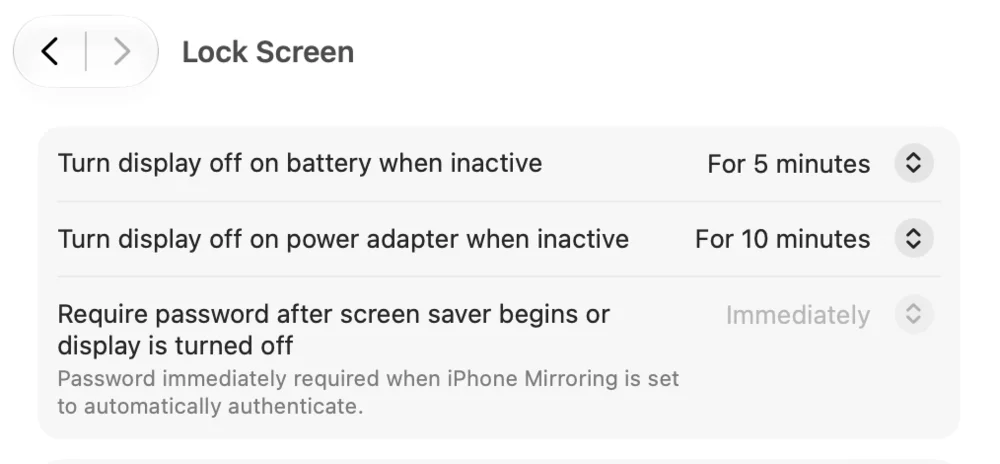
If you use iPhone Mirroring with automatic authentication, macOS sets this to Immediately and greys it out, as on my Mac above.
sysadminctl -screenLock status # screenLock delay is immediateFind My Mac and Activation Lock
Protects against: loss and theft. With Activation Lock, a stolen Mac can’t be erased and reused without your Apple Account password. Costs: turn it off before you sell or give away the Mac.
Where: System Settings > [your name] > iCloud > See All > Find My Mac.
system_profiler SPHardwareDataType | grep "Activation Lock" # Activation Lock Status: EnabledAccessories
Protects against: malicious USB, Thunderbolt or SD devices plugged into an unattended Mac laptop. Costs: an approval prompt for new accessories. Apple notes accessories still charge even if you don’t allow them.
Where (Apple silicon laptops): System Settings > Privacy & Security > Security > Allow accessories to connect > Ask for New Accessories (the default) or Ask Every Time.
Login items and background apps
Protects against: unwanted software that starts itself at login or runs in the background, a common trick of adware. Costs: turning off a helper you actually need, such as a sync app’s.
Where: System Settings > General > Login Items & Extensions. Review Open at Login and Background App Activity, and turn off anything you don’t recognize.
Also review which apps have Full Disk Access, Device Control and Data Access (Accessibility), Screen & System Audio Recording and similar permissions: the permissions guide explains each.
Lockdown Mode
Protects against: rare, sophisticated targeted attacks, such as mercenary spyware. Costs: a lot. It blocks most message attachments and link previews, some web features, FaceTime calls from unknown people, shared albums and new configuration profiles. Apple says “most people are never targeted by attacks of this nature,” so this is for people who might be.
Where: System Settings > Privacy & Security > Lockdown Mode > Turn On, then restart. macOS reminds you it has to be on all your devices for full protection. On macOS 27 you can exempt chosen contacts from the Messages limits.