"Would like to access files in your Desktop folder": Files & Folders on Mac
Your Desktop, Documents and Downloads folders, and removable and network drives, are protected on macOS: the first time an app tries to read them, macOS asks you. I set off the prompt on macOS 27.2 with a tiny test app that only tried to list the files on the Desktop.
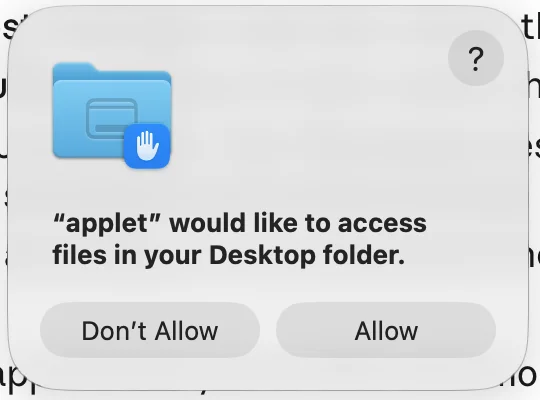
The prompt names the app. Mine said “applet” rather than the app’s name,
because it was an AppleScript app made with osacompile, which runs a
program called applet, and that’s the name macOS showed. A prompt naming something you don’t recognize
is worth a Don’t Allow.
What happens after Don’t Allow
I clicked Don’t Allow. The app’s attempt to list the Desktop failed with:
ls: /Users/…/Desktop: Operation not permittedNothing was deleted or moved; the app just couldn’t see in. macOS remembers the answer for that app, so it doesn’t normally ask again.
To change your answer later: System Settings > Privacy & Security > Files & Folders, find the app, and turn the folder on or off. An app only appears in that list after it has asked; there’s no button to add one.
Full Disk Access never asks
Some data is protected more strictly: Mail, Messages, Safari, Time Machine backups and similar. No prompt exists for it. When a program without Full Disk Access tries to read it, it simply fails. On my Mac, listing Mail’s folder from a shell that didn’t have Full Disk Access gave:
ls: /Users/…/Library/Mail: Operation not permittedTo grant it, an administrator adds the app in System Settings > Privacy & Security > Full Disk Access with the + button. Be sparing: an app with Full Disk Access can read almost everything on the Mac. That includes Terminal: give Terminal Full Disk Access and every command you run in it has it too.