I built the same Mac automation in Shortcuts, AppleScript and Automator
I built the same small job three times on macOS 27.2, once each in Shortcuts, AppleScript and Automator: take the photos I select, resize them to 1,600 pixels, and save JPEGs. All three worked on a landscape photo. On a portrait photo they gave two different answers, and when I let Shortcuts convert the Automator version, the result ran without an error and saved nothing.
Every Mac ships with all three tools, and the usual advice is to use Shortcuts and forget the rest. That’s mostly right, but it’s worth knowing where they differ. The details are in a new guide, Automate your Mac, with a page for each tool.
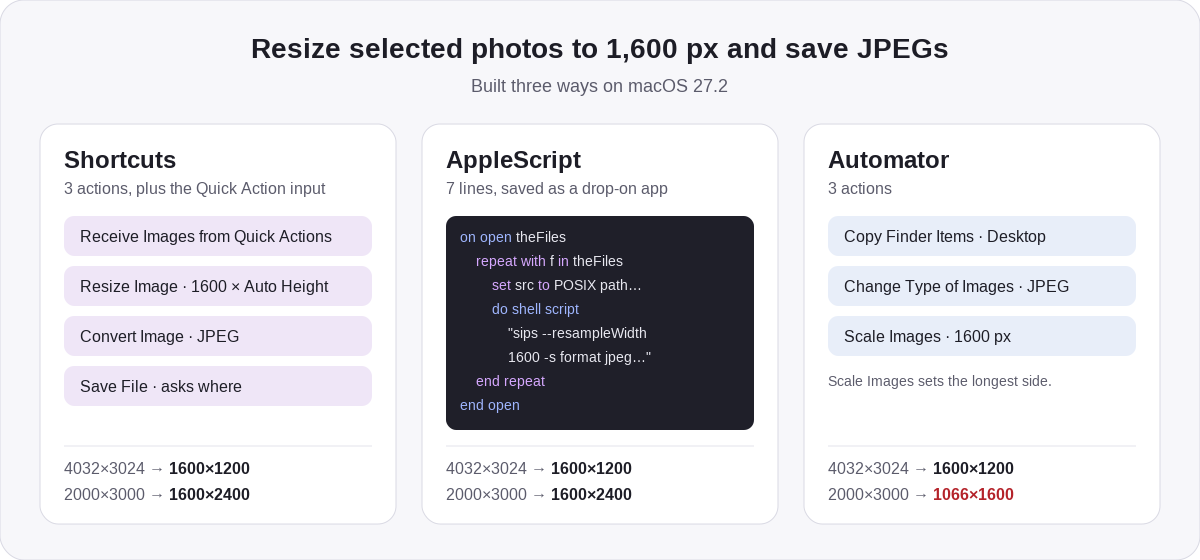
They disagreed about what 1,600 pixels means
A 4032×3024 photo came out 1600×1200 from all three. A 2000×3000 portrait photo didn’t:
| Result | |
|---|---|
| Shortcuts (Resize Image, Size 1600 × Auto Height) | 1600×2400 |
AppleScript (sips --resampleWidth 1600) | 1600×2400 |
| Automator (Scale Images, To Size 1600) | 1066×1600 |
Automator’s Scale Images sets the longest side. The other two, as I’d set
them up, set the width, so the portrait photo’s long side came out at 2,400
pixels instead of 1,600. Each can do it either way (Shortcuts has a Longest
Edge mode; sips -Z does it in the shell), but the settings you reach for
first don’t agree, and nothing warns you.
Converting Automator to Shortcuts: no error, no file
When Apple brought Shortcuts to the Mac in 2021, it described it as the start of a transition away from Automator, with Automator workflows able to come along. So I opened my Automator workflow in Shortcuts. It offered to add it, and converted all three actions: Copy Finder Items became Save File, Change Type of Images became Convert Image, and Scale Images became Resize Image by Longest Edge.
Then I ran it from Terminal. It finished without an error and saved nothing, not even the first copy. I didn’t track down why. One difference is visible in the editor: Automator changes the copied file in place, but in the shortcut the save comes first, so even if it had worked, the converted and resized image would never have been saved. A converted workflow is a starting point; test it before you delete the original.
AppleScript’s best part isn’t the script
The AppleScript version is seven lines, and saved as an app it’s a
“droplet”: drop photos on its icon and JPEGs appear next to them. But the
work is done by sips, the image tool built into macOS, called through
do shell script; the AppleScript around it is mostly plumbing. What
AppleScript does that the others can’t is drive other apps through their
scripting dictionaries: Mail, Finder, Music, and anything else that
publishes one. Shortcuts and Automator get that same reach by running an
AppleScript, with their Run AppleScript actions.
Look in Services, not Quick Actions
Both the Shortcuts and Automator versions were set up as Finder Quick Actions. Neither appeared in Finder’s right-click Quick Actions menu right away. Both were in Finder > Services in the menu bar, the Automator one under Pictures and the shortcut under Shortcuts. The right-click menu has a Customize… item at the bottom; I didn’t try it.
Which I’d use
Shortcuts for anything new. It’s the one Apple keeps adding to, shortcuts can run on iPhone and iPad too, and on macOS 26 and later a shortcut can run on its own when a folder changes or at a time of day, which I’ve written up for archiving a folder. AppleScript inside a Run AppleScript action when an app needs to be driven in detail. Automator for the workflows I already have; if I convert one, I test the shortcut before deleting the workflow.
The guide walks through each tool with screenshots, including how to read an app’s scripting dictionary, which is easy to miss if you only ever open Script Editor to type.
Which of your Mac chores would you automate first, now that you know which tool to reach for?