Automate your Mac: Shortcuts, AppleScript or Automator
The Mac has three built-in ways to automate: Shortcuts, AppleScript and Automator. What each is good for, tested on macOS 27 with the same task.
Every Mac comes with three ways to automate things: Shortcuts, AppleScript and Automator. Use Shortcuts for anything new: it’s the one Apple is building on, it runs from the menu bar, Finder, Spotlight and Terminal, and it works on iPhone and iPad too. Use AppleScript when you need to control another app in detail, or want plain text you can keep in Git. Keep Automator for workflows you already have; when Apple brought Shortcuts to the Mac in 2021, it described it as the start of a transition away from Automator.
All three are still on the Mac. I tested them on macOS 27.2, where Shortcuts is version 10.0, Script Editor (AppleScript’s editor) 2.11 and Automator 2.10, by building the same small job in each: resize the selected photos to 1,600 pixels and save them as JPEGs. I wrote the AppleScript in Script Editor; the Shortcuts and Automator versions I made as files, opened in each app and ran from Finder and Terminal, so the steps in this guide name each app’s own labels for the same actions.
At a glance
| Shortcuts | AppleScript | Automator | |
|---|---|---|---|
| What it is | Drag-and-drop actions, in a list | A scripting language | Drag-and-drop actions, in a list |
| Where you build it | Shortcuts app | Script Editor (in Utilities) | Automator app |
| Runs on | Mac, iPhone and iPad | Mac | Mac |
| Run it from | Finder, Terminal (shortcuts run); also the menu bar, Spotlight or a keyboard shortcut | Script Editor, as an app, Terminal (osascript), Shortcuts | Finder (Quick Action), as an app, Terminal (automator) |
| Controls other apps | Through actions apps provide | Deeply, through each app’s scripting dictionary | Through its built-in actions |
| Can run the others | Has Run AppleScript and Run Shell Script actions, once Allow Running Scripts is on | Runs shell commands with do shell script, including shortcuts run | Has Run AppleScript and Run Shell Script actions |
| Status | Where Apple is adding features | Still ships | Still ships; Apple described Shortcuts in 2021 as the start of a transition away from it |
The same job, three ways
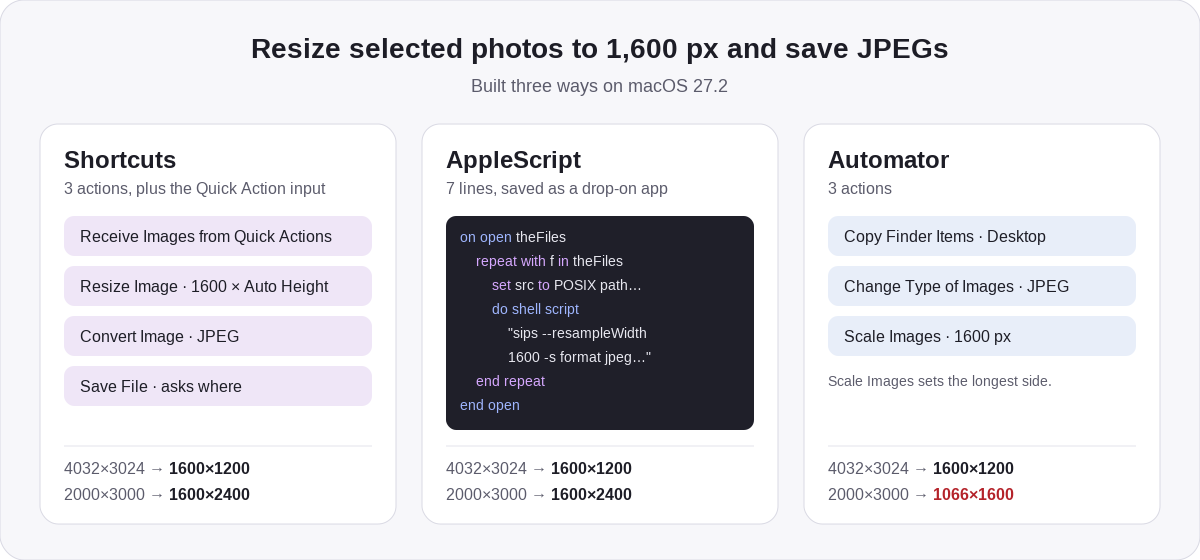
Each one took a photo, made a 1,600-pixel JPEG, and left the original alone:
| Shortcuts | AppleScript | Automator | |
|---|---|---|---|
| Steps | 3 actions, plus the Quick Action’s Receive step | 7 lines | 3 actions |
| A 4032×3024 photo became | 1600×1200 | 1600×1200 | 1600×1200 |
| A 2000×3000 portrait photo became | 1600×2400 | 1600×2400 | 1066×1600 |
| Where the JPEG goes | Wherever you choose when it asks | Next to the original | A folder set in the workflow (the Desktop by default) |
The portrait row is the kind of difference that bites. Automator’s Scale Images action sets the longest side to 1,600 pixels; the Shortcuts and AppleScript versions I built set the width, so a tall photo came out 2,400 pixels tall. Both can do either; it’s a setting worth checking.
The pages in this guide build each version step by step:
- Shortcuts: the basics, and the resize shortcut as a Finder Quick Action.
- Automations: run a shortcut on its own when an app opens, a folder changes or at a set time.
- AppleScript: Script Editor, a first script, scripting dictionaries, and a drag-and-drop app.
- Automator: the document types, a Quick Action, and moving a workflow to Shortcuts.
Which one should you use?
- Something new, or something you want on your iPhone too: Shortcuts.
- Controlling an app in detail (Mail, Finder, Music, Pages, or any app with a scripting dictionary), or text you want to version and diff: AppleScript, often called from a shortcut with Run AppleScript (after turning on Allow Running Scripts in Shortcuts’ settings).
- A workflow you already have in Automator: keep running it. You can open it in Shortcuts to convert it, but test the result; mine converted and ran without an error, and saved nothing.
- Run something when files land in a folder: on macOS 26 and later, a Shortcuts Folder trigger; see Automations. Automator’s older Folder Actions do it too; I didn’t test those for this guide.
If you’re comfortable in Terminal, all three run from it, so you can mix
them with shell scripts: shortcuts run, osascript and automator.