Free App Store screenshot templates for Pixelmator Pro
Blank Pixelmator Pro templates for iPhone, iPhone Duo, iPad, Mac and Apple Watch screenshots, with export slices at Apple's exact sizes. CC0.
These are free, blank Pixelmator Pro documents for making App Store screenshots. Each one has nine panels side by side, with an export slice over each panel at exactly the size Apple accepts, so you can design the set on one canvas and export nine separate images.
The templates are free to use under
CC0: no credit needed.
Pixelmator Pro itself is a paid app. These are .pxd files, saved and tested in
Pixelmator Pro 3.8 on macOS 27.2; I haven’t tried older versions, Pixelmator Pro
on iPad, or other apps.
Downloads
Every size comes from Apple’s screenshot specifications, checked on November 2, 2026. Apple changes these as new devices ship, so check that page before you start a set.
| Template | Each image | When you need it |
|---|---|---|
| iPhone with Dynamic Island, medium display | 1206 × 2622 | Required for an iPhone app |
| iPhone with Dynamic Island, large display | 1320 × 2868 | Make this too: see What Apple’s page doesn’t make clear |
| iPhone Duo, outer display | 1398 × 2034 | See iPhone Duo |
| iPhone Duo, inner display | 2007 × 2853 | See iPhone Duo |
| iPad, 13-inch | 2064 × 2752 | Required if the app runs on iPad |
| Mac | 2880 × 1800 | Required for a Mac app |
| Apple Watch Ultra 4 and 3 | 422 × 514 | Required for a Watch app: pick one Watch size |
| Apple Watch Series 12, 11 and 10 | 416 × 496 | Required for a Watch app: pick one Watch size |
Each file is about 120 KB. Apple lists more than one accepted size for some displays, and for older devices; these are the ones I made templates for. Every template is portrait, except the Mac. Apple also accepts landscape for iPhone and iPad, but there are no landscape templates here, and none for Apple TV or Apple Vision Pro.
Apple takes at least one and up to 10 screenshots per device size, so nine panels is within the limit. For Apple Watch, Apple says you must use the same size across all of an app’s localizations.
What’s in a template
Each file has an empty group for each panel, named Panel 1 to Panel 9, and a Background group below them, with ruler guides on the panel edges. There’s no artwork, text or device frame in any of them.
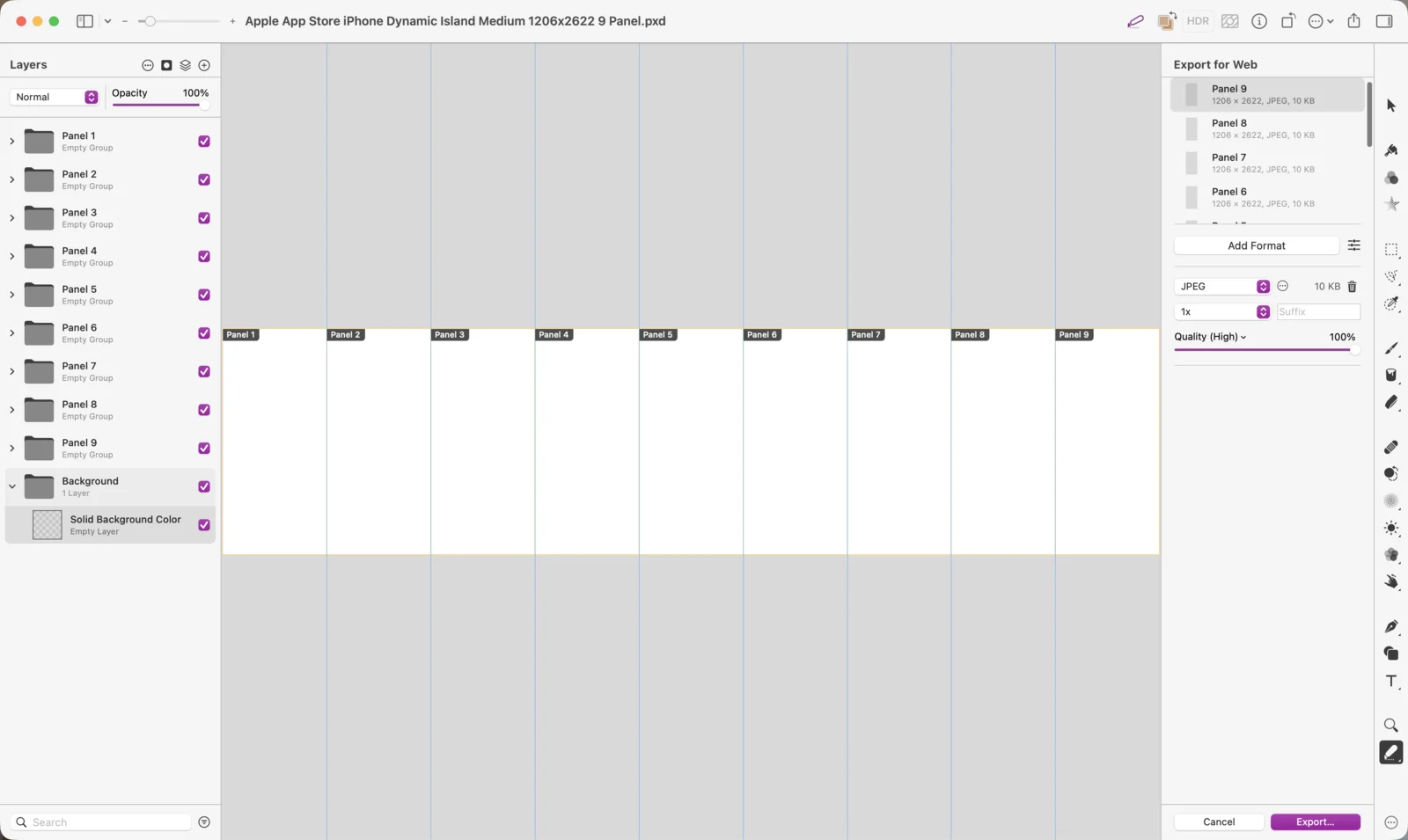
The Background group holds one empty image layer, called Solid Background Color, for a flat background color. Leave it in place.
How to use one
- Open the template in Pixelmator Pro.
- Put your background in the Background group. Art that runs across the whole canvas crosses the panel edges, so the panels look like one set when they sit side by side.
- Put each panel’s captions and captures in its Panel group. For device frames, use Apple’s own from Apple Design Resources. CC0 doesn’t cover those, and Apple’s marketing guidelines apply to them.
- Choose File ▸ Export for Web…. The sidebar lists every slice with its size.
- Click Export… and choose a folder. You get one image per slice, named Panel 1 to Panel 9.
The slices are set to JPEG at 100% quality. App Store Connect also takes PNG, but it doesn’t accept images with transparency, and a JPEG can’t have any.
Using fewer than nine panels? Every slice still exports, so the empty panels come out as blank images. Don’t upload those.
I ran a real export through all eight templates, and every image came out at the size in the table. After that I only moved the ruler guides on seven of them. That tests the size, not acceptance: I haven’t uploaded these blank images to App Store Connect.
iPhone Duo
iPhone Duo has two sets of sizes, one for each display. Apple’s page says screenshots will be required “Starting in April 2027” for “any app using the iOS 27.1 SDK or later”, and that submitting them puts a badge on your product page saying the app is optimized for iPhone Duo.
Apple’s page doesn’t say whether you need both displays or just one. Check App Store Connect when you prepare your app.
What Apple’s page doesn’t make clear
Apple’s list of required sizes names only the medium Dynamic Island display. But its table also says iPhone with Face ID (large display) is “Required if app runs on iPhone and screenshots for iPhone with Dynamic Island (large display) aren’t provided”. Those don’t fully agree, and I haven’t tested how App Store Connect applies them. To be safe, make both a medium and a large set, and check App Store Connect before you submit.