See what Apple Intelligence sent from your Mac
macOS can keep a log of the Apple Intelligence requests your Mac sends off the device: the Apple Intelligence Report. It’s the most direct way to find out whether a feature you just used stayed on your Mac.
The Apple Intelligence Report
According to Apple’s Mac User Guide and the text in macOS 27.2:
- Where: System Settings > Privacy & Security > Apple Intelligence Report. macOS’s own text says opening it asks you to authenticate.
- How long: Report Duration is off, the last 15 minutes (Apple’s default) or the last 7 days.
- What’s in it: requests your Mac sent to Private Cloud Compute, and, per Apple’s privacy page (which calls it the “Apple Intelligence & PCC Report”), requests to Apple Intelligence Extensions for features such as Siri and Image Playground.
- Export: Export Activity saves the log as
Apple_Intelligence_Report.json.
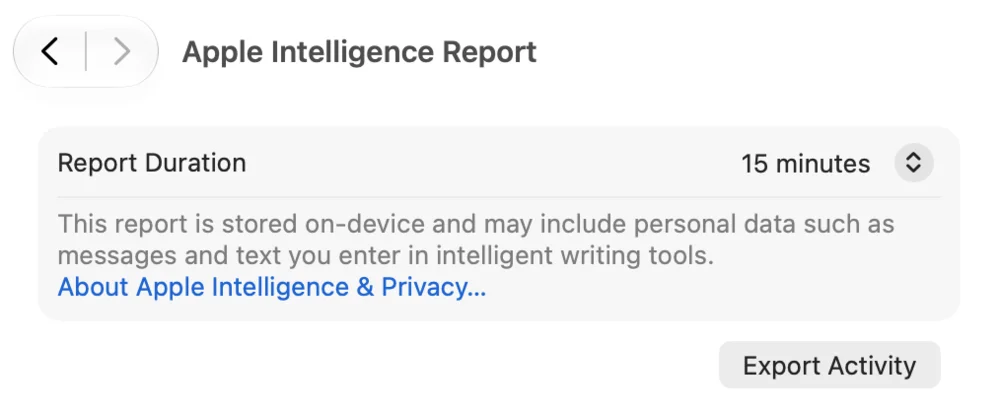
Treat the export as private. macOS says the report “may include personal data such as messages and text you enter” in writing tools. That’s different from what Apple keeps on its side, which Apple describes as metadata only. The report lives on your Mac, and turning it off stops macOS storing new activity and deletes what’s there.
Check one feature
A method to find out whether a feature leaves your Mac (I haven’t run it for this guide):
- Set Report Duration to the last 15 minutes.
- Use one feature, once: rewrite a paragraph with Writing Tools, say, or run a shortcut with Use Model set to On-Device.
- Open the report and look for a new entry, or export it and look in the file.
No new entry means that request didn’t go to Private Cloud Compute or an extension. Apple notes the report can be empty if nothing was sent, and that it can miss requests in some situations, so repeat the test before you rely on it.
Other ways to watch, without installing anything
Turn off the network (Wi-Fi off, cable out) and try the feature. macOS has messages for this: Photos Clean Up says it “will be limited to Fast edits until the connection resumes”, and Photos has an “Internet Connection Required” error for its generative edits.
Activity Monitor > Network shows how much each process sends and receives. Private Cloud Compute requests are handled by a background process called
privatecloudcomputed; watch its numbers while you use a feature.nettopin Terminal shows the same thing live (it shortens long process names, so look forprivatecloudcom…):nettop -P -J bytes_in,bytes_out
I haven’t run these checks; they’re ways to answer the question on your own Mac.