Mac command-line tools for files and images
These tools work on files you already have: photos, documents, folders and downloads. All of them ship with macOS. I ran every example on macOS 27.2; the output shown is what came back, trimmed.
sips: resize and convert images
sips reads and writes images: resize, convert between formats, rotate, and
read details like size and color profile.
# What size and format is it?
sips -g pixelWidth -g pixelHeight -g format photo.png

# Fit inside 1600 pixels on the longest side, as a JPEG
sips -Z 1600 photo.heic -s format jpeg --out photo.jpg

# Set the width to 300 and keep the proportions
sips --resampleWidth 300 photo.png --out photo-300.png

# Thumbnails of many files into a folder
mkdir -p thumbs && sips -Z 150 *.jpg --out thumbs/Traps I hit:
- Without
--out,sipschanges the original. Convertingphoto.pngto JPEG without--outleft JPEG data in a file still named.png. -Zenlarges small images too. A 1200-pixel photo with-Z 1600came out 1600 pixels. There’s no shrink-only option; check the size first.-z(lowercase) is height, then width, and stretches the image. Use-Zor--resampleWidthto keep proportions.- It can’t write WebP. Asked to, it stopped with “Can’t write format:
org.webmproject.webp”.
sips --formatslists what it can read and write; HEIC, JPEG, PNG, TIFF and PDF are writable. -s formatOptions 70sets JPEG quality (0–100).
textutil: convert documents
textutil converts between plain text, RTF, HTML, Word (.doc, .docx) and
OpenDocument (.odt), with no Word installed.
textutil -convert docx notes.rtf -output notes.docx
textutil -convert txt report.docx -output report.txt
textutil -stdout -convert txt page.html      # strip HTML to plain text
textutil -cat txt a.txt b.rtf -output combined.txtWithout -output, it writes next to the original with the new extension,
and replaces an existing file of that name without asking. It can’t make
PDFs (“Invalid output format.”), and given a PDF it just copies out the raw
file rather than its text.
ditto: copy and zip the way Finder does
ditto copies folders and makes zip files that keep Mac metadata, which is
what Finder’s Compress does.
# Like Finder's Compress: keeps metadata in a __MACOSX folder
ditto -c -k --sequesterRsrc --keepParent Project Project.zip

# A clean zip for someone on Windows or Linux
ditto -c -k --norsrc --noextattr --keepParent Project Project-clean.zip

# Unzip, restoring the metadata
ditto -x -k Project.zip UnzippedWithout --keepParent, the zip has no top folder. When I unzipped a ditto
zip with unzip instead, the extended attributes (Finder tags and the like)
were lost and a stray __MACOSX folder was left behind; ditto -x -k
restored them.
aa and aea: Apple Archive and encrypted archives
aa makes Apple Archive (.aar) files, Apple’s own compressed format, and
aea encrypts them.
aa archive -D Project -o Project.aar      # -D keeps the folder name; -d doesn't
aa list -i Project.aar
aa extract -i Project.aar -d RestoredTo encrypt with a password file:
(umask 077; aea encrypt -profile 5 -password-gen -password project.pw -i Project.aar -o Project.aea)
aea decrypt -password project.pw -i Project.aea -o Project.aarWithout the umask 077, the password file was created readable by other
users of the Mac. Avoid putting a password on the command line itself, where
it ends up in your shell history. A wrong key fails with “Failed to unlock
container”, and leaves an empty output file behind. Windows and Linux can’t
open .aar or .aea files, so use these for your own backups, not for
sharing. aea -h lists the options.
qlmanage: thumbnails of anything Quick Look can show
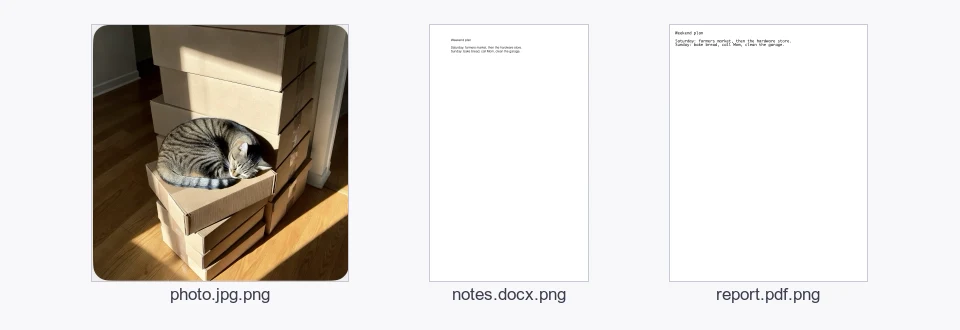
mkdir -p thumbs && qlmanage -t -s 256 -o thumbs photo.jpg notes.docx report.pdfThis made a 256-pixel PNG thumbnail of each file, including the Word
document and the PDF, named photo.jpg.png and so on. It prints a few
lines of progress; add >/dev/null in scripts.
shasum: check a download
When a site publishes a SHA-256 checksum for a download, check it:
shasum -a 256 Installer.dmg                 # print the checksum to compare
shasum -a 256 -c Installer.dmg.sha256 # or check against a .sha256 fileA match prints Installer.dmg: OK; a mismatch prints FAILED and a warning.
-c reads lines in the form hash filename. If the site only gives you the
hash, check it like this:
echo "<published hash> Installer.dmg" | shasum -a 256 -cAlways pass -a 256: plain shasum uses the older SHA-1. sha256sum also
ships with macOS 27 and works the same way.
xattr: see a file’s extended attributes
macOS attaches extra data to files, such as where a download came from.
ls -l@ lists it, and xattr shows the names:
ls -l@ Installer.dmg
xattr Installer.dmg
xattr -p com.apple.quarantine Installer.dmgcom.apple.quarantine is the flag that makes macOS check a downloaded app
before it first opens. Leave it alone: if a downloaded app won’t open, check
where it came from and use Open Anyway in System Settings > Privacy &
Security, rather than removing the flag. xattr -p reports “No such xattr”
on a file that doesn’t have that attribute, such as one you made yourself.
Related
- Everyday tools
- System information
- Automate your Mac, where the AppleScript page
uses
sipsto resize photos