Apple Archive vs ZIP, tar, DMG, 7z and age on a Mac
Apple Archive was the fastest format I tested and keeps as much Mac
metadata as tar, and almost nothing outside Apple’s own tools can open it. Here’s how it compares with
the formats macOS handles out of the box, and with the ones you can add.
All numbers are from one MacBook Pro with M2 Pro on macOS 27.2, making and extracting a folder of source code and documentation: 4,444 text files, 73.6 MB. Times are the median of three runs. Text compresses well; photos and videos barely compress in any format.
Archive formats
| Format | Built into macOS | Size | Time to make | Time to extract | Keeps Mac metadata | Opens on Windows and Linux |
|---|---|---|---|---|---|---|
Apple Archive (aa, lzfse) | Yes | 4.3 MB | 0.39 s | 0.27 s | All | No |
Apple Archive (aa -a lzma) | Yes | 3.2 MB | 1.57 s | 0.30 s | All | No |
ZIP from Finder (ditto -c -k) | Yes | 7.9 MB | 2.17 s | 3.17 s | Most, on a Mac only | Yes |
ZIP from zip -r | Yes | 6.3 MB | 0.74 s | 0.81 s | No | Yes |
.tar.gz | Yes | 5.0 MB | 2.39 s | 1.64 s | Yes, between Macs | Yes |
.tar.xz | Yes | 3.2 MB | 7.55 s | 1.96 s | Yes, between Macs | Yes |
.cpgz (ditto -c -z) | Yes | 4.7 MB | 2.10 s | 2.86 s | Most | Not tested |
Disk image (diskutil image, ULFO) | Yes | 4.9 MB | 2.26 s | mount | Most | With 7-Zip |
7z (7zz, Homebrew) | No | 3.1 MB | 2.89 s | 0.58 s | No | Yes, with 7-Zip |
“Keeps Mac metadata” is extended attributes, Finder tags, ACLs, file flags
and hard links; Make and open
has the detail. A disk image isn’t extracted, it’s mounted, so I timed only
making it. I made the Finder-style ZIP with ditto -c -k --sequesterRsrc --keepParent, which writes Mac metadata into a __MACOSX folder; I didn’t
time Finder’s own Compress command.
What stands out: Apple Archive made a smaller file than ZIP or .tar.gz
in a fraction of the time. It uses all the Mac’s cores, but it’s quick
even without them: on one thread it took 1.1 seconds, against 2.4 for
.tar.gz. .tar.xz and 7z made
the smallest files but took several times longer. ZIP is the one to send to
anyone else.
On macOS 27.2, hdiutil create still works but prints a warning that it’s
deprecated, and points to diskutil image create. I used the new command.
Encrypted formats
| Format | Built into macOS | Size | Time to make | Hides file names | Opens on Windows and Linux |
|---|---|---|---|---|---|
Apple Encrypted Archive (aa -password) | Yes | 4.5 MB | 0.64 s | Yes | No |
Encrypted disk image (diskutil image create from --encrypt) | Yes | 5.0 MB | 2.32 s | Yes | No |
ZIP with zip -e (ZipCrypto) | Yes | 6.5 MB | 0.88 s | No | Yes |
| AES-256 ZIP (7-Zip) | No | 6.4 MB | 0.53 s | No | Yes, but not with macOS’s own tools |
7z with AES-256 (7zz -p -mhe=on) | No | 3.1 MB | 3.38 s | Yes | Yes, with 7-Zip |
.tar.gz + GnuPG (gpg -c) | No | 5.0 MB | 2.90 s | Yes | Yes, with GnuPG |
.tar.gz + age | No | 5.0 MB | 2.47 s | Yes | Yes, with age |
RAR with rar -hp | No | 5.8 MB | 3.35 s | Yes | Yes, with WinRAR |
I decrypted the Apple Encrypted Archive, the disk image, the GnuPG file and the age file, and each came back identical to the original. Some things worth knowing:
zip -eis weak. It uses ZipCrypto, the original ZIP encryption, which has known attacks. The file names stay readable to anyone.- macOS can’t open an AES-256 ZIP. On macOS 27.2,
unzipsaid “need PK compat. v5.1” anddittosaid “Unknown compression type”. See Can’t open a password-protected ZIP. - An encrypted disk image is the other built-in choice. Any Mac opens it
with a double-click, and it keeps Mac metadata. It took over three times
as long to make as the
.aea, and came out a little bigger. - age and GnuPG encrypt one file, so you make a
.tar.gzfirst and encrypt that. Both can encrypt to public keys, like an.aea, and both run on Windows and Linux. I installed age from Homebrew (brew install age). - 7z is the choice for sending an encrypted archive to Windows users: 7-Zip is free there. 7-Zip 26.05 couldn’t decrypt the RAR that RAR 7.23 made (“Unsupported Method”), so a RAR needs WinRAR.
- 7-Zip opened the unencrypted disk image, but not the encrypted one.
Which to use
- Your own backups, between Macs: Apple Archive, or Apple Encrypted Archive with a password or key file. Fast, and nothing about your files is lost.
- Something a Mac user should open with a double-click: an encrypted
disk image, or an
.aeawith a password. - Anyone on Windows or Linux: a plain ZIP, or 7z with a password if it needs encrypting.
- Encrypting to someone’s public key across platforms: age.
With Purrchiver
Purrchiver, the Mac archive app I make, opens and
makes Apple Archive and Apple Encrypted Archive files next to ZIP, 7z, tar
and the rest, and opens RAR. It uses Apple’s own Apple Archive framework, so
its files open with aa and Archive Utility, and the other way round.
Opening .aar and .aea files and making .aar files is free; making an
encrypted .aea is part of its one-time unlock. It opens .aea files that
use a password, not a key.
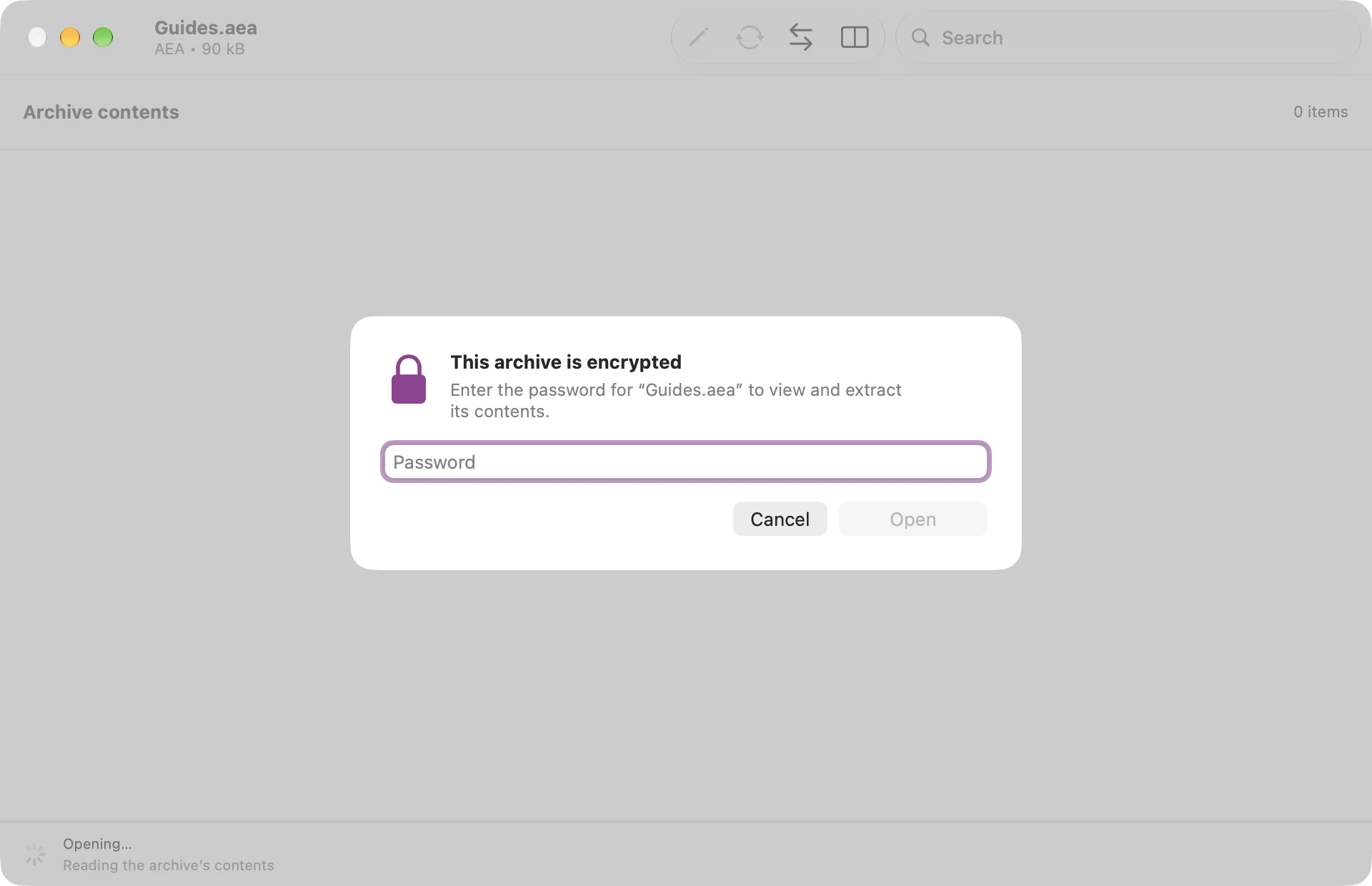
See What is an .aea file? for more.