Encrypt files with Apple Encrypted Archive (.aea) on a Mac
An Apple Encrypted Archive (.aea) is an Apple Archive with encryption. The
file names are encrypted too: nothing in the file says what’s inside until
it’s opened. macOS can make one four ways:
| Mode | You open it with | Good for |
|---|---|---|
| Password | The password | Your own backups, or sharing with someone you can give a password to |
| Key file | A random 256-bit key in a file | Scripts and automated backups |
| Public key | The recipient’s private key | Sending to someone without sharing a secret |
| Public key + signature | The recipient’s private key and the sender’s public key | Proving who made it |
Archive Utility does the password mode. Terminal’s aa command does all
four.
With a password, in Archive Utility
- In Archive Utility ▸ Settings, set Use archive format to Apple Encrypted Archive.
- Choose File ▸ Create Archive…, select the folder and click Archive.
- Archive Utility fills in a random password for you: six groups of five digits. You can type your own instead.
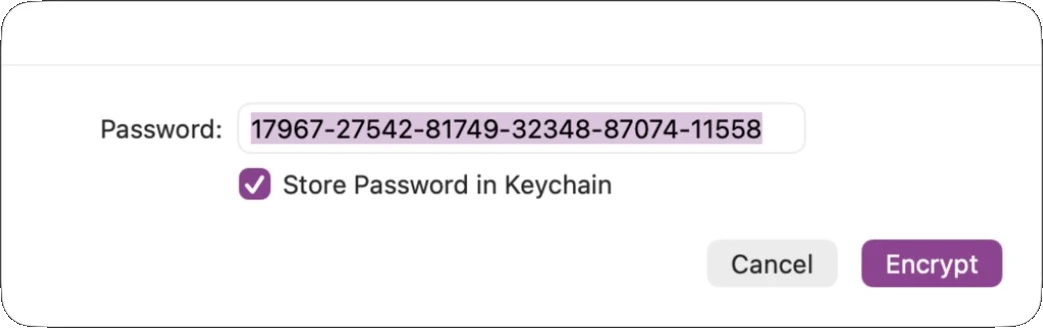
Store Password in Keychain is ticked by default. Leave it ticked and the Mac remembers the password; untick it and the only copy is the one you write down. Either way, copy the password somewhere safe before you click Encrypt: there’s no way to recover it.
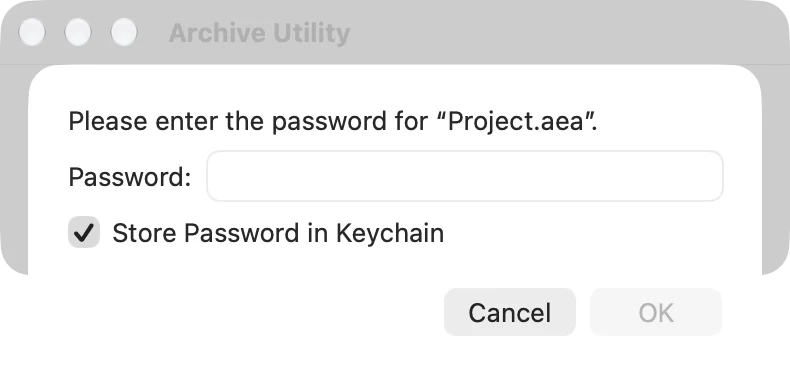
To open the .aea, double-click it. Archive Utility asks for the password,
again offering to store it in the Keychain.
With a password, in Terminal
aa can make the password for you and save it to a file. The umask 077
makes that file readable only by you:
(umask 077; aa archive -D ~/Projects/Site -o ~/Desktop/Site.aea -password-gen -password ~/Desktop/Site.password)
mkdir -p ~/Desktop/Restored
aa extract -i ~/Desktop/Site.aea -d ~/Desktop/Restored -password ~/Desktop/Site.passwordKeep the password file somewhere other than next to the archive. To type a password of your own without it landing in your shell history:
read -s "P?Password: "
aa archive -D ~/Projects/Site -o ~/Desktop/Site.aea -password-value "$P"The password is still visible to other processes on the Mac while aa
runs; for anything sensitive, use a password file.
That read -s "P?…" form is for zsh, the Mac’s default shell.
The password needs at least 20 bytes. For plain English letters,
digits and punctuation, that’s 20 characters. On macOS 27.2, 19 failed with
“Password is too short”, whatever they were, and 20 worked; the most it
takes is 256 bytes. Apple doesn’t document these limits. macOS 14.8.9,
15.8.2 and 26.6.2 gave the same results, and each opened a 20-character
.aea made on 27.2. A passphrase of four or
five random words gets there easily. Purrchiver asks for the same 20 to 256
when it makes an .aea, and opens one with any password aa accepts.
A failed command still leaves an empty .aea file behind, so delete it
before trying again.
With a key file
A key file holds a random 256-bit key instead of a password. It’s the mode for scripts:
(umask 077; aa archive -D ~/Projects/Site -o ~/Desktop/Site.aea -key-gen -key ~/Desktop/Site.key)
mkdir -p ~/Desktop/Restored
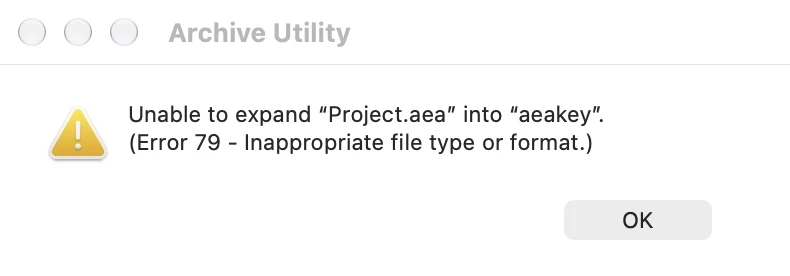
aa extract -i ~/Desktop/Site.aea -d ~/Desktop/Restored -key ~/Desktop/Site.keyThe key file is one line of text starting hex:. Archive Utility can’t open
a key-encrypted .aea: double-clicking one gave “Error 79 - Inappropriate
file type or format”.
With a public key
With a public key, you encrypt to someone, and only their private key opens it. Nobody has to share a password or key first.
macOS has no command that writes keys in the form aa reads, but a few
lines of Swift do.
They use Apple’s CryptoKit and need the Command Line Tools (xcode-select --install). Save this as aea-keys.swift:
import CryptoKit
import Foundation

func save(_ data: Data, _ name: String) {
    FileManager.default.createFile(atPath: name,
        contents: Data(("base64:" + data.base64EncodedString()).utf8),
        attributes: [.posixPermissions: 0o600])
}

let recipient = P256.KeyAgreement.PrivateKey()
save(recipient.x963Representation, "recipient.priv")
save(recipient.publicKey.x963Representation, "recipient.pub")

let sender = P256.Signing.PrivateKey()
save(sender.x963Representation, "sender.priv")
save(sender.publicKey.x963Representation, "sender.pub")Run it in an empty folder with swift aea-keys.swift. It writes four files
into that folder; run the commands below from the same folder, or give the
full path to each key.
The base64: at the start of each matters: aa rejected the same keys
saved as raw bytes (“Error parsing public key file”).
To encrypt to the recipient, and to open it as the recipient:
aa archive -D ~/Projects/Site -o ~/Desktop/Site.aea -recipient-pub recipient.pub
mkdir -p ~/Desktop/Restored
aa extract -i ~/Desktop/Site.aea -d ~/Desktop/Restored -recipient-priv recipient.privTo sign it as well, add the sender’s private key when you make it. The recipient then needs the sender’s public key to open it, and it won’t open with any other:
aa archive -D ~/Projects/Site -o ~/Desktop/Site.aea -recipient-pub recipient.pub -sign-priv sender.priv
aa extract -i ~/Desktop/Site.aea -d ~/Desktop/Restored -recipient-priv recipient.priv -sign-pub sender.pubWhen it won’t open
Every wrong credential I tried failed with “unlock container” and nothing extracted: a wrong password, a wrong key, the wrong private key, a missing signer key, and the wrong signer key. For a wrong password, key or private key, that’s all it says; the signer errors add a line or two more.
aa handles the encryption itself. The separate aea command encrypts any
single file, and has a few more options, such as -profile, sign and
id; run aea with no arguments for the list.