Apple Archive and Apple Encrypted Archive on a Mac
What .aar and .aea files are, how to make and open them with tools built into macOS, and how they compare with ZIP, tar, DMG, 7z and age.
Apple Archive (.aar) is Apple’s own archive format, and Apple
Encrypted Archive (.aea) is the same thing wrapped so it can be
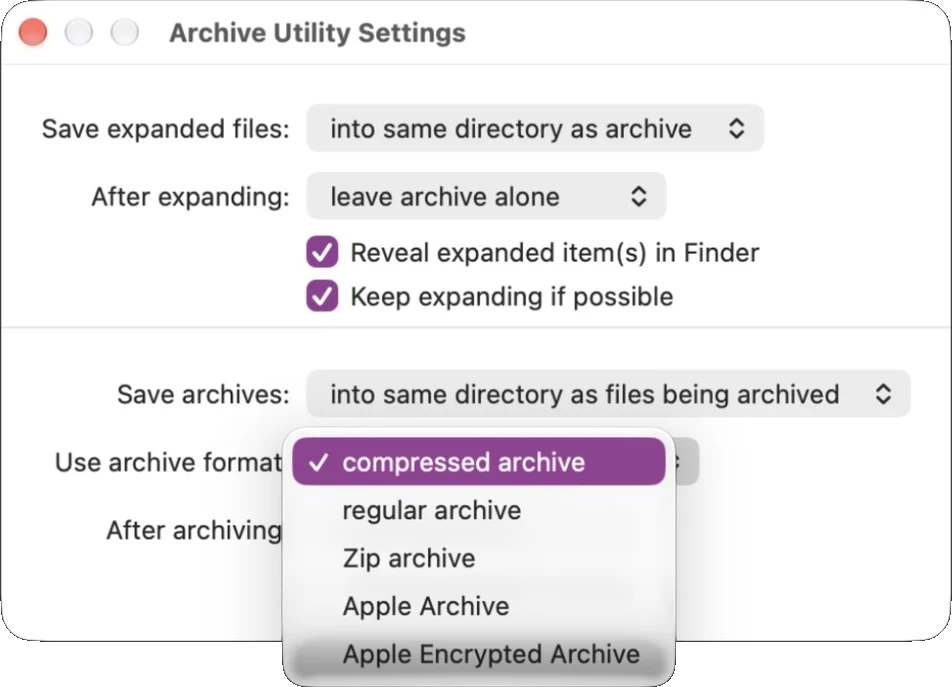
encrypted, signed, or both. Both are built into macOS: Archive Utility can
make and open them, and Terminal has two commands for them, aa and aea.
Apple added Apple Archive in macOS 11 and the encrypted version in macOS 12.
Starting with Xcode 27.3, Apple also ships Xcode as an .aea. That one is
signed, not encrypted, so there’s no password: see Install Xcode from an
.aea file.
I tested everything in this guide on a MacBook Pro with M2 Pro running macOS 27.2. In short:
- It’s fast. On a folder of source code, Apple Archive made a smaller
file than ZIP or
.tar.gz, in a fraction of the time. It uses all the Mac’s cores. - It keeps everything a Mac file has: extended attributes, Finder tags, permissions lists (ACLs), file flags, hard links and symbolic links.
- It encrypts four ways: with a password, a key file, a public key, or a public key plus a signature.
- It only works on Apple devices. Windows and Linux can’t open
.aaror.aeafiles, and neither can 7-Zip or The Unarchiver.
So it’s a good format for your own backups and for moving folders between Macs, and the wrong one for sending files to anyone not on a Mac.
In this guide
- Make and open Apple Archives:
Archive Utility, the
aacommand, compression choices measured, and what each format keeps. - Encrypt with Apple Encrypted Archive: passwords, key files, public keys and signatures.
- Install Xcode from an .aea file:
Xcode’s new download format, the
archiveutilcommand, and what changes in install scripts. - Apple Archive vs ZIP, tar, DMG, 7z and age: size, speed, encryption and who can open each, side by side.
The aa and aea commands also have a short section in Mac command-line
tools.