AppleScript on the Mac: the basics
AppleScript is a scripting language built into macOS, written in something close to English. Its strength is controlling other apps: most Apple apps and many others publish a scripting dictionary, a list of the commands and objects a script can use, so a script can file Mail messages, rename files in Finder or build a playlist in Music. You write AppleScript in Script Editor, which is in Applications > Utilities.
This page writes a script that resizes photos to 1,600 pixels wide and saves them as JPEGs, then turns it into an app you can drop photos on. I tested it on macOS 27.2 with Script Editor 2.11.
A first script
Open Script Editor, choose File > New, type this, and click the Run button (▶):
display dialog "Hello from AppleScript" buttons {"OK"} default button 1Click the Compile button (the hammer) first and Script Editor checks the syntax and colors it, with different colors for commands, variables and language keywords.
AppleScript also runs from Terminal with osascript, which is how shell
scripts and other tools use it. This prints the date and time:
osascript -e 'return (current date) as text'Read an app’s dictionary
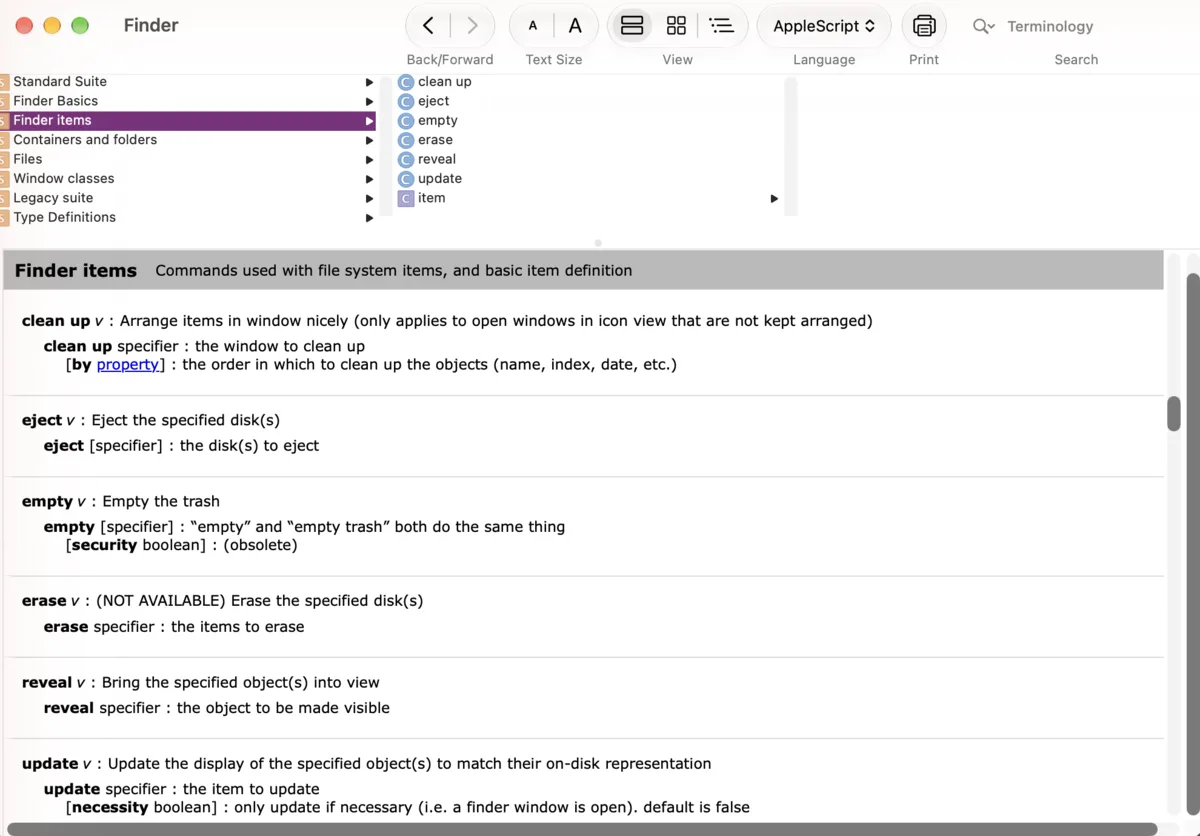
File > Open Dictionary… lists every app that can be scripted. Pick one
to see what a script can ask it to do. Finder’s dictionary, for example, has
commands like reveal, eject and empty (the Trash), and objects like
files, folders and windows. The dictionary is the documentation: if it isn’t
in there, the app can’t be scripted to do it.
The first time a script controls another app, macOS asks whether to allow it, and you can change the answer later in System Settings > Privacy & Security > Automation. The examples below don’t control other apps, so they don’t ask.
Resize photos, as a drag-and-drop app
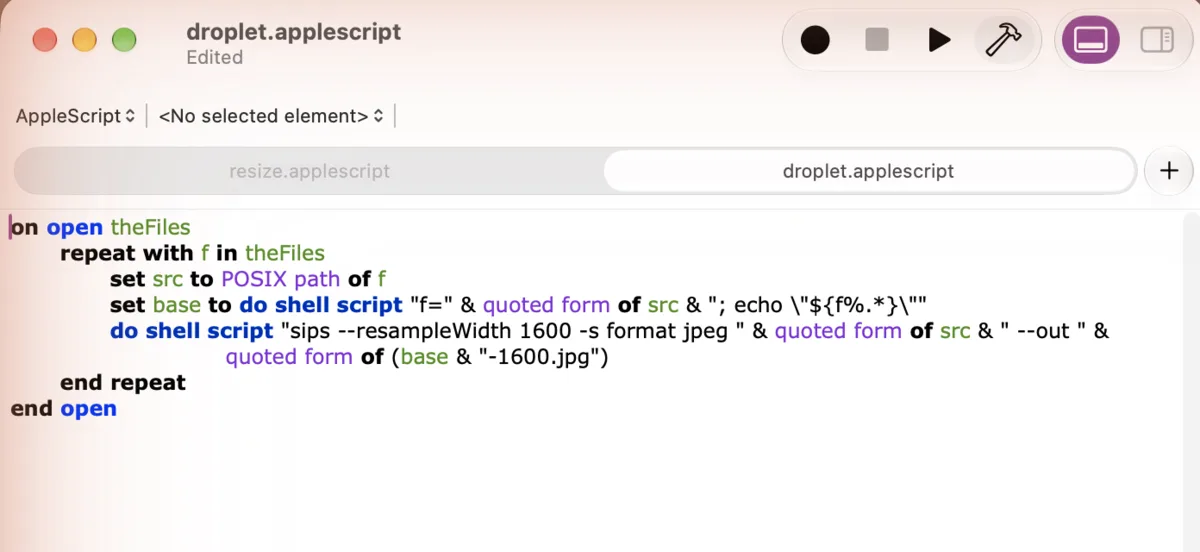
An app made from a script with an on open handler is a droplet: drop
files on its icon and it runs with them. This one hands each file to sips,
the image tool built into macOS:
on open theFiles
	repeat with f in theFiles
		set src to POSIX path of f
		set base to do shell script "f=" & quoted form of src & "; echo \"${f%.*}\""
		do shell script "sips --resampleWidth 1600 -s format jpeg " & quoted form of src & " --out " & quoted form of (base & "-1600.jpg")
	end repeat
end open- Paste it into a new Script Editor document.
- Choose File > Save, set File Format to Application, and save it as “Resize for Email”.
- Drop photos onto the app’s icon. Each one gets a
-1600.jpgcopy next to it. An existing file with that name is replaced without asking.
I compiled the same script from Terminal with
osacompile -o "Resize for Email.app" droplet.applescript and dropped a PNG
and a HEIC photo on it: both came out as 1,600-pixel-wide JPEGs next to the
originals. sips --resampleWidth sets the width; use sips -Z 1600 instead
to limit the longest side.
quoted form of matters: it wraps a path in shell quotes, so file names with
spaces work.
Where else AppleScript runs
- From Shortcuts, with the Run AppleScript action. This is a common way to use it now: Shortcuts handles the trigger, AppleScript does the part only a script can. Turn on Allow Running Scripts in Shortcuts' Settings > Advanced first; scripting actions are off until you do.
- From Automator, with its Run AppleScript action.
- In JavaScript. The same automation is available in JavaScript, called
JavaScript for Automation:
osascript -l JavaScript, or choose JavaScript in Script Editor’s language menu.