Shortcuts automations on the Mac: run a shortcut on its own
On macOS 26 and later, a shortcut can run on its own when something happens: an app opens, files land in a folder, a time of day arrives, and more. On macOS 27 you add the trigger as the first step of the shortcut, from the Automation category of the action list, and the shortcut then runs whenever the trigger fires, without you opening Shortcuts.
I tested four triggers on macOS 27.2 with Shortcuts 10.0, each running a shortcut that wrote the time to a log file. App and Folder fired every time, within one to three seconds, even with the Shortcuts app quit. Time of Day fired two seconds after the minute. An External Drive trigger didn’t fire for a mounted disk image.
The triggers
| Group | Triggers |
|---|---|
| Daily Routine | Time of Day, Alarm |
| Communication | Email, Message |
| Filesystem | Folder, File, External Drive |
| Connectivity | Wi-Fi, Bluetooth |
| Display | Stage Manager, Display |
| Apps | App, Screenshot, Notification |
| Power | Battery Level, Charger |
| Focus | Do Not Disturb |
That’s the list in the Automation category on macOS 27.2. I tested App, Folder, Time of Day and External Drive.
Add a trigger
- Open a shortcut in Shortcuts and add the actions you want to run.
- In the action list, click Automation.
- Double-click a trigger, such as App. It appears at the top of the shortcut. Until it’s set up, a note above it says what to configure, for example: Configure “App” to enable this automation.
- Fill in the trigger: pick the app, the folder, the time.
- Click the arrow next to the trigger’s title to see its options. Automation was ticked and Notify unticked in all my tests; I didn’t change either.
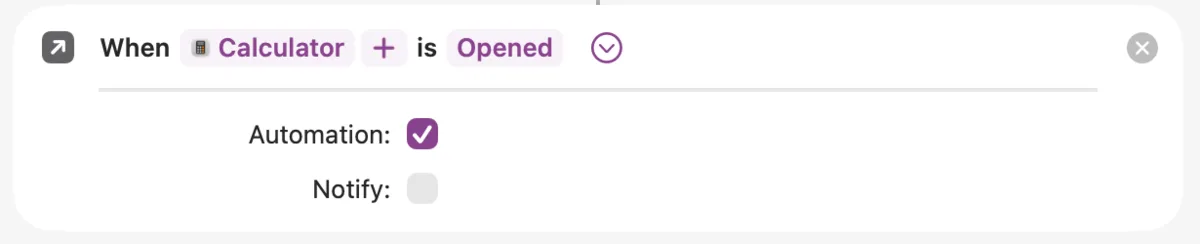
In my tests, once the trigger was configured it fired without any other step.
These steps are for macOS 27; on macOS 26, automations are set up from their own list instead, as my folder-archiving post describes.
App: when an app opens or closes
Pick the app and whether to run when it’s Opened or Closed (I only tested Opened). With “When Calculator is Opened”, I opened Calculator five times from Terminal: the shortcut ran each time, about a second later, including twice with the Shortcuts app quit. No notification appeared.
Folder: when files are added, changed or removed
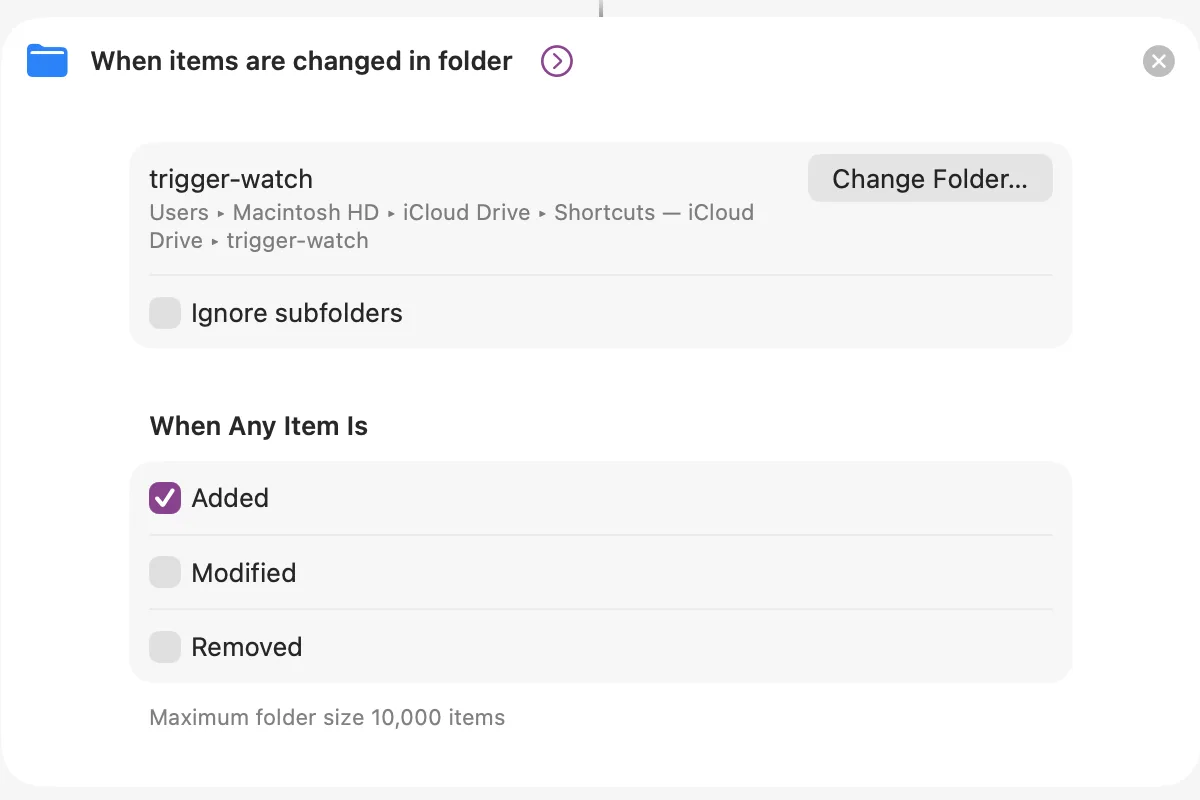
Click Choose Folder…, pick the folder, and tick at least one of Added, Modified or Removed. The trigger also has an Ignore subfolders option and notes a maximum folder size of 10,000 items; I didn’t test either.
In my tests, adding a file ran the shortcut two to three seconds later, every time, with Shortcuts open or quit. Adding five files at once ran it once, not five times, so a shortcut that processes new files should handle a list. I’ve used this trigger to archive a folder automatically.
Time of Day: at a set time
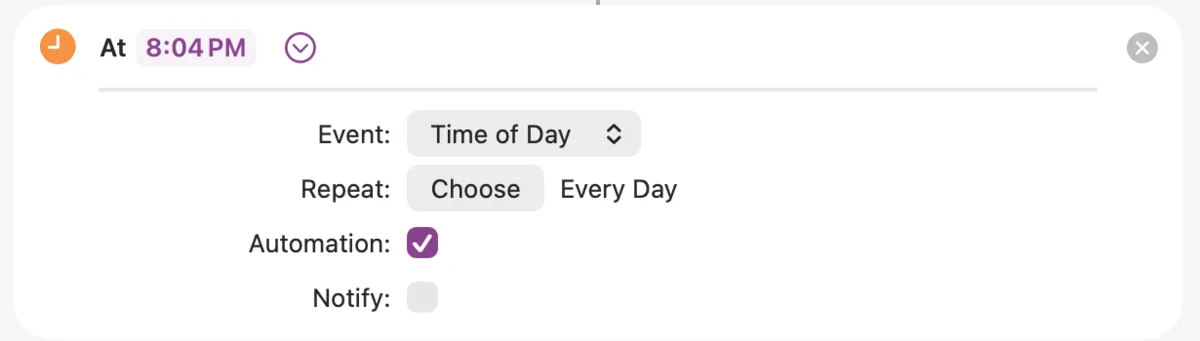
Set the time. Repeat starts as Every Day, with a Choose button for other days, and there’s an Event menu; I didn’t open either. Set for 8:04 PM, mine ran at 8:04:02.
External Drive: not for disk images
External Drive starts set to Any External Drive and Is Connected. When I mounted a disk image, it didn’t run, with or without showing it in Finder. I didn’t have a physical drive to test with, so I can’t say how it behaves with one.
Turn automations on and off
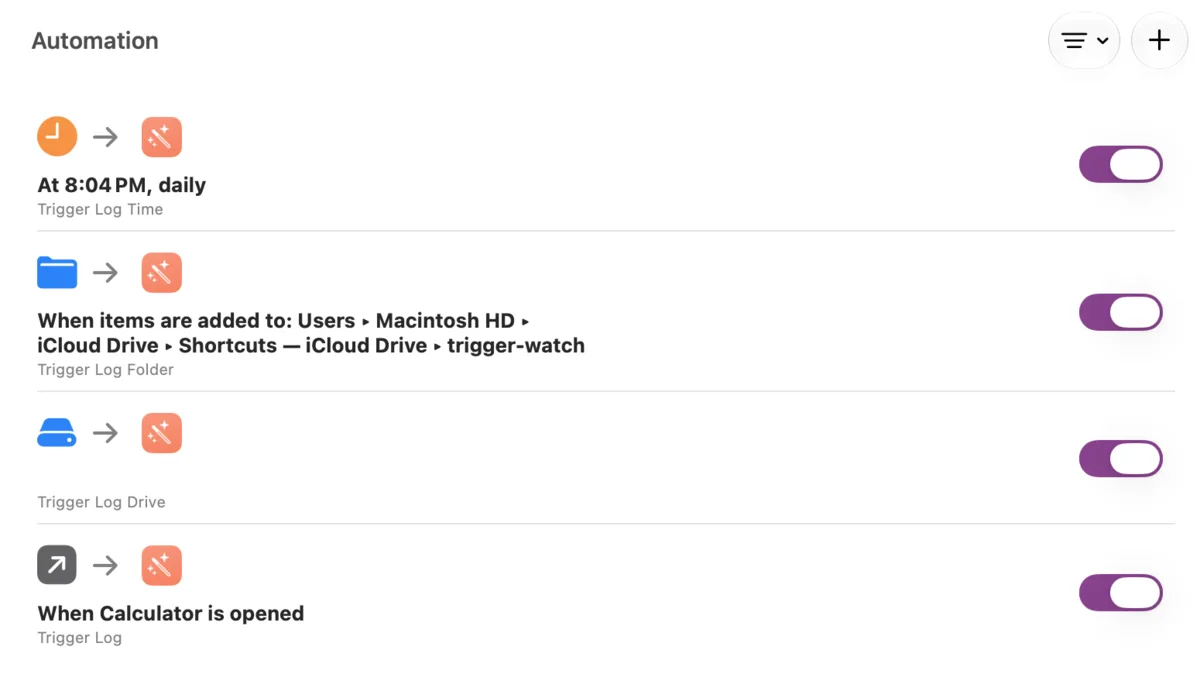
Automation in the Shortcuts sidebar lists every shortcut with a trigger, with a switch to turn each one off without deleting it.
What to watch for
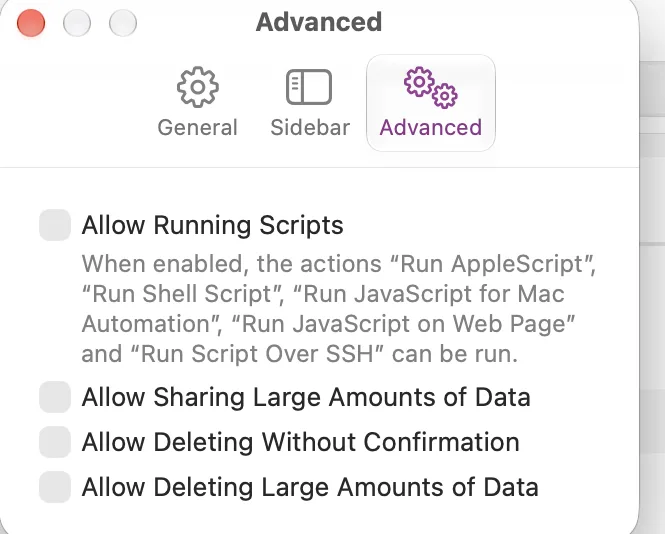
Scripts are off unless you’ve turned them on. If your automation uses Run Shell Script or Run AppleScript, turn on Allow Running Scripts in Shortcuts’ Settings > Advanced first. With it off, running such a shortcut from Terminal failed with “your Shortcuts security settings don’t allow you to run scripting actions.” Only turn it on for scripts you trust, since automations run without asking.
Automations run unattended. A Folder automation that moves or deletes files will act every time the trigger fires. Test on a copy of the folder first.
Untested here: Email, Message, Alarm, File, Wi-Fi, Bluetooth, Stage Manager, Display, Screenshot, Notification, Battery Level, Charger and Do Not Disturb, and what happens while the Mac is asleep.