Apple Intelligence and AI tools built into your Mac, iPhone and iPad
The AI built into Apple devices in 2026: Siri AI, Visual Intelligence, Image Playground, the fm command and more. What each needs, and how to try it.
Your Mac, iPhone or iPad already has more AI built in than most people realize. Some of it is new in the 27 releases, like the new Siri. Some has been quietly there for years, like copying text out of a photo. This guide is a tour: what each tool does, what it needs, and the quickest way to try it.
On a MacBook Pro with M2 Pro running macOS 27.2, I tried Siri AI, the
right-click rewrite, Image Playground, the emoji picker, Visual
Intelligence, Copy Subject and the fm command. Everything else, and all
the iPhone and iPad details, comes from Apple’s own pages, linked as I go.
Two kinds of AI
- Apple Intelligence is Apple’s generative AI: the new Siri, writing help, Image Playground, Genmoji, Visual Intelligence and more. It needs a recent device and has to be turned on.
- Older on-device machine learning works on far more devices and is usually on already: Live Text, Visual Look Up, transcripts, dictation, searching Photos for “dog” or “beach”.
Can my device do it?
Apple Intelligence needs one of these, per Apple’s requirements page:
| Device | Apple Intelligence models |
|---|---|
| iPhone | iPhone 15 Pro and 15 Pro Max, every iPhone 16 and later, iPhone Air, iPhone Duo |
| iPad | iPad Pro and iPad Air models with M1 or later, iPad mini (A17 Pro). Not the regular iPad, which has an A-series chip |
| Mac | Any Mac with M1 or later, MacBook Neo |
It also needs up to 8 GB of free storage (up to 14 GB on the newest high-memory models), and the device and Siri set to the same supported language. It isn’t available on devices bought in mainland China.
Some extras need newer hardware still: the new expressive Siri voices and the new on-device dictation model need an iPhone 17 Pro, Air or Duo, or a Mac or iPad with M3 or later and at least 12 GB of memory. My M2 Pro Mac doesn’t get them.
On iPhone and iPad, Apple Intelligence is in Settings, Apple Intelligence & Siri. On a Mac, Apple’s guides start from System Settings, Siri.
Ten things to try first
| Try this | Where | Needs |
|---|---|---|
| Ask the new Siri a real question, by typing | Siri app, or Siri in Spotlight on Mac and iPad | Siri AI (details) |
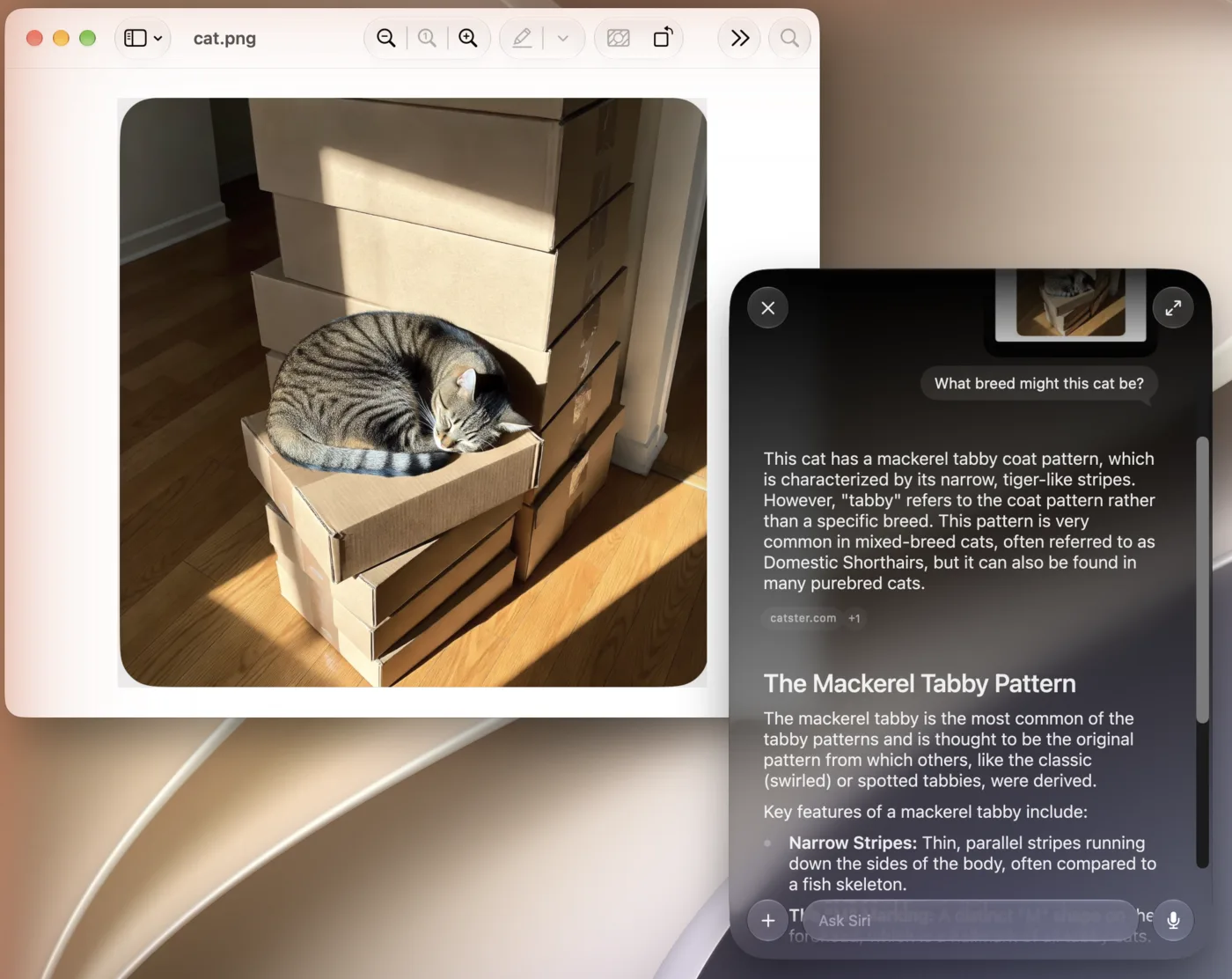
| Point Siri at what’s on your screen | Mac: Shift-Command-Space. iPhone: take a screenshot | Siri AI |
| Have Siri rewrite something you wrote | Select text, Control-click, Ask Siri | Siri AI |
| Make a picture from a sentence | Image Playground app | Apple Intelligence |
| Make an emoji that doesn’t exist | Emoji picker, describe it | Apple Intelligence |
| Copy text out of a photo | Select it like normal text in Photos, Preview or Camera | Most devices |
| Lift the subject out of a photo | Control-click (or touch and hold) the subject, Copy Subject | Most devices |
| Turn on captions for any audio | Settings, Accessibility, Live Captions | Apple silicon Mac, recent iPhone |
| Translate a call or a conversation | Phone, FaceTime, Messages, AirPods | Apple Intelligence |
| Prompt Apple’s model from Terminal | fm respond "..." | Apple Intelligence Mac with macOS 27 (details) |
The pages
- Siri AI: the new Siri, the Siri app, what shipped when, and its limits.
- Writing and images: rewriting with Siri, Image Playground, Genmoji and photo clean-up.
- Seeing and hearing: Visual Intelligence, Live Text, subject lift, captions, transcripts and translation.
- The fm command: Apple’s Foundation Models from Terminal, including a local API server.
Related guides
- Apple Intelligence in Shortcuts: the Use Model action, and which model to pick.
- Which Apple Intelligence features leave your Mac: on-device, Private Cloud Compute or ChatGPT, feature by feature.
- Calling Foundation Models from Swift