Visual Intelligence, Live Text, captions and translation
I tried Visual Intelligence and Copy Subject on a Mac with macOS 27.2. The rest of this page, and the iPhone steps, come from Apple’s pages.
Visual Intelligence
Visual Intelligence lets you ask about what you’re looking at.
On a Mac (new in macOS 27): press Shift-Command-Space to pick a window, or Command-Shift-6 to pick part of the screen. Buttons appear next to it: Ask Siri, Image Search and Translate.
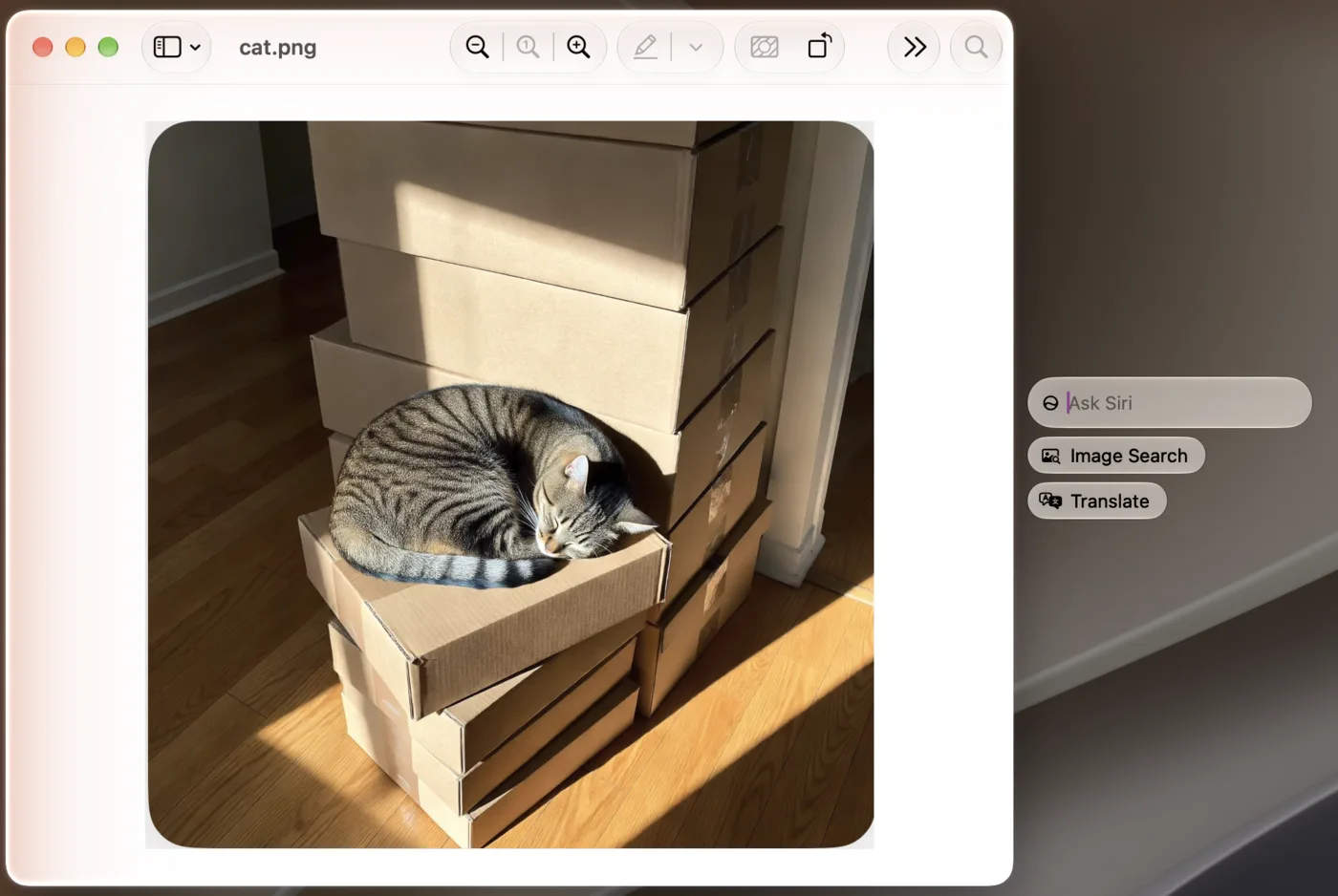
I opened the cat picture I’d made in Image Playground and asked “What breed might this cat be?” The answer explained that tabby is a coat pattern, not a breed, and cited its sources (the screenshot at the top of the overview).
On iPhone: press and hold Camera Control on iPhones that have it, or use the Action button or Control Center, and point the camera at something. It also works on screenshots. In 27 there’s a Siri mode in the Camera app.
The Siri-powered version isn’t available in mainland China, or on iPhone in the EU, and Apple’s feature list still shows it as English only. Older Visual Intelligence actions, like adding an event from a flyer or identifying a plant, work in more languages (Apple’s feature list).
Live Text and subject lift
These don’t need Apple Intelligence; they’ve been around for years.
- Live Text: text in a photo is selectable like normal text, in Photos, Preview, Safari and the Camera. Copy a phone number off a sign, or a recipe off a screenshot.
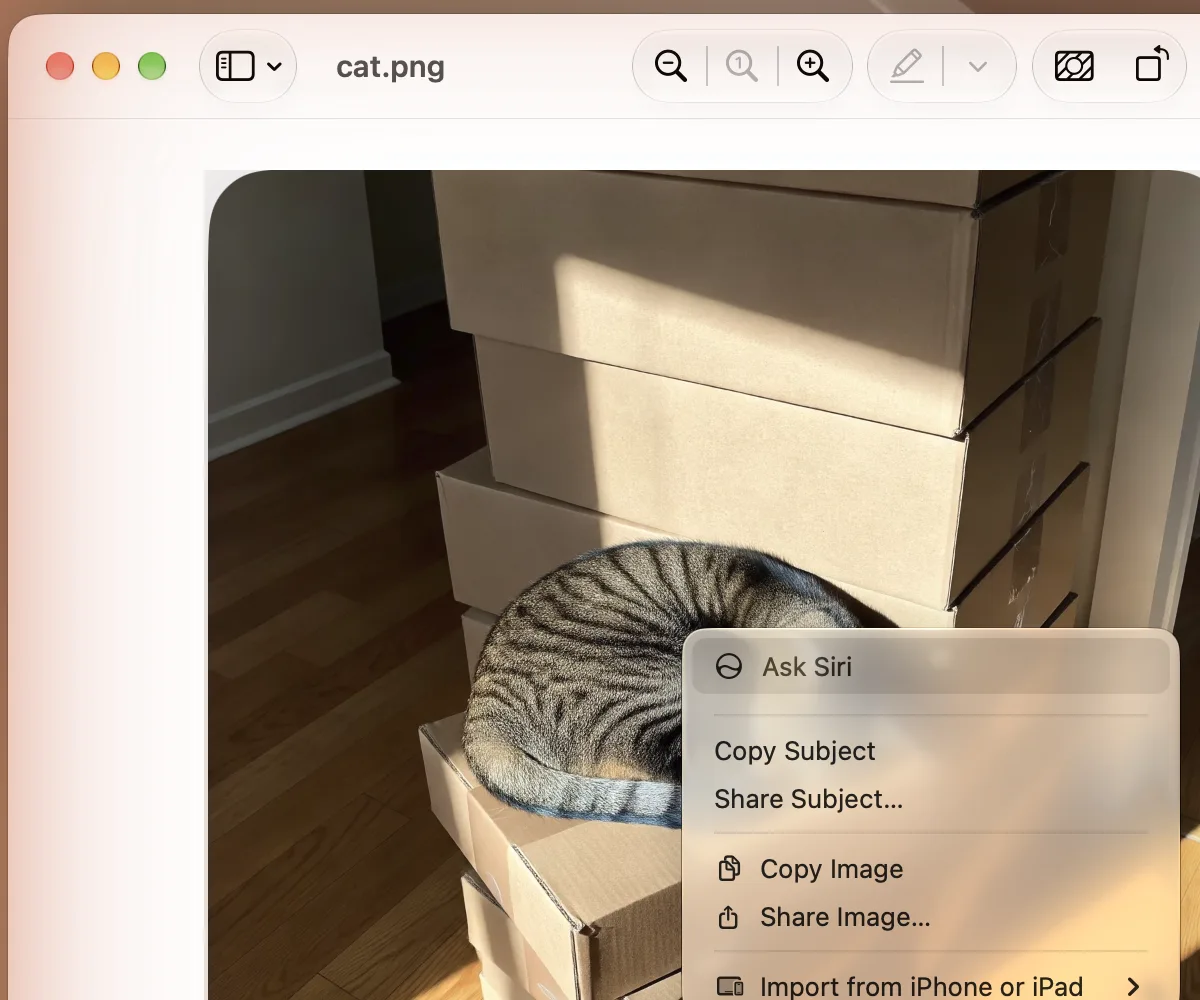
- Copy Subject: Control-click a photo (touch and hold on iPhone) and choose Copy Subject to lift the person, pet or object out of the background, ready to paste.
- Visual Look Up: in Photos, the info button identifies plants, pets, landmarks and art when it recognizes them.
Live Captions
Live Captions puts captions on any audio your device plays or hears: a video call, a podcast, the person across the table. Turn it on in Settings (or System Settings), Accessibility, Live Captions. On a Mac it needs Apple silicon, and Apple says “Audio is processed on device” (Apple’s guide). It works in a limited set of languages.
Transcripts
- Voice Memos transcribes recordings on iPhone 12 and later, and on Macs with Apple silicon.
- Notes can record audio and transcribe it.
- Phone calls can be recorded on iPhone: during a call, tap More, then Call Recording. Everyone on the call hears a notice, and the recording and transcript land in Notes, where Apple Intelligence can summarize them (Apple’s guide). It isn’t available in every country, including those in the EU.
Live Translation
Apple Intelligence translates conversations as they happen, and Apple says it “runs entirely on device” (Apple’s page).
- Messages: tap the person’s name, then Automatically Translate.
- Phone and FaceTime: during a call, More, then Live Translation.
- AirPods: recent AirPods with an iPhone 15 Pro or later; press and hold both stems to start (Apple’s page).
Calls and AirPods support about a dozen languages; Messages supports more.
Dictation and Personal Voice
- Dictation works on everything; the new, more accurate on-device model in 27 needs the newest hardware (see the overview).
- Personal Voice learns your voice from a series of sentences you read aloud, so your device can speak typed text in it. Apple says it’s processed on the device (Apple’s page).