Siri AI: the new Siri on Mac, iPhone and iPad
Siri AI is Apple’s name for the new Siri in iOS, iPadOS and macOS 27. It’s labelled a beta. Apple says its models were “custom-built in collaboration with Google and its Gemini models” and run both on-device and on Private Cloud Compute (Apple Newsroom).
Turn it on
On a Mac, it’s in System Settings, Siri, Try Siri AI (Beta) (Apple’s Mac guide). It needs an Apple Intelligence device (see the overview), and:
- Language: English at launch; French, Japanese, Korean, Portuguese and Spanish arrived in the 27.2 updates.
- Age: not available to anyone under 13.
- Region: not available in mainland China, and not on iPhone or iPad in the European Union. Apple says Mac users in the EU can use it.
- Limits: Apple says its server-side features have daily usage limits, and that expanded access will cost extra in the future (Apple Newsroom).
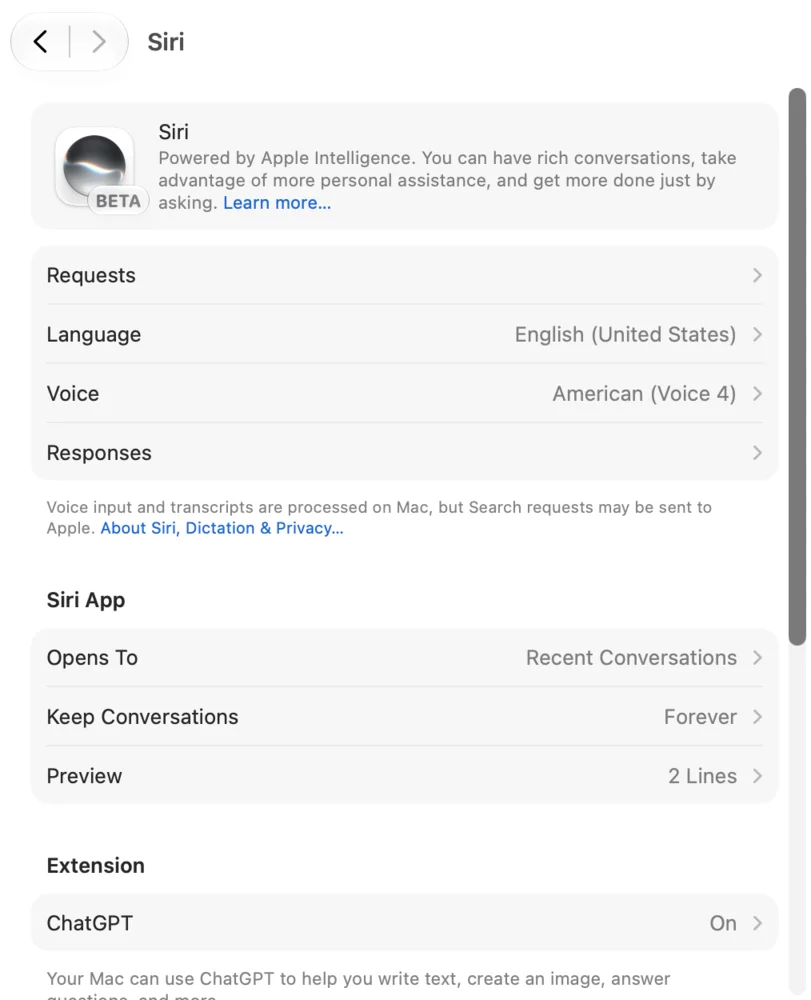
The same pane has the Siri app’s settings, including how long to Keep Conversations; mine is set to Forever.
The Siri app
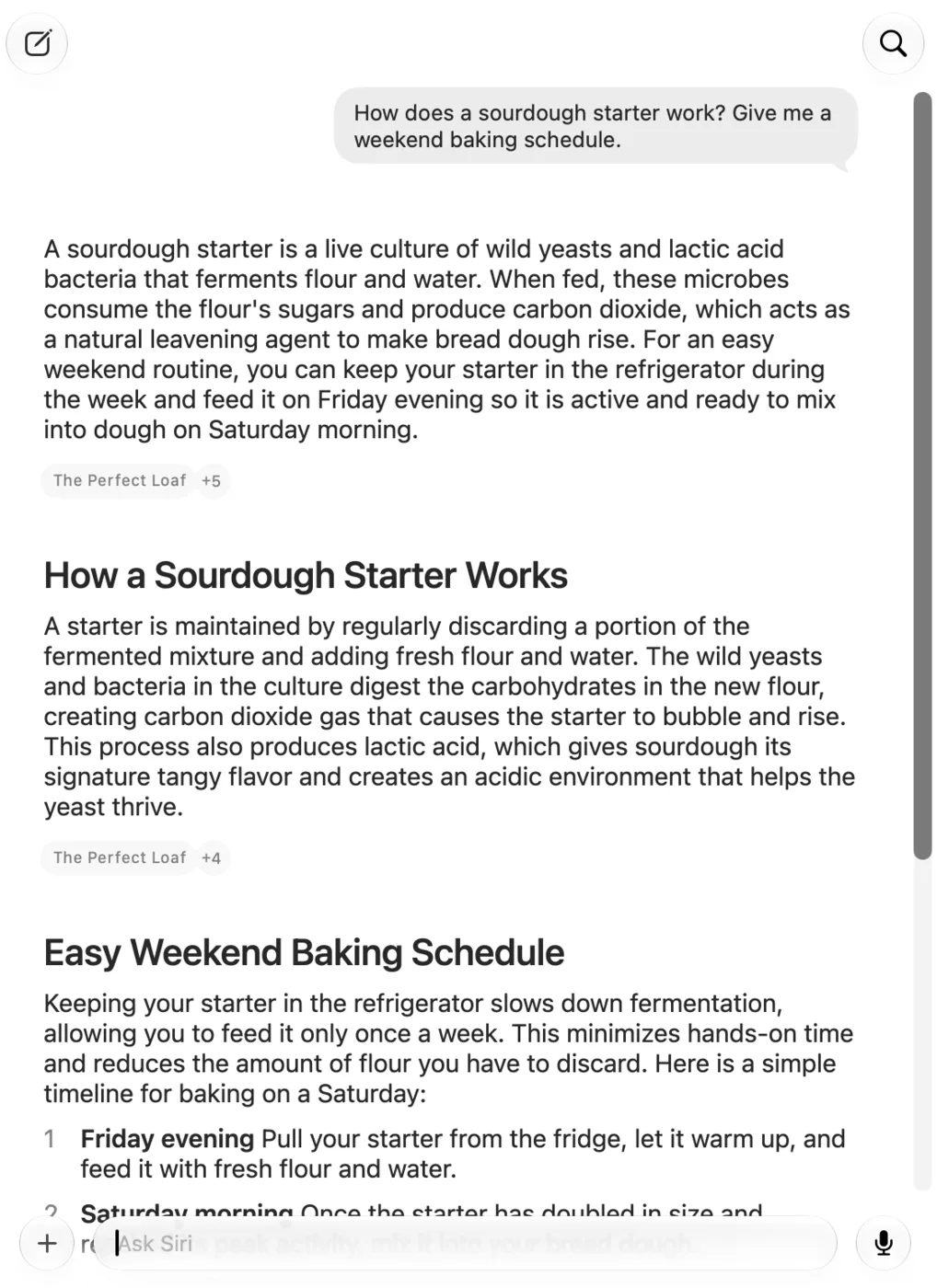
There’s now a Siri app with a history of your conversations, which Apple says syncs through iCloud. On the Mac it’s in Applications as Siri AI. Type a question and you get a full answer, with headings and links to its web sources.
Conversations go into that list with a title Siri writes. The quick ones count too: when I used Ask Siri on some text and Visual Intelligence on a picture, both showed up in the app afterward, as “Professional Rewrite” and “Mackerel Tabby Cat”.
What it can do
From Apple’s 27.0 announcement and release notes:
- Answer from the web, with sources.
- Use your personal context: find things across your messages, mail and photos.
- See your screen: ask about whatever’s in front of you. On a Mac, press Shift-Command-Space to pick a window, or Command-Shift-6 to pick part of the screen. See Seeing and hearing.
- Take actions in apps, such as Messages, Music and Reminders.
- Write with you: rewrite or draft text wherever you type. See Writing and images.
- Live in Spotlight on Mac and iPad, and in a Siri mode in the iPhone Camera.
The 27.2 updates added memory of past conversations, more sources (such as photos attached in Messages, calendar attendees and voicemails), a setting to exclude apps from what Siri, Search and suggestions can read, and suggestions in Messages.
Apple has also announced things that hadn’t shipped as of 27.2: Siri Recap, Live Rewind, and Siri AI inside some third-party apps.
ChatGPT is still there
The ChatGPT extension didn’t go away. On a Mac with Siri AI, it’s in the Siri settings under Set Up Extensions, then ChatGPT, then Use Extension; you don’t have to sign in. It only works where ChatGPT is available, and your Mac asks before it sends a request to ChatGPT; with Siri AI you can’t turn that confirmation off (Apple’s guide). What it sends, and when, is covered in the privacy guide.
Things to try
- Type “What’s a good way to spend a rainy Sunday nearby?” in the Siri app and look at the sources it cites.
- Open a long web page, press Shift-Command-Space and ask for the three main points.
- Select a messy paragraph, Control-click, choose Ask Siri and say “make this friendlier”.
- Ask it about something from your own mail or messages, then check what it found.
Check anything that matters. Siri’s answers look confident and cite sources, but I didn’t verify the baking schedule it gave me, and you shouldn’t take an answer on trust either.