Writing and images with Apple Intelligence
I tried the rewrite, Image Playground and the emoji picker on a Mac with macOS 27.2. Clean Up, Image Wand and the iPhone and iPad steps come from Apple’s guides.
Rewrite and proofread
Select some text anywhere you can type, Control-click it (or touch and hold on iPhone and iPad), and Apple Intelligence can rewrite it, proofread it or summarize it.
On my Mac with Siri AI turned on, the right-click menu starts with Ask Siri rather than the Writing Tools item Apple’s guide describes. I selected a sloppy note in TextEdit, chose Ask Siri and typed “Rewrite this to sound professional”. About ten seconds later the text was rewritten in place, with a bar to compare, undo or keep editing with Siri:
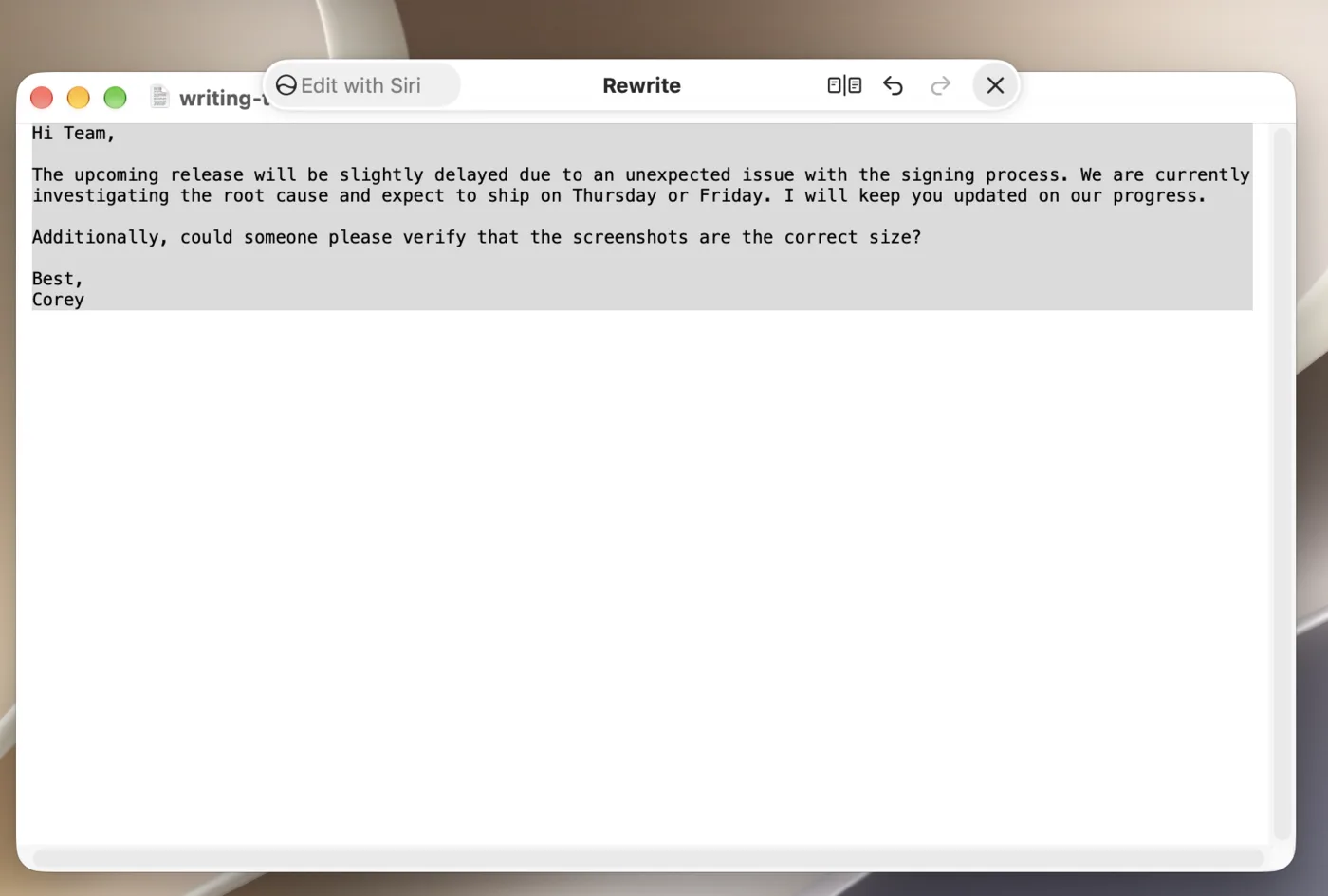
It also added “Hi Team,” and signed the note with my first name, taken from my account. Read before you send.
Apple’s documented route, for a Mac without Siri AI, is: select text, Control-click, Writing Tools, Show Writing Tools, then Rewrite (Friendly, Professional or Concise), Proofread, Summarize or Key Points (Apple’s guide). With Siri AI, Apple adds Write with Siri, which drafts from scratch.
Image Playground
Image Playground is an app on Mac, iPhone and iPad, and it’s also built into Messages, Freeform, Keynote and Pages. Describe a picture, pick a style, and refine it with “Describe a change”.
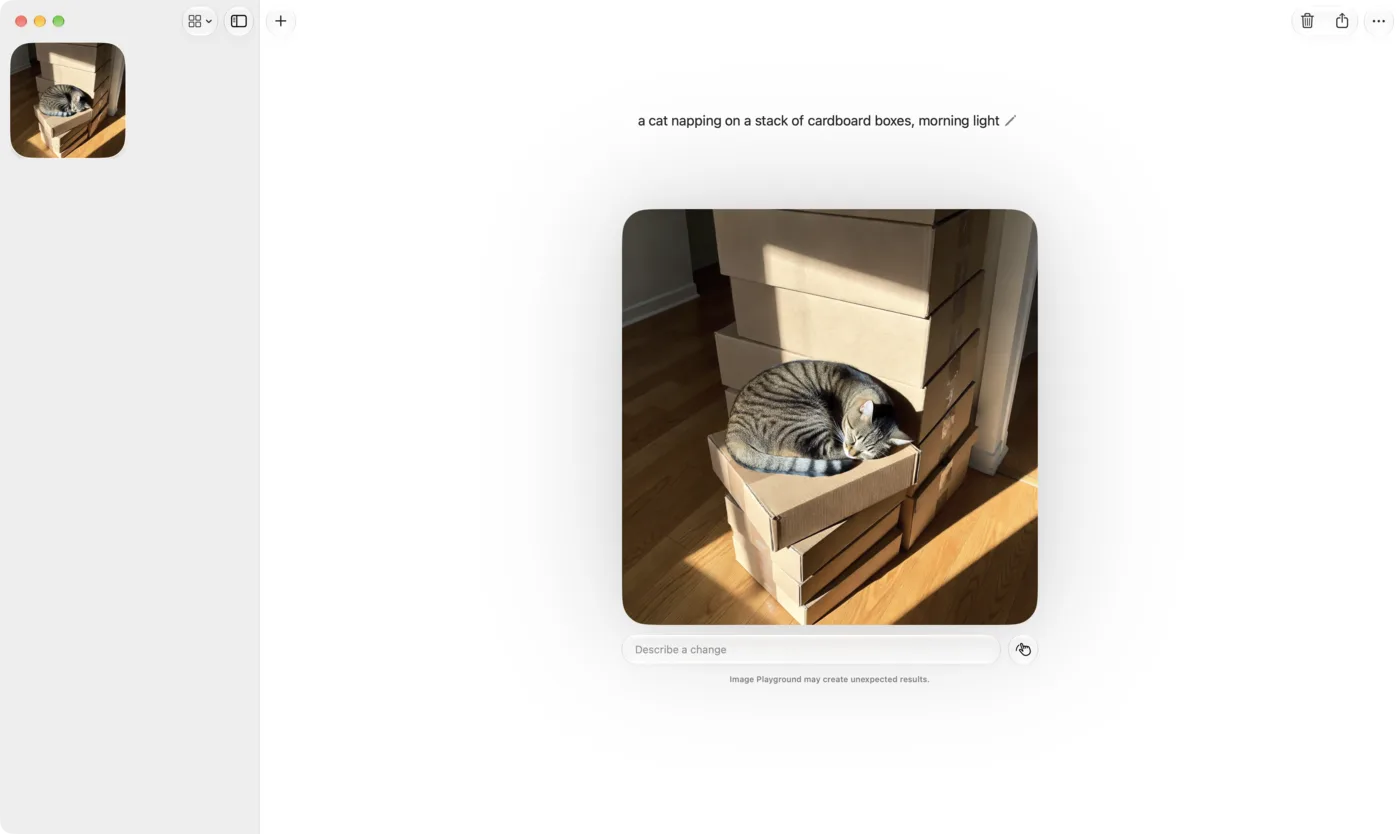
The 27 version uses a new model that can do photorealistic images. My prompt, “a cat napping on a stack of cardboard boxes, morning light”, took under 15 seconds. The styles are Any Style, Animation, Illustration and Sketch, and Apple recommends realistic images for ages 18 and up.
- Image Playground runs on Apple’s servers and has usage limits (Apple’s usage limits page).
- From macOS 27.2, most of its images carry an invisible SynthID watermark that marks them as AI-made.
- Screen Time can turn image creation off for a child.
Genmoji
Genmoji makes an emoji from a description. On a Mac, open the emoji picker (press Fn/Globe-E, or Control-Command-Space) and type a description in the Describe an Emoji box at the top. If no existing emoji matches, it offers Create New Emoji:
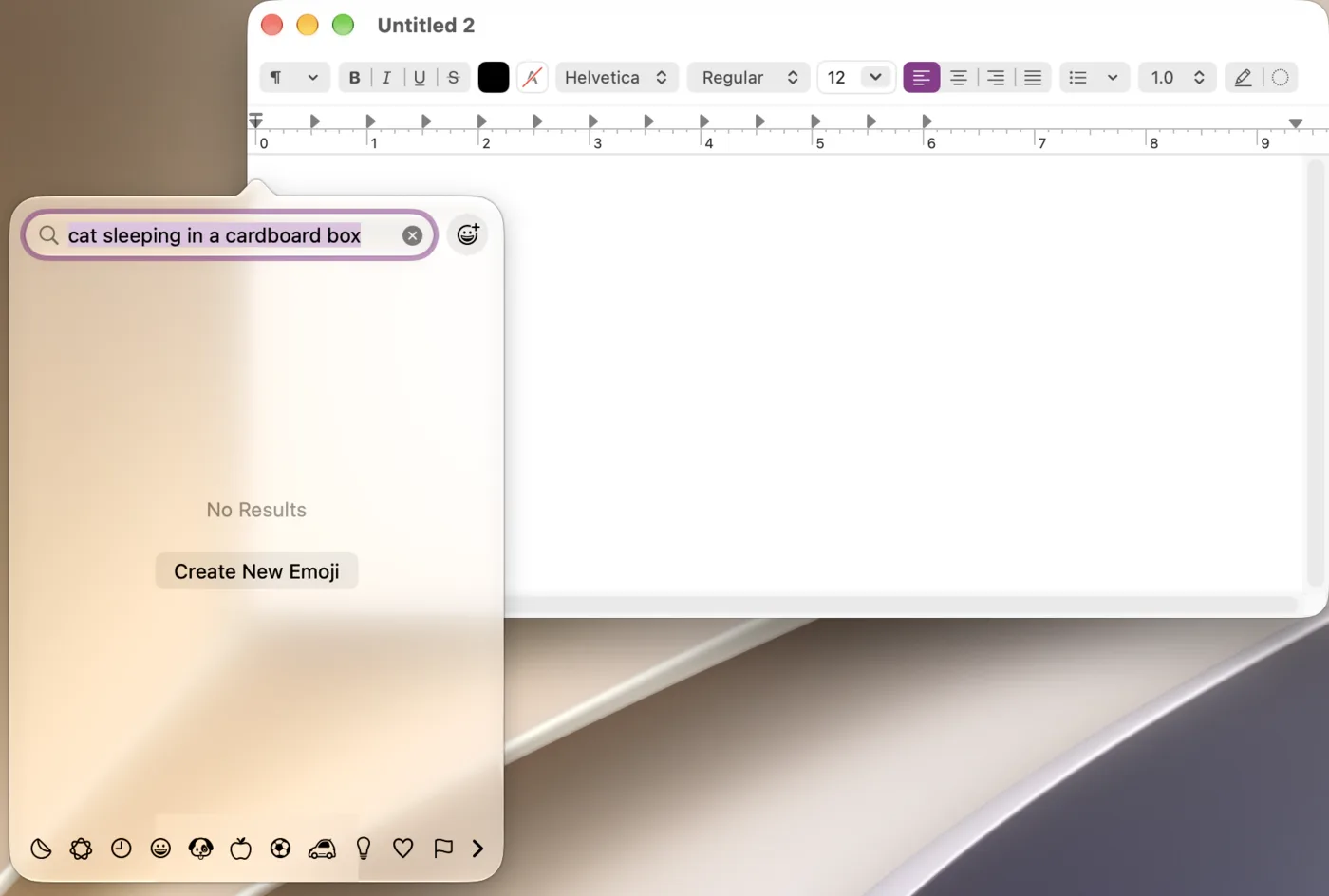
On iPhone and iPad it’s in the emoji keyboard. You can also base one on a person from your Photos library.
Photos: Clean Up and more
In Photos, Clean Up removes things from a picture: a stranger in the background, a power line. In 27 it handles larger objects and has Fast and High Quality modes. Photos can also extend an image and reframe a photo after it’s taken (Apple’s iPhone guide). Apple lists these editing tools as relying on its servers, with usage limits.
Image Wand
On iPad and iPhone, Image Wand in Notes turns a rough sketch into a finished image: draw, then circle it with Image Wand (Apple’s iPad guide).
Related
- Seeing and hearing
- Apple Intelligence in Shortcuts, to rewrite or summarize text automatically