Train an image classifier in Create ML
An image classifier answers one question about a photo: which of my labels is this? In Create ML you make one by pointing it at a folder with one subfolder of photos per label. On my M2 Pro, 2,939 flower photos trained in under a minute, and the model got 93% of 731 photos it had never seen right.
Get some labeled photos
I used the TensorFlow team’s
flowers dataset:
3,670 photos of daisies, dandelions, roses, sunflowers and tulips, a 229 MB
download that’s already one folder per label. The photos are from Flickr
under CC BY 2.0; the
archive’s LICENSE.txt names each photographer, and you need to credit
them if you publish the photos.
Keep some photos back for testing. Create ML holds back a few for validation on its own, but a separate test set tells you how the model does on photos it never saw. I moved a random 20% of each folder into a second folder with the same layout:
Flowers/
├── Training/
│   ├── daisy/        507 photos
│   ├── dandelion/    719
│   ├── roses/        513
│   ├── sunflowers/   560
│   └── tulips/       640
└── Testing/
    ├── daisy/        126
    ├── dandelion/    179
    ├── roses/        128
    ├── sunflowers/   139
└── tulips/ 159The folder names become the labels. Photos don’t need to be the same size; Create ML scales them.
Create the project
- Open Create ML (Xcode › Open Developer Tool › Create ML) and choose Create New Project….
- Pick Image Classification and click Next.
- Name it, add a description if you like, click Next, and save it.
Add the data
On the Settings tab, under Training Data, choose Select… and
pick the Training folder. Under Testing Data, pick the Testing
folder. Leave Validation Data on Split: Create ML sets aside some
training photos to check itself as it trains.
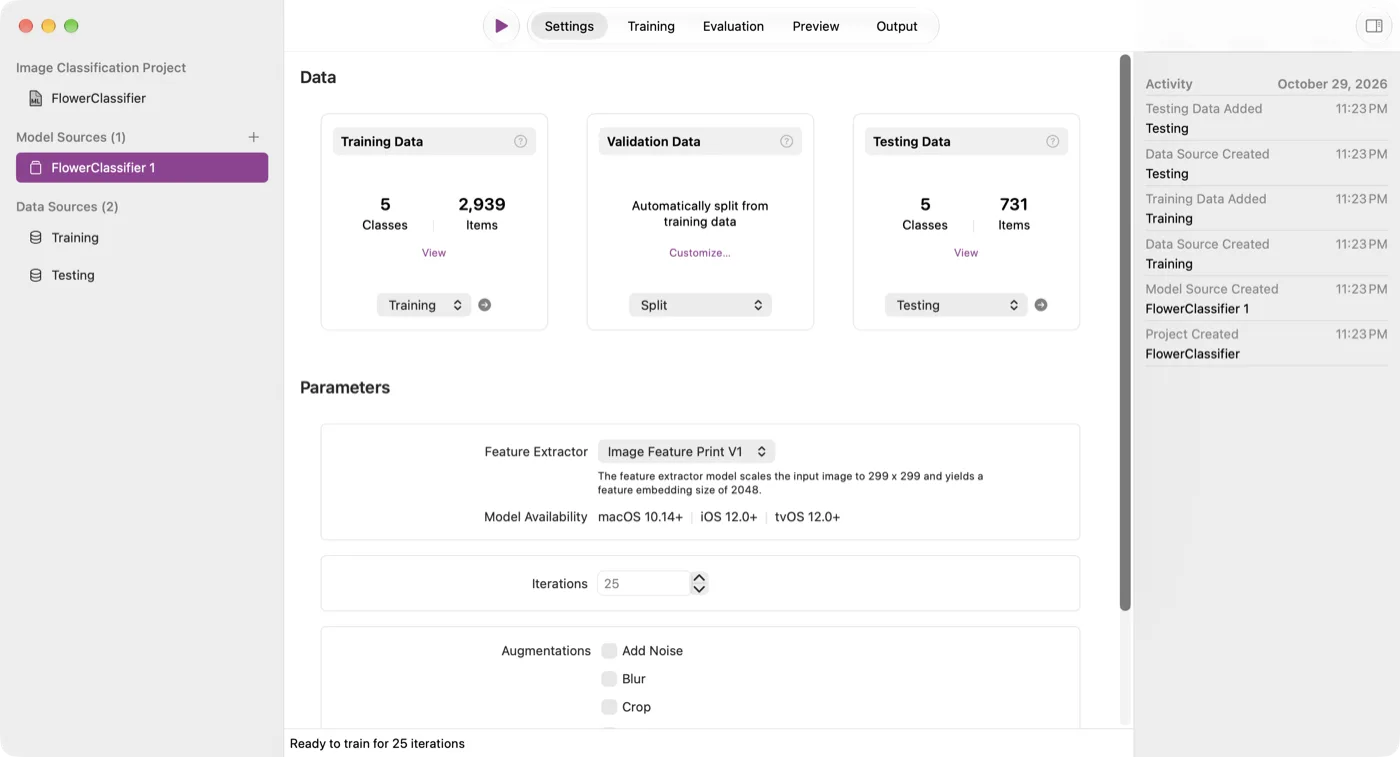
The Parameters below are fine as they are. The feature extractor, Image Feature Print V1, is a model built into macOS and iOS that turns a photo into numbers; Create ML trains only a small classifier on top of it. That’s why the finished model is so small, and why it runs on anything back to iOS 12 and macOS 10.14. The Augmentations (noise, blur, crop and others) add altered copies of your photos, which can help with a small dataset but make training slower. I left them off.
Train it
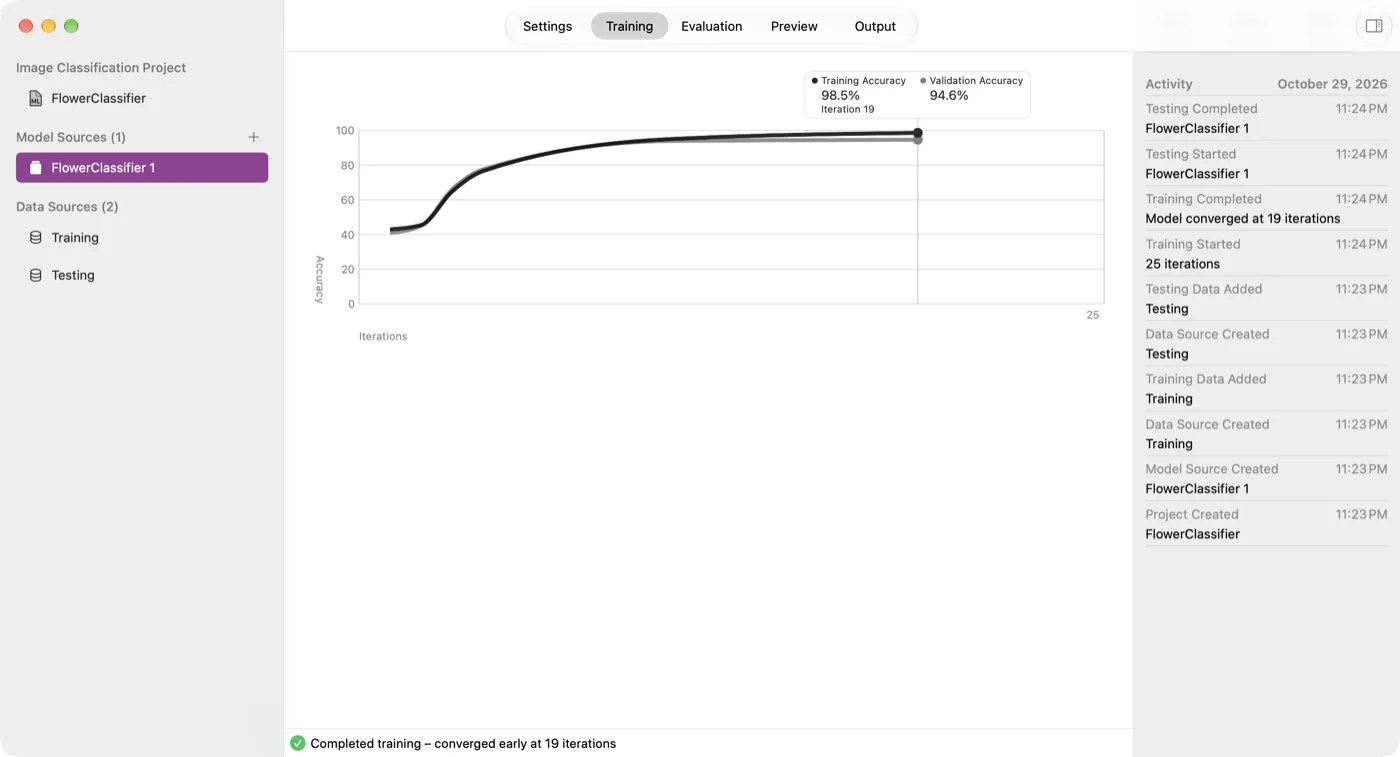
Click the play button at the top. Create ML first reads every photo (“Extracting features…”), then trains. Mine stopped early, at 19 of 25 iterations, with 98.5% accuracy on the training photos and 94.6% on its own validation photos.
Check it against the test photos
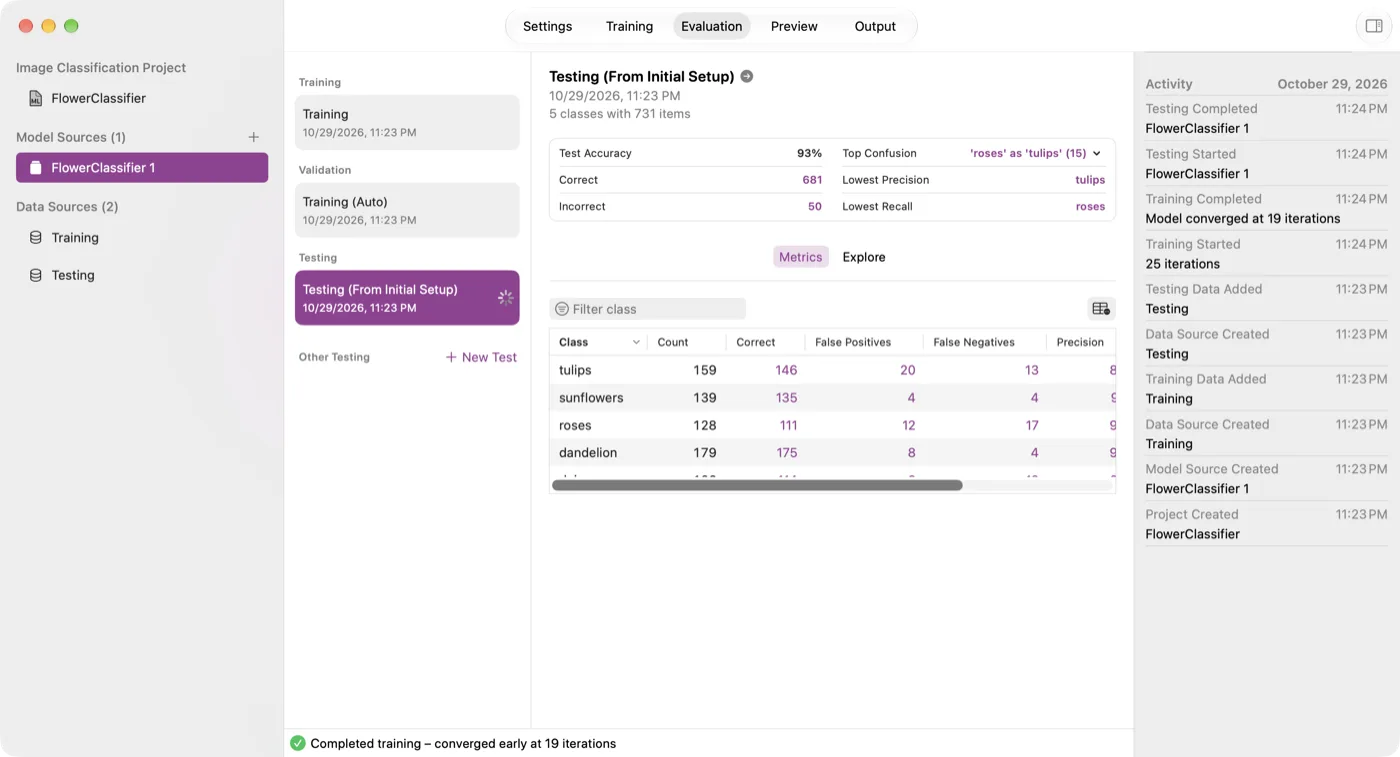
The Evaluation tab shows how it did on the testing folder: 93%, 681 of 731 right. The table breaks it down by label, and Top Confusion says what it mixes up most: roses taken for tulips, 15 times. There’s also an Explore view beside Metrics, which I didn’t try.
If a number like that isn’t good enough, more and more varied photos of the labels it confuses usually help more than any setting.
Try it on a photo
The Preview tab takes any photo (click + or drag one in) and shows the label and confidence.
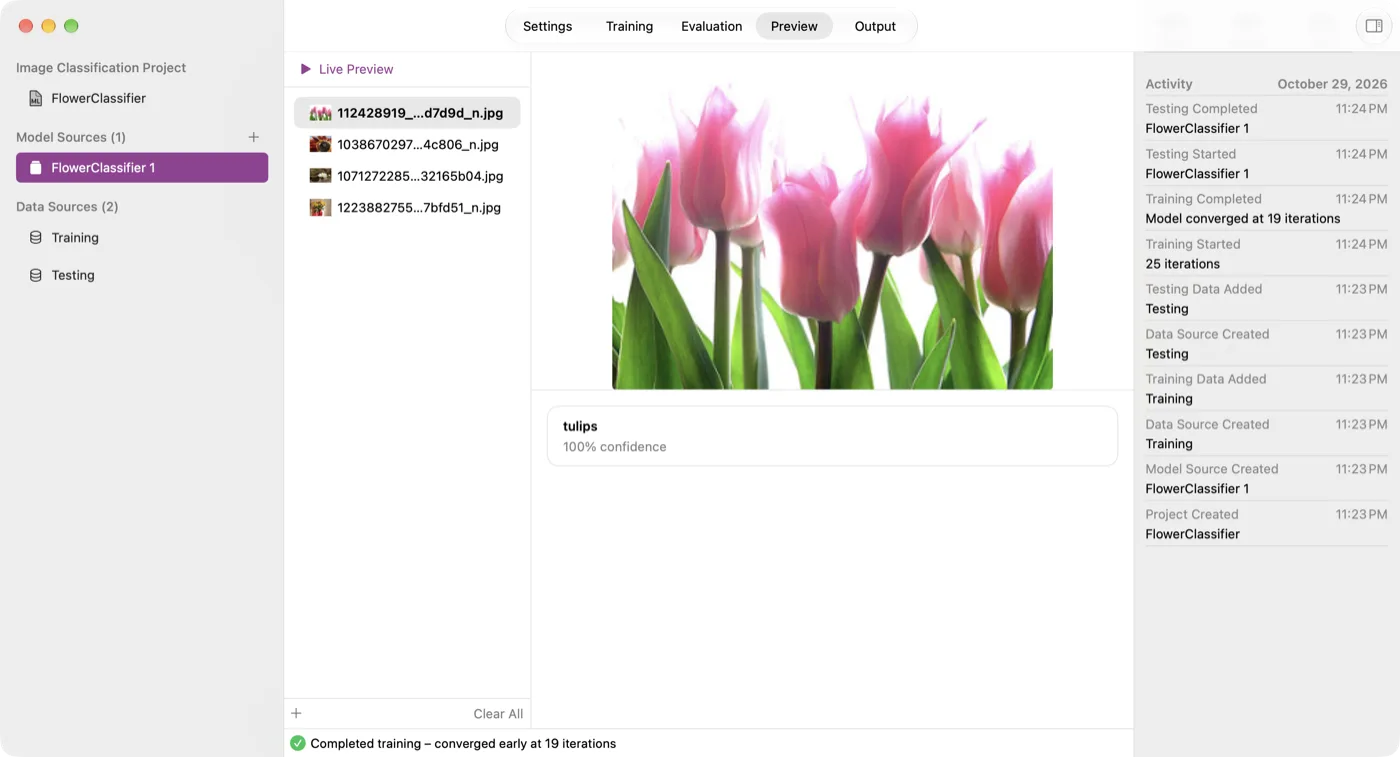
Flower photos from the TensorFlow flowers dataset, CC BY 2.0, cropped: tulips and roses by liz west (1, 2), sunflowers by Don Graham, daisy by Jan Fidler.
Save the model
The Output tab shows the model’s size (66 KB), the systems it runs on
and its labels. Click Get to save the .mlmodel file. That file is
what goes into your app: see Use the model in an
app.
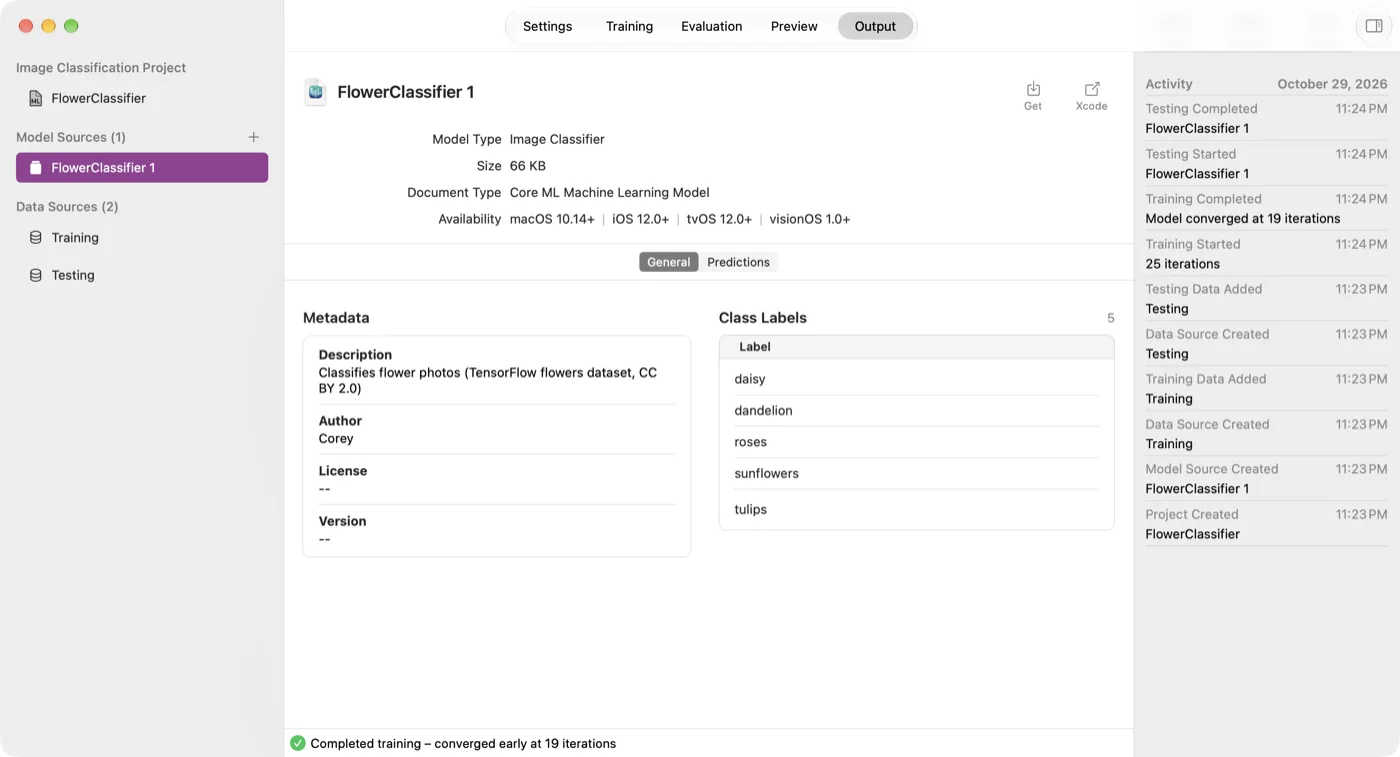
The same project can hold several models (the + beside Model Sources), so you can try different settings on the same data and compare.