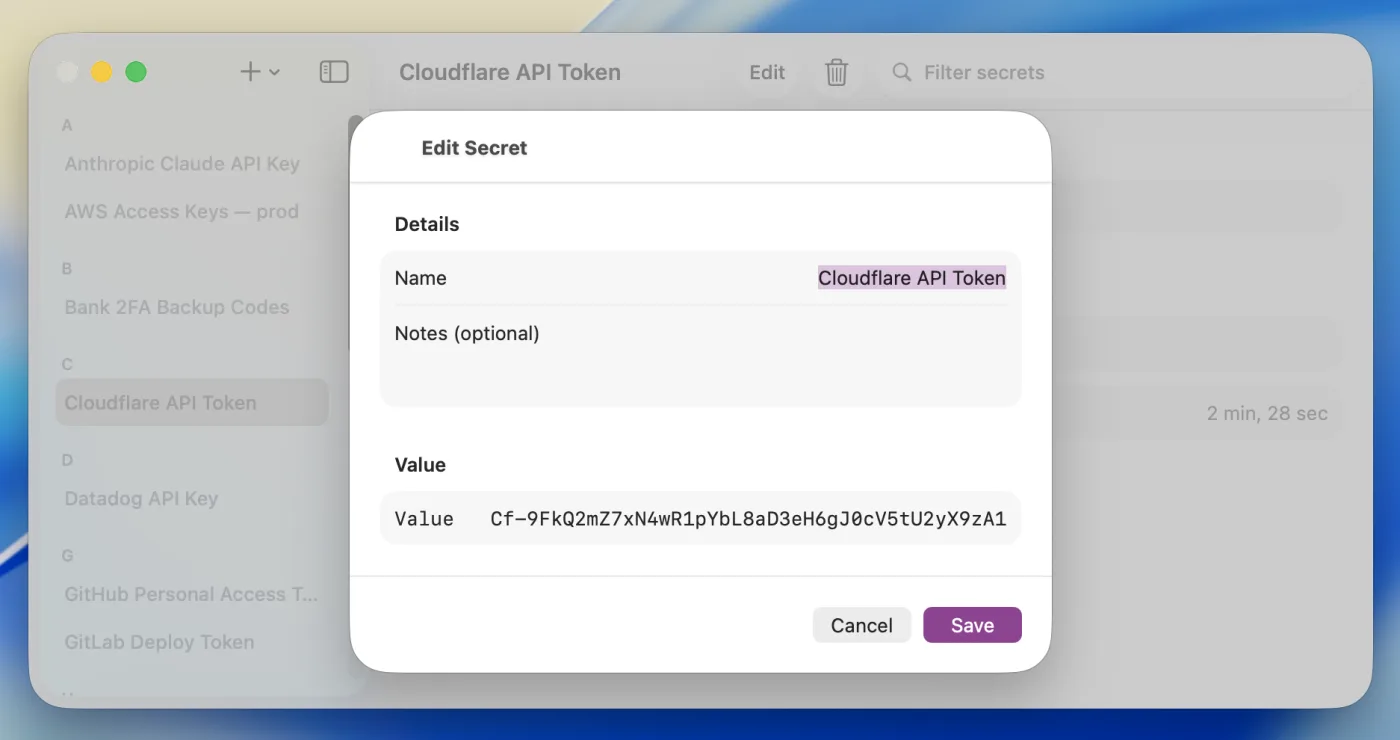
Adding, editing and deleting secrets
Every secret in Secret Store is a name and a value, with an optional description and tags. Everything is stored in Apple’s iCloud Keychain, and the value also stays masked on screen until you ask to see it.
Adding a secret
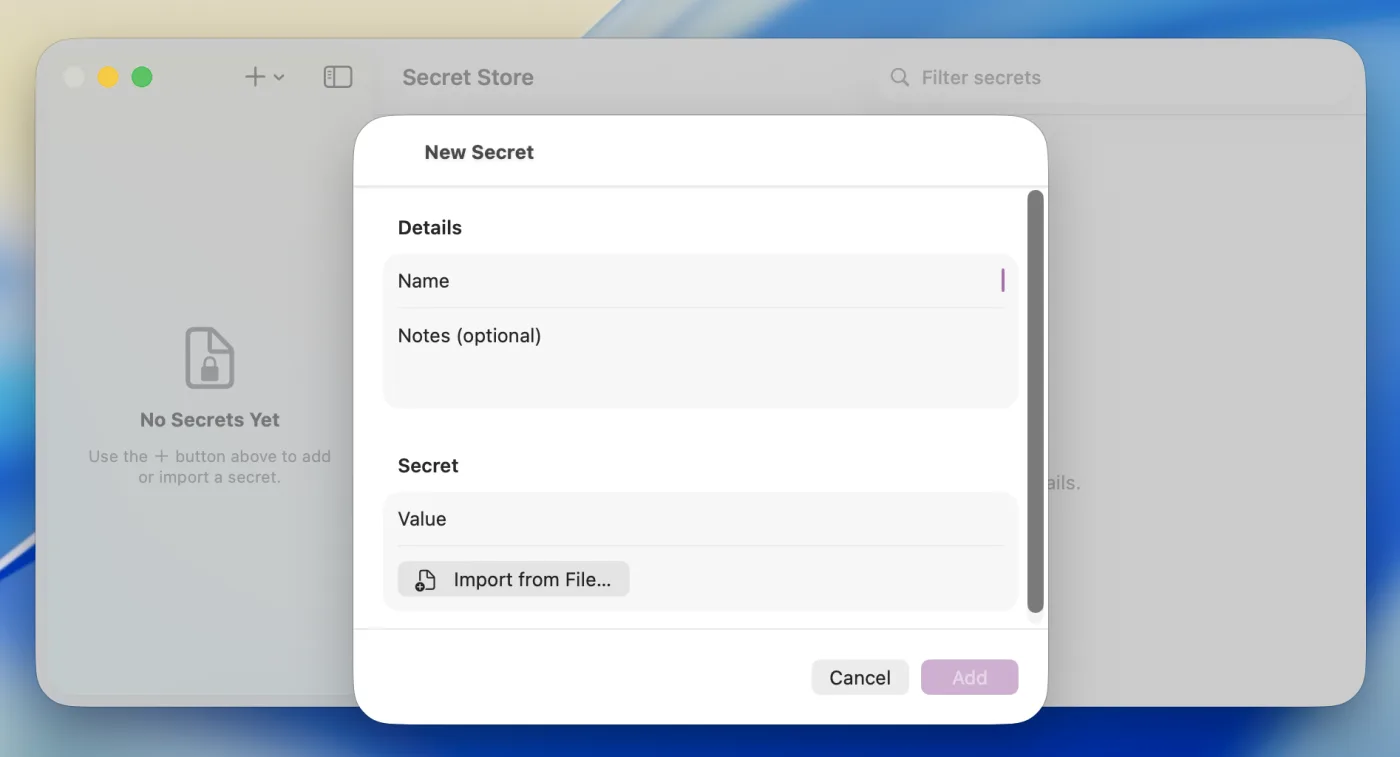
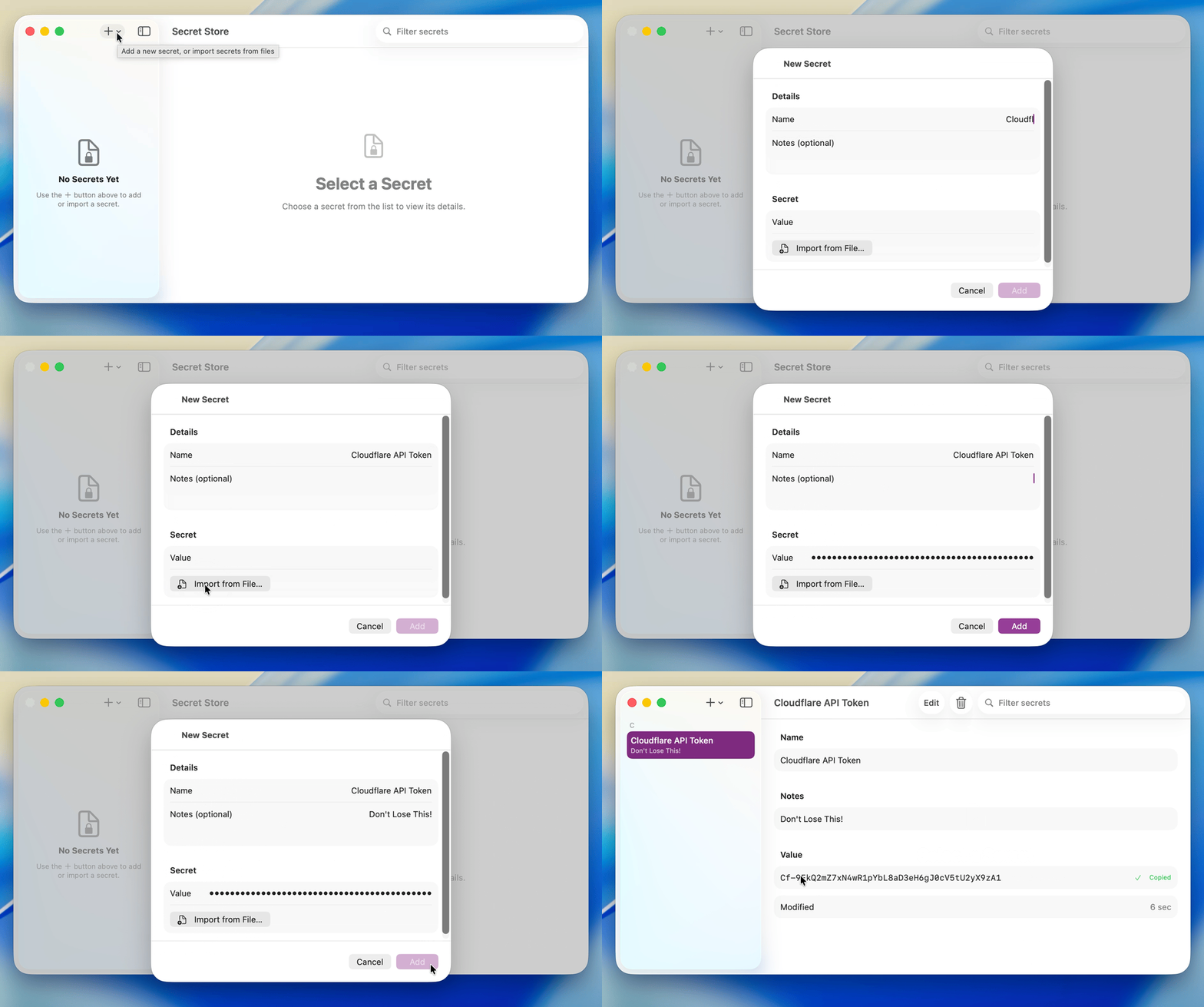
Click + in the toolbar and choose New Secret, or choose Secrets ▸ New (⇧⌘N). On iPhone and iPad, tap + and choose New Secret. Give it a name, then type or paste the secret into the Secret field. It takes as many lines as you need, up to 128 KB, so an API key, a set of recovery codes, an SSH key or a private note all go there. The eye button beside it hides what you’ve typed if someone’s looking over your shoulder. Typing in it never autocorrects, capitalizes or changes quotes and dashes, so what you type is what’s saved. Coming in 1.3
The Description field (called Notes before 1.3) Coming in 1.3 is for what the secret is for: where it’s used, when it expires, who to ask about it. It’s shown whenever Secret Store is unlocked, so keep anything secret out of it. It can be up to 2,000 characters, and a counter under each field shows how much you’ve used.
The value stays masked. On a Mac, hold the pointer over it in the detail pane to see it, and click it to copy it. On iPhone and iPad, tap the eye button beside the value to show or hide it, and tap the value to copy it.
Loading a value from a file
You don’t have to paste a value by hand. In the New Secret sheet, click
Import from File… to load the value from a file you choose — the file’s text
becomes the secret’s value (UTF-8, up to 128 KB; RTF, Word .docx, and PDF files
have their text extracted — see Importing from rich-text and document formats).
Only the one file you pick is read, read-only. Word .docx files work on a Mac only.
To turn many files into secrets at once, see Importing files as secrets.
Editing and deleting
Select a secret and use Edit or the trash button in the toolbar. On a Mac, Edit ▸ Edit Secret (⇧⌘E) opens the same sheet. To rename a secret right in the list, press Return on it, or right-click it and choose Rename.
On iPhone and iPad, touch and hold a secret for Copy Name, Copy Value, Edit, Rename and Delete, or swipe left on it to delete it. Secret Store asks before deleting anything.
Deleting a secret removes it from your keychain and syncs the deletion to your other devices. There’s no Secret Store server keeping a copy, so nothing lingers after you delete it.