Locking, unlocking and copying values
Locking and unlocking
Secret Store locks itself behind a privacy screen so your secrets aren’t left on display.
On a Mac, it locks when:
- it’s been idle for five minutes (a fixed timeout, like Apple’s Passwords app), or
- your screen sleeps or locks, or
- you lock it yourself with Secret Store ▸ Lock Secret Store (⌘L).
To unlock, click Unlock, then use Touch ID or your Mac’s login password — the same gate that protects your Mac. There’s no separate Secret Store password.
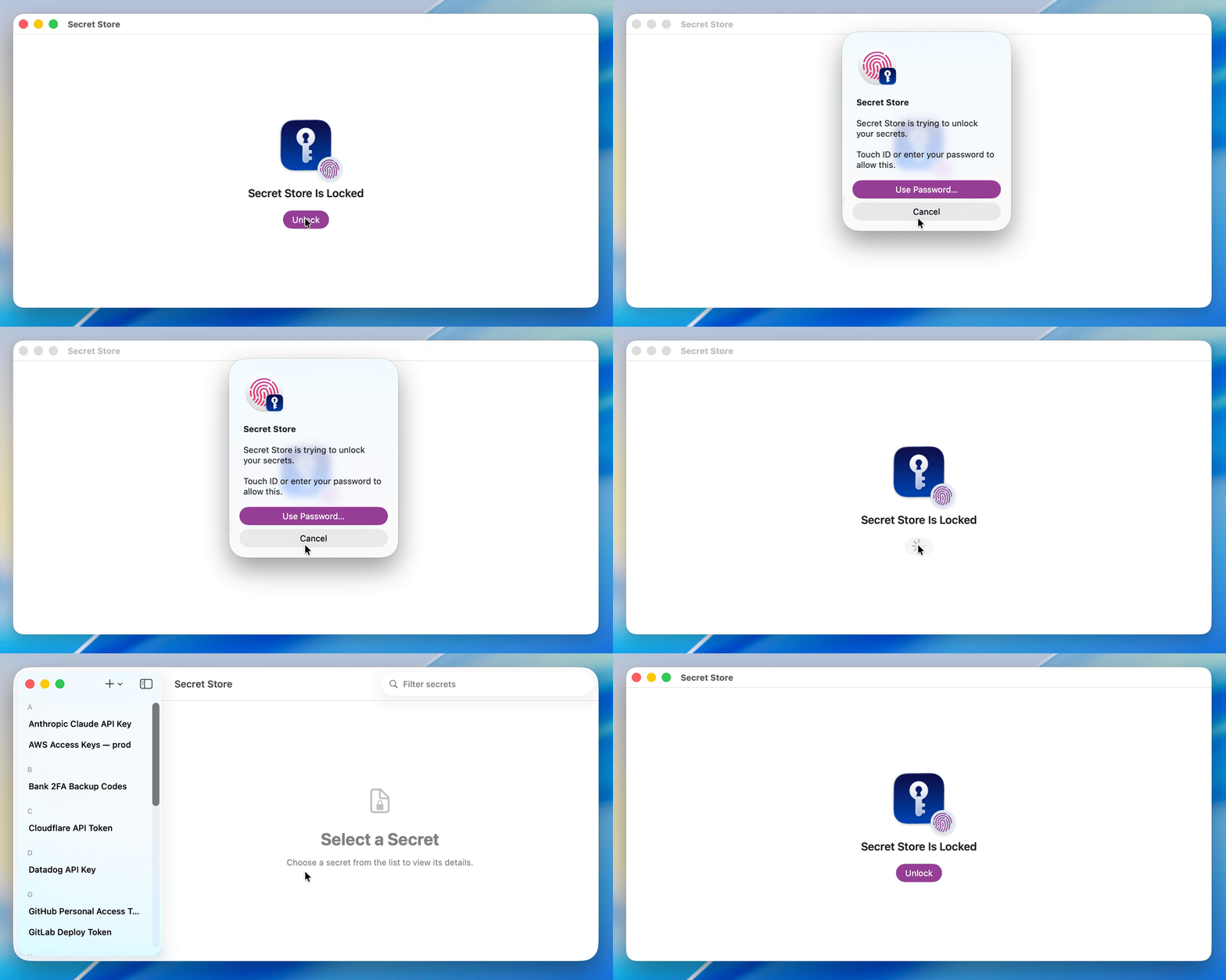
Switching to another app does not lock the vault (so you can copy a value into another app), but any value you’d revealed is re-masked the moment you switch away, so it never shows in a Mission Control thumbnail. The Edit Secret sheet hides its value the same way.
On iPhone and iPad, it locks after five idle minutes, and when you come back to it after five minutes or more away. While you’re in another app, a cover hides Secret Store in the app switcher, and any revealed value is masked again. Lock it yourself with the lock button in the sidebar or ⋯ ▸ Lock Secret Store (⌘L with an iPad keyboard). Unlock with Face ID, Touch ID or your passcode.
The lock is a privacy screen, not encryption: your secrets are protected at rest by Apple’s keychain whether or not the app is locked.
Copying a value
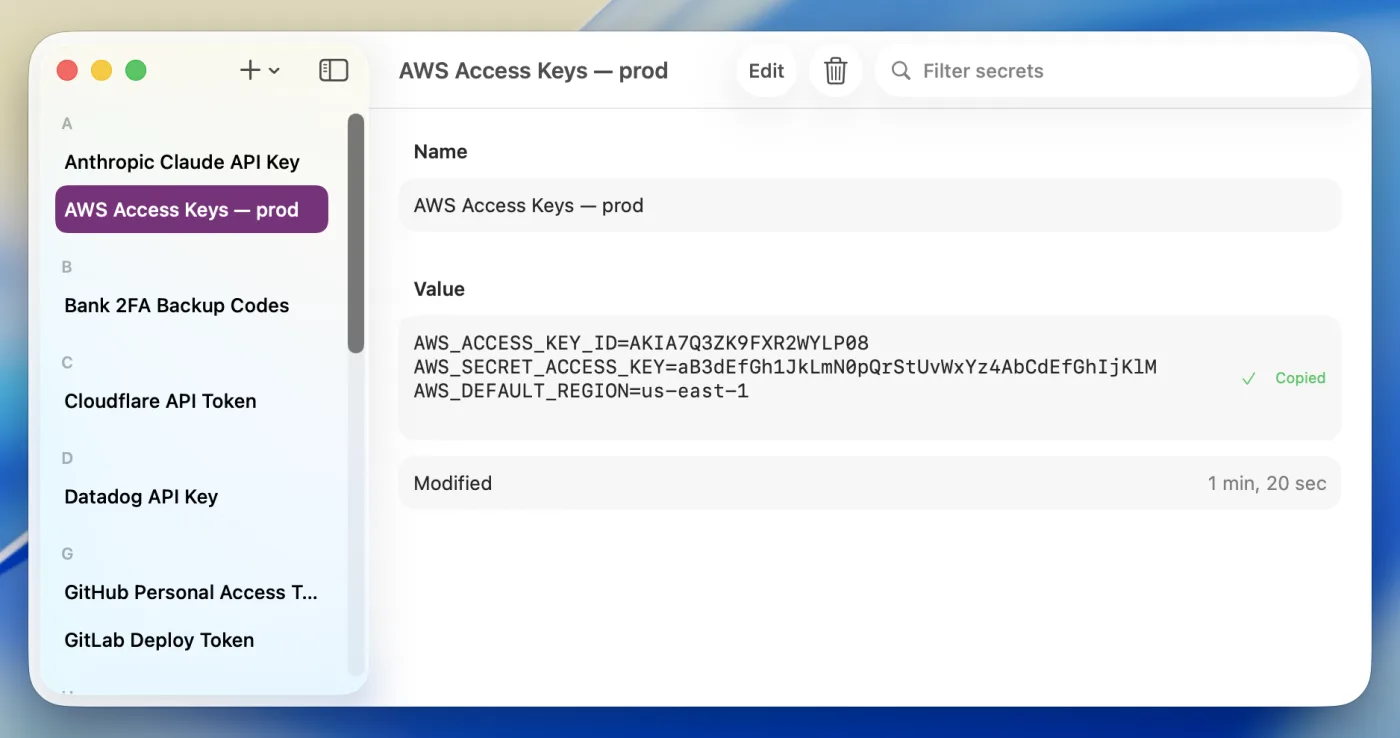
Click a secret’s value to copy it (tap it on iPhone and iPad), or on a Mac choose Edit ▸ Copy Secret Value (⌥⌘C). The clipboard clears itself 90 seconds later — unless you’ve copied something else in the meantime, in which case your newer copy is left alone.
- On a Mac, the copy is flagged so clipboard managers and clipboard history skip it, and it stays on this Mac: it doesn’t go to your other devices through Universal Clipboard. New in 1.2
- On iPhone and iPad, the copy stays on that device, and it expires after 90 seconds even if Secret Store isn’t running.