Backing up and restoring secrets
Your secrets already live in iCloud Keychain, but you can also take a self-contained backup — to keep offline, move to another device, or just to know you can get your data out.
Backing up
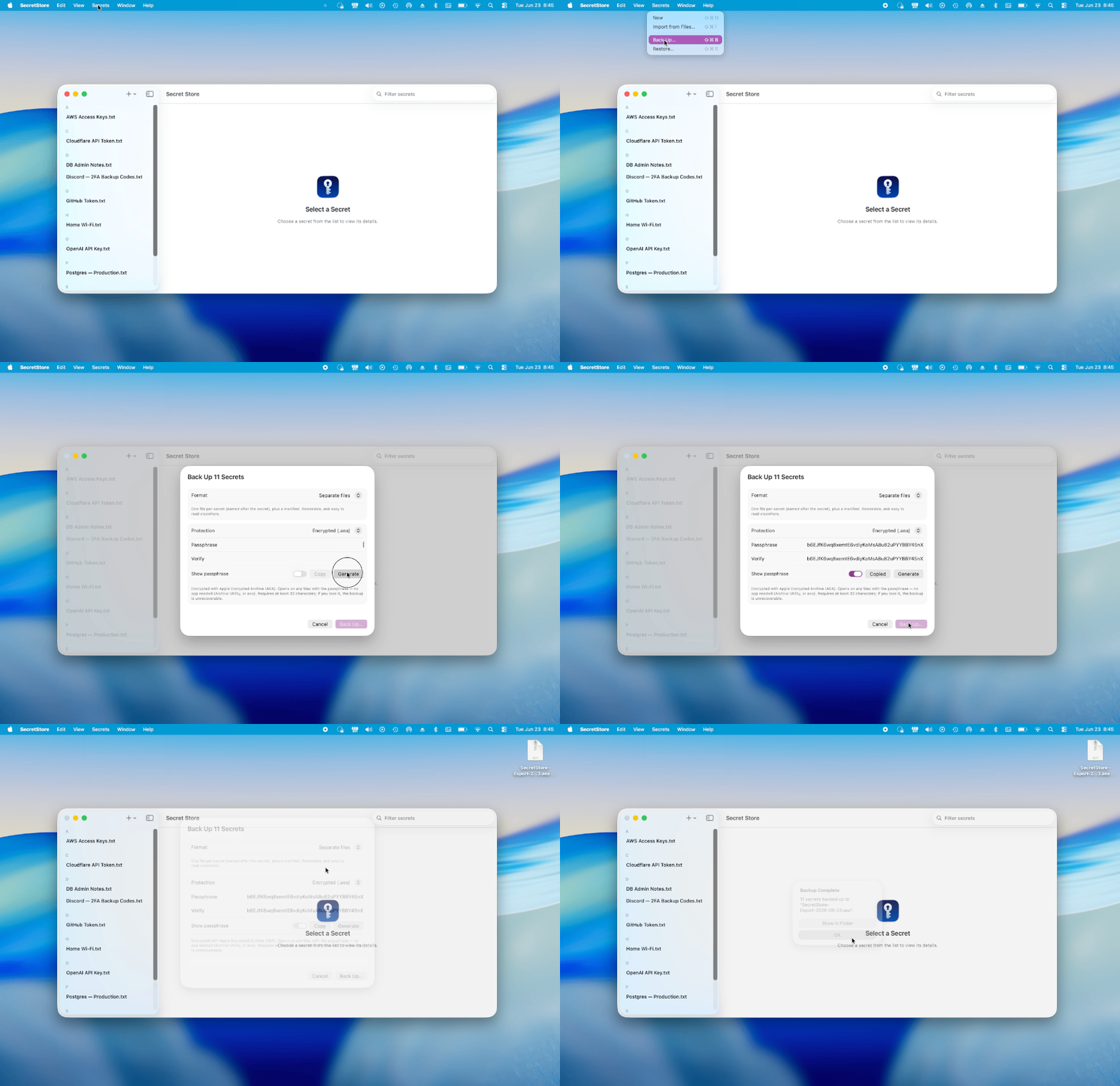
On a Mac, choose Secrets ▸ Back Up Secrets… (⇧⌘B), or right-click a selection in the list and choose Back Up Secret… (or Back Up N Secrets…). On iPhone and iPad, tap the ⋯ button and choose Back Up Secrets…. You pick two things:
Format
- Separate files — one file per secret (named after it), plus a
manifest.jsonthat records the exact names, notes, and dates. Easy to read in any app. - Single JSON file — everything in one structured file. Best for a clean full-backup/restore.
Protection
| Option | What you get |
|---|---|
Encrypted (.aea) — recommended | An Apple Encrypted Archive. Opens on any Mac with the passphrase — double-click to Archive Utility, or the built-in aea tool — no app required. Hides the secret names too. |
Apple Archive (.aar) | A single unencrypted file (Separate-files only). “Archived” is not “encrypted” — anyone with the file can read it. |
| None — plain files / JSON | Plain, unencrypted, openable anywhere on any OS. The most portable, and the least protected. |
For an encrypted backup you set a passphrase — at least 32 characters (tap Generate for a strong one, then Copy it somewhere safe). If you lose the passphrase, the backup can’t be recovered — there is no reset. The unencrypted options ask you to confirm you understand the file isn’t protected.
Backing up every secret asks for Touch ID, Face ID or your password first, even when Secret Store is already unlocked.
Encrypted and archived backups are written without your plaintext ever touching disk, and Secret Store re-opens and verifies the file before declaring success — so a backup that says it worked really does.
On iPhone and iPad, the finished backup opens in the share sheet: save it to Files or send it where you want it. The backup only counts as made if you complete the share, and the temporary copy is removed either way.
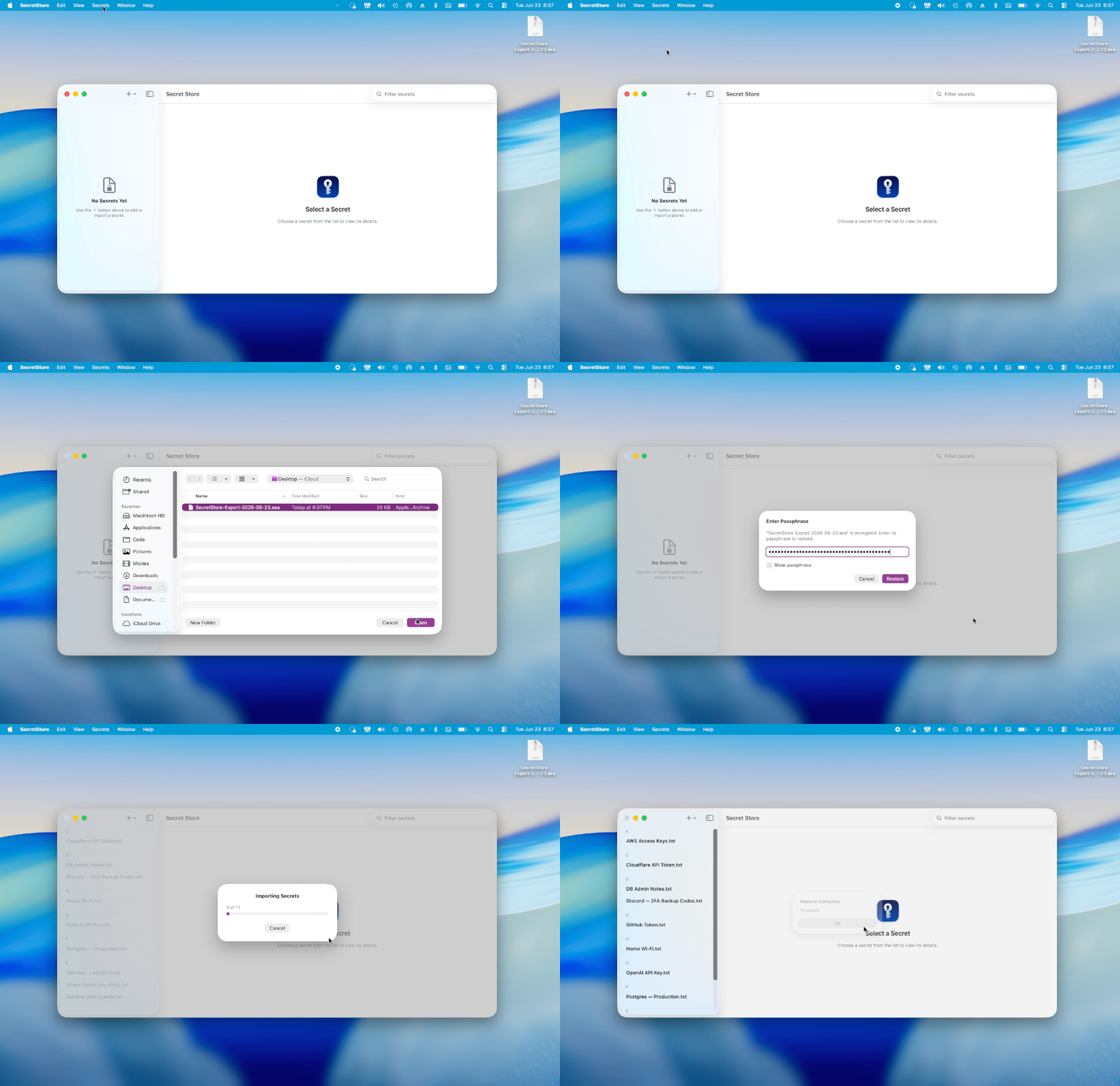
Restoring
On a Mac, choose Secrets ▸ Restore Secrets… (⇧⌘R). On iPhone and iPad, tap ⋯ and choose Restore Secrets…. Then pick your backup. What you select depends on the format:
- Separate-files backup → select the whole folder. Not the individual files,
and not
manifest.jsonon its own (it holds no secret values — those are in the sibling files). - Single JSON /
.aar/.aea→ select the file. An encrypted.aeaprompts for its passphrase.
Restore merges rather than replacing:
- A secret you already have is updated in place only when the backup’s copy is newer; an older backup never overwrites a newer secret.
- A backup secret whose name matches a different existing secret is skipped (so a restore can’t silently clobber something).
- Everything else is added, with its notes and tags.
(Restore is the round-trip for backups; Import from Files is for turning arbitrary files into new secrets.)