
Extracting several archives at once
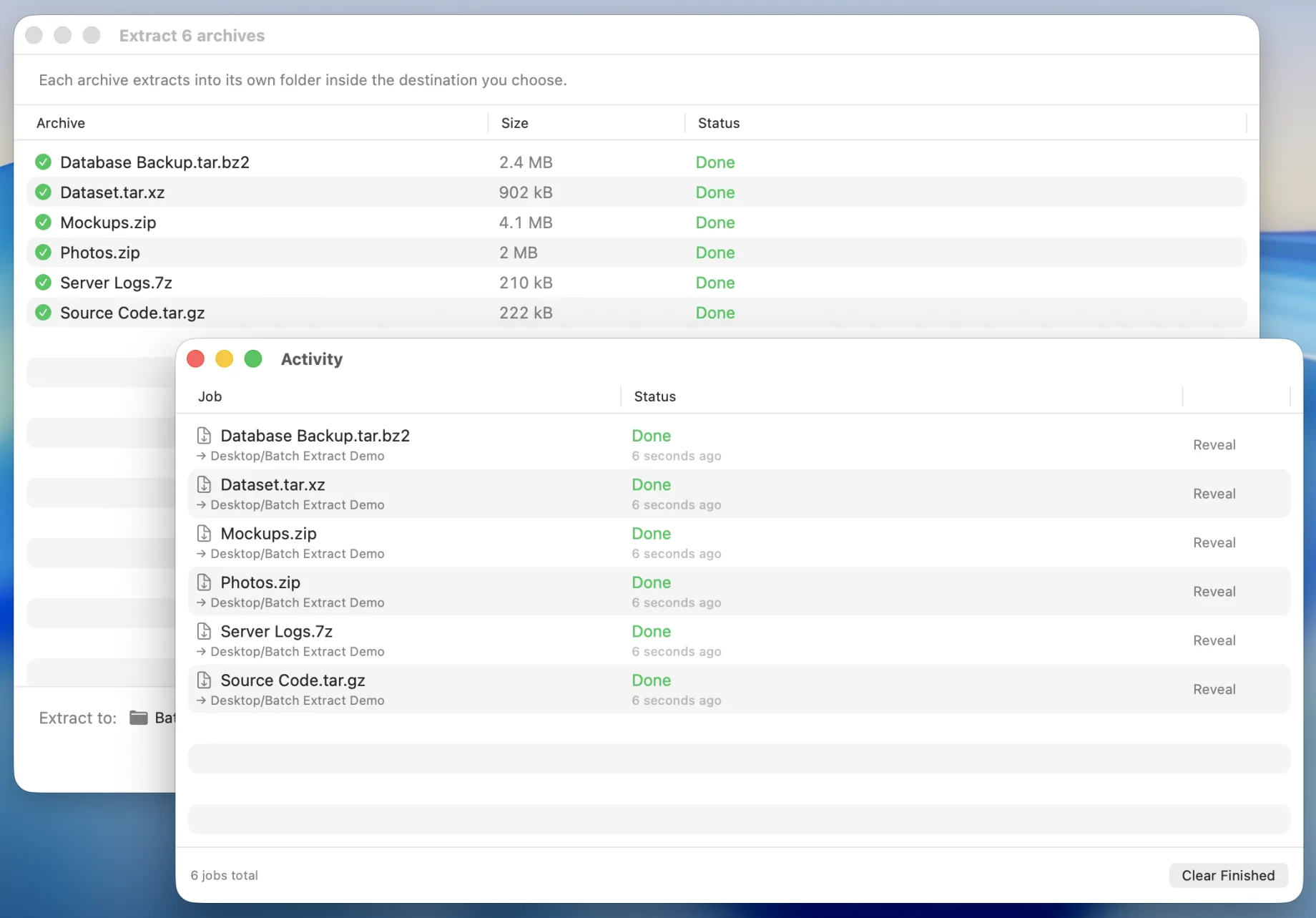
Drop two or more archives onto the Purrchiver dock icon (or the Welcome window) and Purrchiver opens a dedicated batch-extract window. The window lists every archive you dropped, lets you pick one destination folder for all of them, and works through them one at a time — marking each as completed as it goes.
When the batch window appears
Purrchiver shows the batch window only when every item you dropped is a recognized archive format (ZIP, RAR, 7z, tar, .tar.gz, .tar.bz2, etc. — see Format support).
If you drop a mix of archives and other files, Purrchiver assumes you want to compress everything together and opens a new compress window instead — same as single-file behavior.
Where the extracted files land
Each archive extracts into your chosen destination. If the archive
contains a single top-level folder (like photos.zip → photos/…),
the contents land in that folder directly under your destination. If
the archive contains loose files at the top level, Purrchiver wraps
them in a folder named after the archive so things stay tidy.
For example, dropping photos.zip (top-level folder photos/),
music.7z (loose top-level files), and backup.tar.gz (top-level
folder backup/) with destination ~/Downloads:
~/Downloads/photos/(from the archive’s own top-level folder)~/Downloads/music/(wrapped because the archive had loose files)~/Downloads/backup/(from the archive’s own top-level folder)
Purrchiver 1.1 New in 1.1 follows the extraction settings in a batch too: the destination picker starts at your Extract to folder, the new-folder rule decides the wrapping above, and, if you turned them on, the results are shown in Finder and each cleanly extracted archive goes to the Trash.
Encrypted archives in a batch
In Purrchiver 1.1 New in 1.1, the first encrypted archive asks for its password, with Try this password on the other encrypted archives in this batch (on by default). An archive that password doesn’t open shows Needs a password with an Enter Password… button, and the rest of the batch carries on without waiting. The password is kept in memory for that batch window only.
Before 1.1, encrypted archives in a batch are marked as failed in the queue with the password error inline — batch extract doesn’t prompt for passwords mid-run. The other archives in the batch continue normally. To extract one, open it directly in Purrchiver (double-click in Finder, or drop it on the app by itself); the single-archive flow asks for the password.
When the batch finishes
The window stays on screen with a summary of each row’s outcome (✓ done / ⚠ failed / – cancelled). In Purrchiver 1.1 New in 1.1, a row whose extract warned or left files out says Done, with N warnings; hover over it to see each one. Click Done to close. No post-completion popup, no surprise dialog — same as single-archive extract.
Canceling mid-batch
Click Cancel at any time. The currently-extracting archive is cancelled; the remaining queued archives are also marked Cancelled.
Archives that already finished stay on disk — cancellation doesn’t roll those back.
Watching progress in the Activity window
Batch progress is also surfaced in Purrchiver’s global Activity
window (Window → Activity, or ⌘0). Useful if you want to flip back
to the Welcome window or another archive while a batch runs in the
background — the Activity window keeps a live view of every queued,
running, and finished job in one place.
Dock badge during a batch
Purrchiver’s dock badge shows the count of non-terminal jobs across the whole app (Queued + Running) — every extract and compress, not just batch jobs. While a batch is running, you’ll see the remaining count tick down as each archive finishes; the badge clears when the queue is empty.
See Activity window → Dock badge for how this fits together with the Activity window’s job list.
Tips
- Drop a Finder selection of archives. Cmd-click several archives in Finder, then drag them all to the Purrchiver dock icon. Faster than opening Purrchiver first.
- Pick a sensible destination at the start of each batch. The destination picker doesn’t persist between batches — set it fresh when you open the batch window, or set an Extract to folder in Settings New in 1.1 for it to start from.
- Encrypted archives before 1.1. Batch extract in 1.0.1 doesn’t prompt for passwords mid-run; open encrypted archives one at a time.
Related
- Extracting files — single-archive extract
- Drag and drop — drop targets across the app
- Encrypted archives
- Finder integration — right-click
Extract hereskips the batch window for the simple case - Activity window — global job-queue monitor that pairs naturally with batch runs
Don't have Purrchiver yet? It's free on the Mac App Store.