
Compress or encrypt a single file
Not everything needs a container. When you have one file and just want it smaller or encrypted, Purrchiver gives you single-stream verbs that skip the archive entirely — and the inverse to undo them.
| Verb | What it does | Output |
|---|---|---|
| Compress File | Compresses a single file to a stream format. | report.csv → report.csv.gz |
| Decompress File | Reverses a single-stream file back to the original. | report.csv.gz → report.csv |
| Encrypt | Wraps the file in a passphrase-based age envelope. | report.csv → report.csv.age |
| Decrypt | Reverses an age envelope back to the original. | report.csv.age → report.csv |
These are different from Create Archive: there’s no bundling and no folder structure — one file in, one file out. (To put several files into one compressed file, you want a tar archive instead.)
Decompressing a .tar.gz (or .tar.xz, .tar.bz2, and the like) gives you
the whole .tar, one file. New in 1.1 To get the files inside
it, open it as an archive and extract instead. Before 1.1, Decompress could
return only the first file inside the tar, under the tar’s name.
Compressing a single file
Compress File writes the file to a single compression stream. The formats on offer:
- gzip (
.gz) and bzip2 (.bz2) — the universal Unix streams. Free. - xz, Zstandard (
.zst), Brotli (.br), lzip (.lz), LZ4 (.lz4), LZMA (.lzma) — the modern / specialized streams. Part of the one-time $9.99 unlock.
Creating .gz and .bz2 is free; the advanced streams are part of the unlock.
See What’s free vs. the unlock.
Encrypting a single file
Encrypt wraps the file — as-is, no compression required — in an age
envelope protected by a passphrase, producing <name>.age. age can encrypt
anything, which is why it’s Purrchiver’s single-file encryption choice. The
recipient opens it with Purrchiver or any age-compatible tool. Creating an
encrypted file is part of the one-time $9.99 unlock; Decrypt (and
opening any .age you receive) is always free. See
age encryption for the full story.
Where to find these verbs
Three entry points, same behavior:
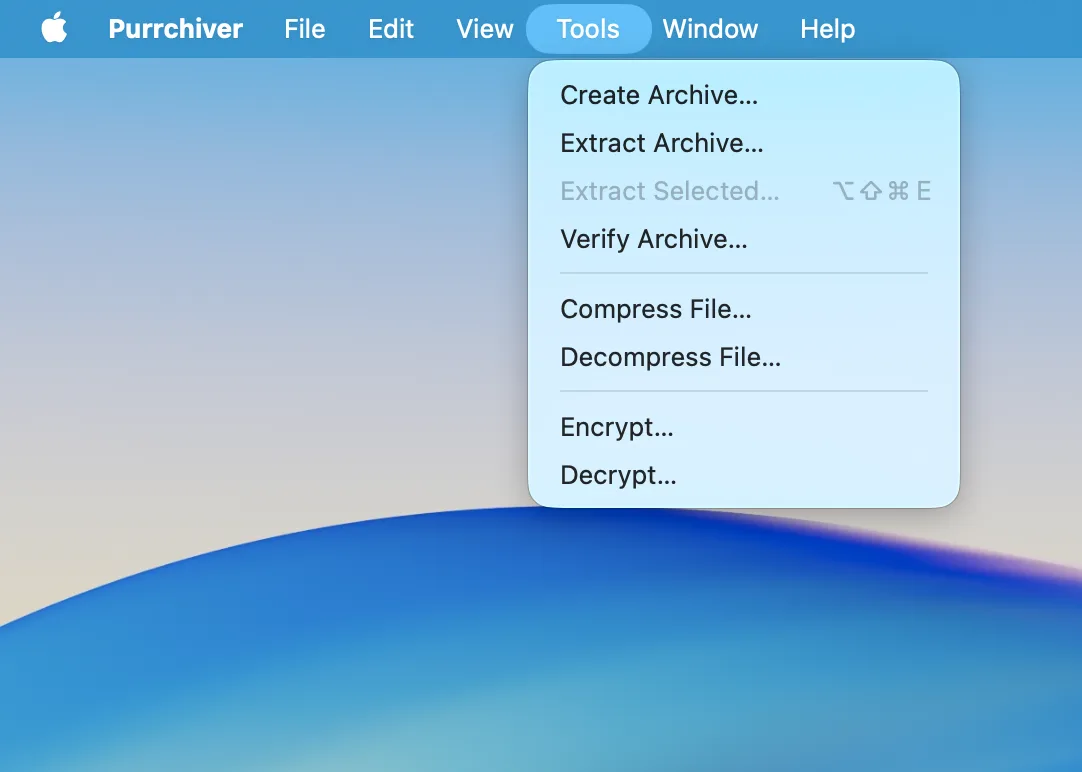
- The Tools menu — Compress File…, Decompress File…, Encrypt…, Decrypt…. Each opens a file picker, so you don’t need anything selected first.
- Finder Services — right-click a file → Services → Compress using Purrchiver (opens set to gzip) or Encrypt using Purrchiver (wraps the file as-is in age). See Finder integration.
- Shortcuts — the Compress File, Decompress File, Encrypt File, and Decrypt File actions, for automation. See Shortcuts & automation.
Related
- Zstandard, Brotli, LZ4 and lzip on macOS — the modern compressors, and when to use each
- age encryption — the universal wrap behind Encrypt
- Creating a new archive — when you have more than one file
- The Tools menu — every standalone verb in one place
- Format support — which streams Purrchiver reads and writes
- What’s free vs. the unlock
Don't have Purrchiver yet? It's free on the Mac App Store.