
Recovery data (PAR2)
New in Purrchiver 1.1. If you don't see it, update Purrchiver from the App Store.
Recovery data is extra information saved beside an archive that can rebuild damaged parts of it, byte for byte. With it, a cut-off download or a file from a failing drive isn’t just salvaged: it’s repaired to an exact copy of the original.
Purrchiver uses PAR2, the standard format for recovery data, so the
.par2 files it writes work with other PAR2 tools, and it can repair from
.par2 files other tools made, within the limits below.
Adding recovery data
In the Create Archive sheet, under Verify, turn on Add recovery data and choose how much:
- 5%: small damage
- 10%: recommended
- 20%: heavy damage
Purrchiver saves one .par2 file beside the new archive, named after it:
Photos.zip gets Photos.par2. It’s about that share of the archive’s size,
a bit more for small archives.
Keep the two together: send both, store both.
Other PAR2 tools usually write several .par2 files. Purrchiver writes one,
because macOS only lets an App Store app create a file beside one you chose
if it has the same name with a different extension; the PAR2 standard allows
a single file, and other tools read it.
Recovery data isn’t offered for split archives. Adding it is part of the one-time unlock, and you can save it in a preset, or add it to an existing archive with the Add Recovery Data action in Shortcuts. Repairing with it is free, and always will be.
Repairing a damaged archive
When an archive that has recovery data beside it won’t open, the error offers Repair Using Recovery Data… first, and so does the result when Verify finds damage. You can also choose Tools → Repair Using Recovery Data… for the archive in front, Tools → Recover Damaged Archive…, which repairs when it finds recovery data, or the Repair Archive action in Shortcuts.
Purrchiver writes a new copy, such as Photos (repaired).zip, in the folder you choose, starting in the archive’s own. The damaged file isn’t changed. The repaired copy is kept only if it matches the original’s checksum exactly, so “repaired” means identical, not “close”.
If recovery data from another tool is split across several files
(Photos.zip.par2, Photos.zip.vol00+10.par2, …), keep them all beside the
archive and leave the destination as the archive’s own folder, so Purrchiver
can use every one.
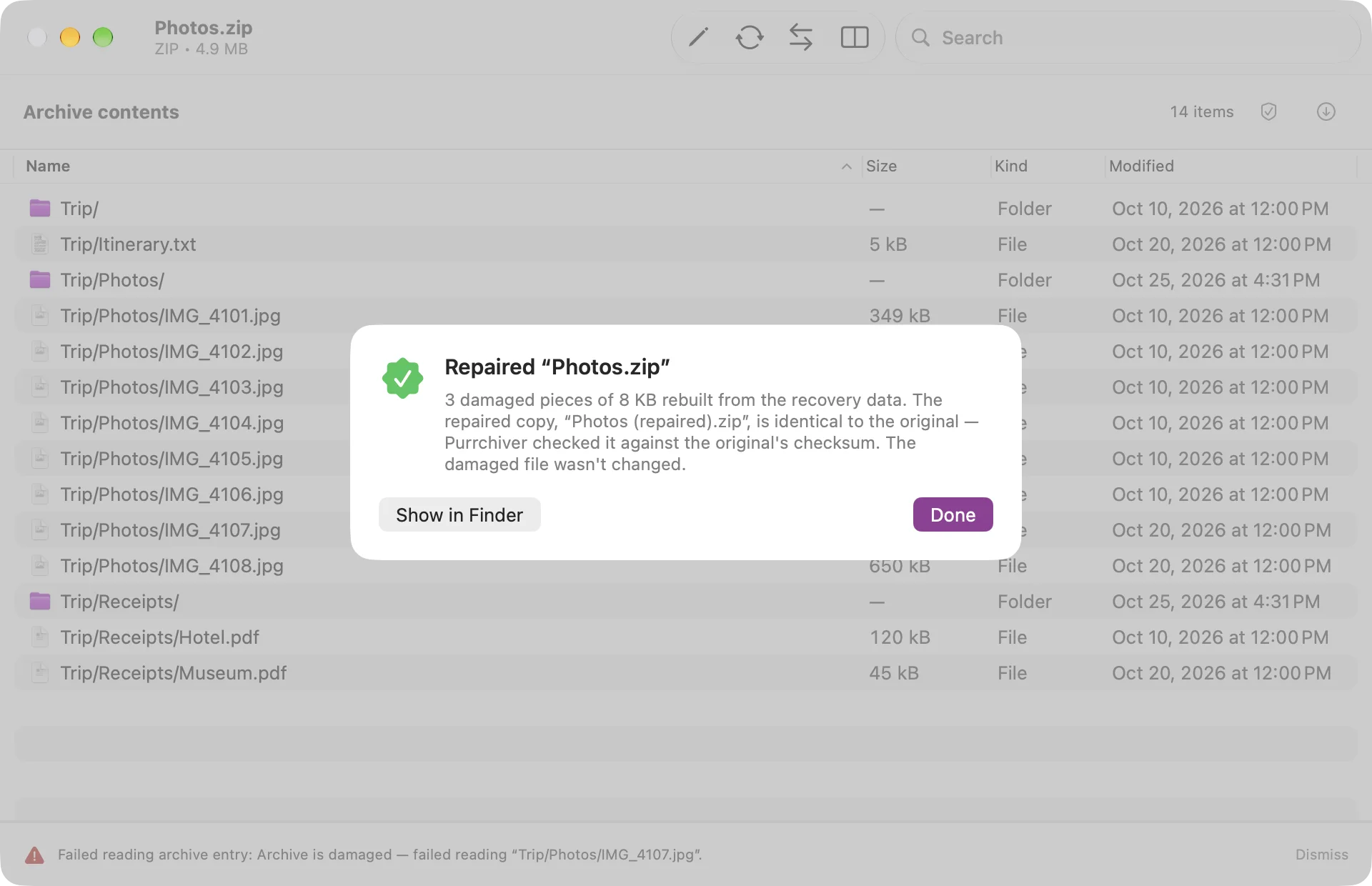
Repair reads past unreadable spots on a failing drive, too: a piece of the archive the disk can’t read counts as damaged, so the recovery data rebuilds it, and the repaired copy is still checked against the original’s checksum. (Adding recovery data is different: it stops at an unreadable spot rather than protect data it couldn’t read.)
A multi-part RAR may come with .rev recovery volumes instead of .par2
files. Purrchiver can rebuild a missing or damaged part from those too, in
the same way; see
RAR recovery volumes.
What recovery data can and can’t fix
- Damage up to the amount you added. 10% recovery data repairs damage to up to about 10% of the archive. Damage is counted in small pieces, so many small errors scattered widely count for more than their size. If more is damaged, Purrchiver says by how much (“Too much is damaged to repair…”) and offers to recover what’s readable instead.
- Damage that leaves the rest in place: a file cut off part-way, or bytes overwritten. Data shifted by bytes inserted or deleted in the middle isn’t searched for.
- Sets that cover several files are repaired too. Many downloads come with one recovery set for every part of a multi-part RAR. Purrchiver checks every file the set names, including in subfolders, and puts the whole set in a new “(repaired)” folder beside it: intact files copied as they are (on APFS that takes no extra space), damaged and missing ones rebuilt and kept only if they match exactly. Nothing in the original folder is changed. Purrchiver only creates recovery data for one archive at a time.
After you edit the archive
Recovery data describes the archive exactly as it was when the data was
made. If you edit the archive and
save over it, the .par2 beside it (Photos.par2 for Photos.zip) no
longer matches, so it can’t repair the new archive. Purrchiver notices this
after the save, and a note under the staging area says so and offers:
- Update Recovery Data: write new recovery data for the archive as it is now, at the amount you last chose in the Create Archive sheet (10% if you haven’t chosen one). Like adding recovery data, it’s part of the one-time unlock.
- Move to Trash: move the old
.par2to the Trash. - Or dismiss the note and leave the file as it is.
Purrchiver never changes or removes the old recovery data unless you choose one of these.
Related
Don't have Purrchiver yet? It's free on the Mac App Store.