
Split a file and join the parts
New in Purrchiver 1.1. If you don't see it, update Purrchiver from the App Store.
Purrchiver 1.1 can cut any file, not only an archive, into numbered parts
(Movie.mov.001, Movie.mov.002, …) of a size you choose, and put the parts
back together. Splitting is for when one big file won’t go where it has to:
a FAT32 USB drive that holds nothing over 4 GB, an upload form with a size
limit, a disc. Joining is free.
You can do the same for free in Terminal with split and cat, which come
with macOS; How to split a large file or ZIP on a Mac
shows how, and when Mail Drop saves you the trouble.
Split a file
- Choose Tools → Split File…. The Split and Join window opens on Split a File.
- Next to File, click Choose… and pick the file.
- Pick a Part size:
- 1.2 MB — 5.25-inch diskette
- 1.44 MB — 3.5-inch floppy disk
- 100 MB — Zip disk
- 700 MB — CD
- 1 GB — Jaz drive
- 4 GB — FAT32 USB (the default)
- 4.7 GB — DVD
- 8.5 GB — DVD (dual layer)
- 25 GB — Blu-ray
- 50 GB — Blu-ray (dual layer)
- Custom…, in KB, MB, or GB
- Leave Write a .sha256 checksum file, so Join can check the result on (it is by default).
- Click Split…, choose the folder for the parts, and click Split Here.
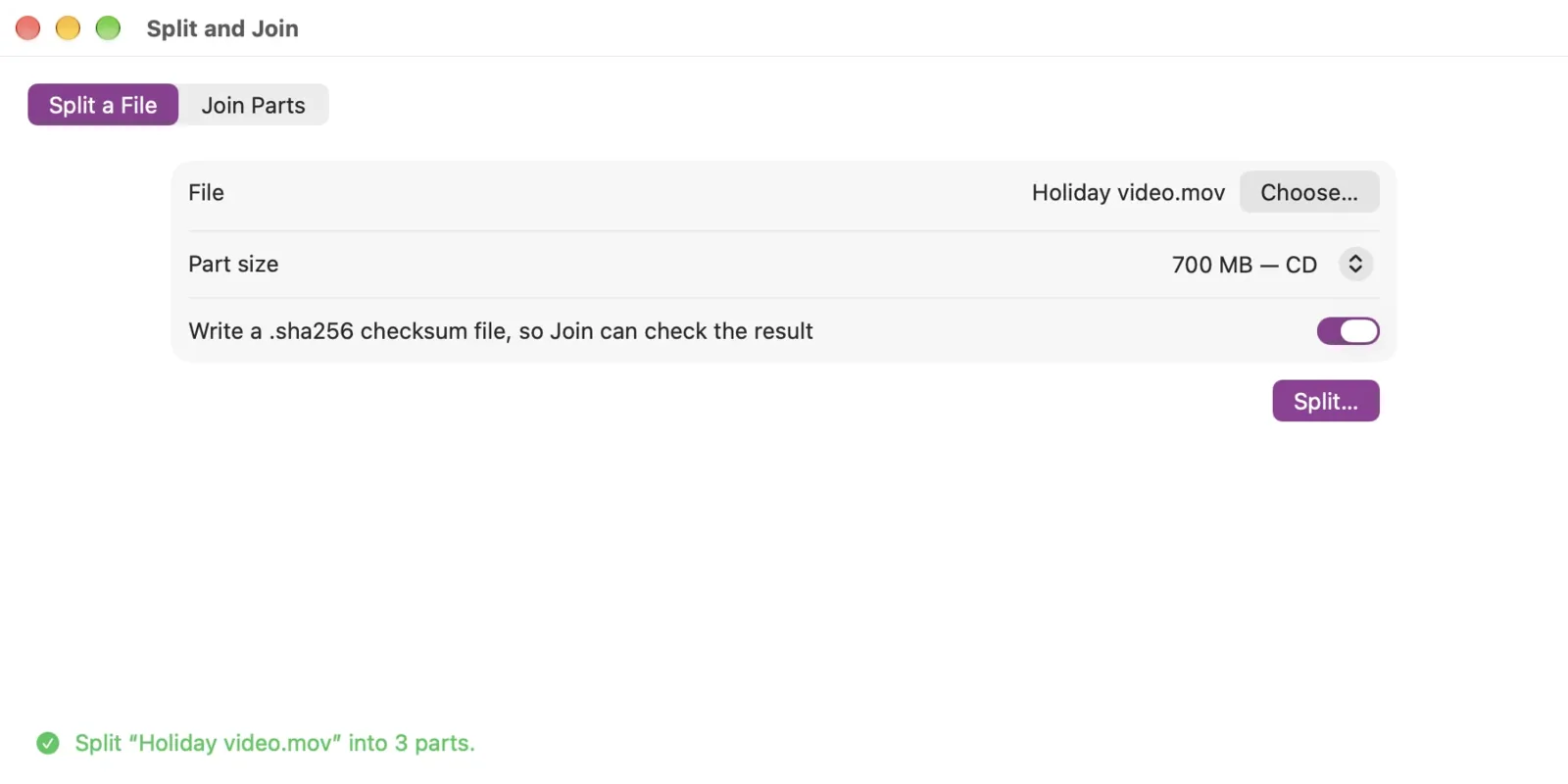
Sizes are decimal, except the two floppy sizes, which match the real disks
(1.44 MB is 1,474,560 bytes). 4 GB is 4,000,000,000 bytes, just under the
most a FAT32 drive can hold in one file. A part must be at least 1,048,576
bytes, so a custom size needs to be at least 1.05 MB. A file can be cut
into at most 9,999 parts; from 1,000 parts on, the numbers have four
digits (.0001).
What you get. The parts are named after the whole file with a number
added: Holiday.mov.001, Holiday.mov.002, and so on, every part the size
you chose except the last. With the checksum on, Holiday.mov.sha256 sits
beside them, holding the SHA-256 of the original file. Purrchiver doesn’t
replace parts already in the folder with the same names; it stops instead.
The original file isn’t changed.
Splitting is part of the one-time $9.99 unlock. Without it, the button shows a lock and opens the unlock offer.
Join the parts
- Choose Tools → Join Parts… (or Join Parts in the Split and Join window), then Choose….
- Choose the first part, such as
Holiday.mov.001. Purrchiver then asks for access to the folder it’s in, so it can find the other parts and the checksum file: click Allow. macOS only lets an App Store app see the files you pick, or a folder you grant. - Click Join…, choose where to save the joined file (it’s named after the parts, without the number), and click Join.
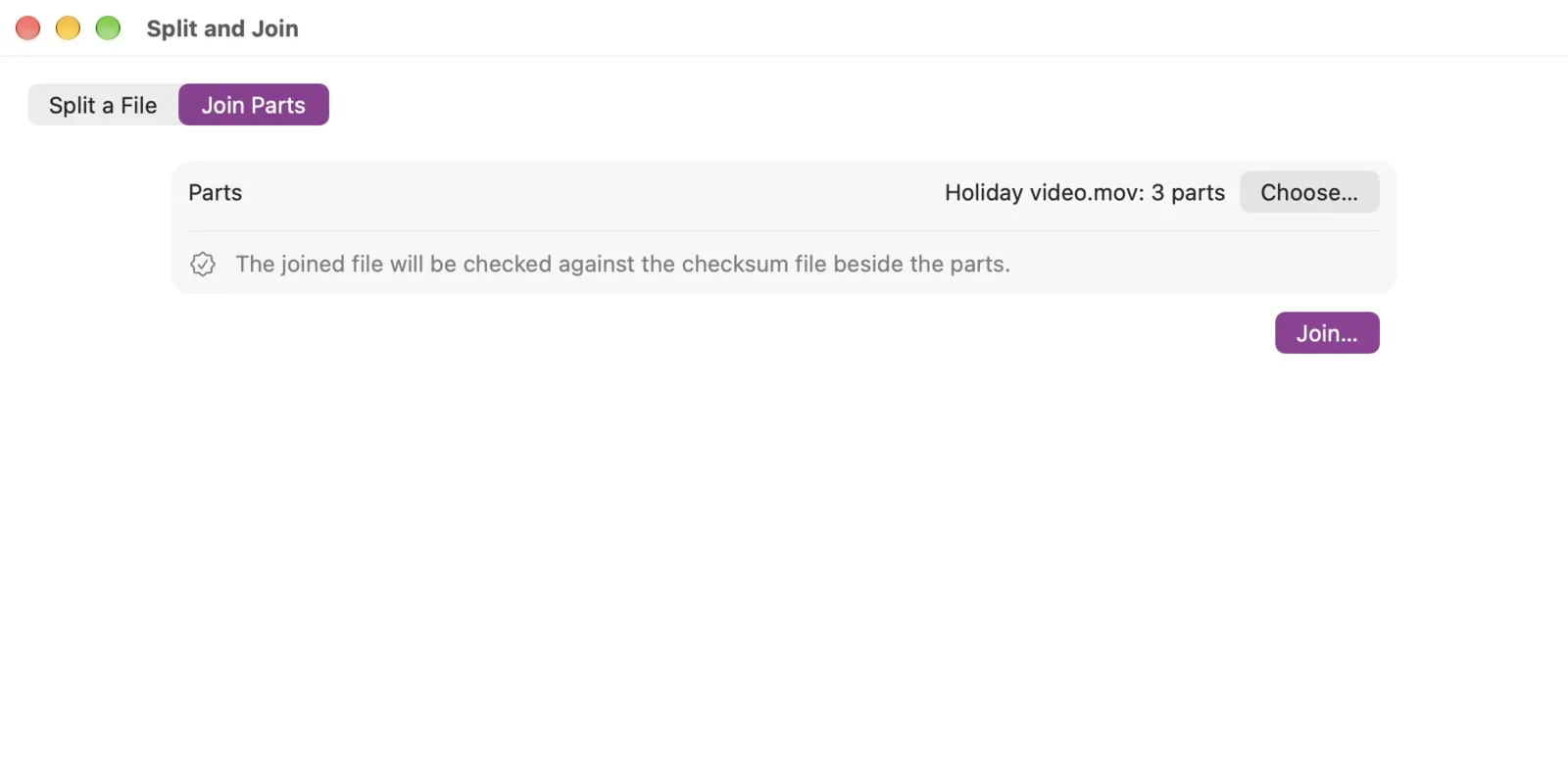
What Join checks:
- Missing parts. If a number is missing between the first and the last part, Purrchiver says which (“Some parts are missing: 002.”) and won’t join until they’re there. It can’t see a missing last part that way; the checksum file catches that.
- The checksum. With the
.sha256file beside the parts, the joined file is checked against it. On a match, Purrchiver says “It matches the checksum file.” If it doesn’t match, the joined file isn’t kept.
The joined file only appears once it’s whole and has passed the check, and the parts are only read, never changed. Joining is free.
Joining without Purrchiver
The parts are just the file’s bytes in order, so anyone can join them. On a Mac or Linux, in Terminal, from the folder with the parts:
cat Holiday.mov.[0-9]* > Holiday.mov
shasum -a 256 -c Holiday.mov.sha256The second line checks the result against the checksum file and prints
Holiday.mov: OK, or FAILED if a part is missing or damaged. I tested
both lines on macOS 27 in zsh and bash, including with a part missing. On
Linux without shasum, sha256sum -c Holiday.mov.sha256 reads the same
file.
On Windows, in Command Prompt, copy /b Holiday.mov.001 + Holiday.mov.002 + Holiday.mov.003 Holiday.mov joins them, listing every part in order. I
haven’t tested the Windows command.
Split File or a split archive?
When you create an archive, you can also split it as it’s made: a split archive is compressed and packed in one step, and the recipient opens it with any app that reads split archives, with no joining.
Split File is for a file that already exists: a video, a disk image, or an
archive you already have. Its parts have to be joined before the file can
be used, unless it was a .zip, .7z, or .tar archive: then its parts
are named like split-archive volumes (Photos.7z.001, …), which archive
apps that read split archives open directly. I tested 7-Zip 26.05 opening
a .zip and a .7z cut this way.
Related
Don't have Purrchiver yet? It's free on the Mac App Store.