
Compare two archives
New in Purrchiver 1.1. If you don't see it, update Purrchiver from the App Store.
To find what changed between two archives on a Mac, you can list both and compare the lists in Terminal for free, or extract both and compare the folders. That tells you which files were added and removed, but finding which files changed means unpacking everything first. Purrchiver 1.1’s Compare Archives does all of it without extracting: every file is marked added, removed, changed, or unchanged, by content.
Free, in Terminal
Which files were added or removed. macOS’s tar lists the contents of a
ZIP, 7z, tar, and most other archives, so comparing the two lists shows what
each archive has that the other doesn’t:
diff <(tar -tf before.zip | sort) <(tar -tf after.zip | sort)Lines starting < are only in the first archive, > only in the second.
For two ZIPs, unzip -Z1 in place of tar -tf does the same. This compares
names only: a file whose contents changed doesn’t show up. Archives made
by different tools can name the same file differently (a tar made with
tar -czf x.tar.gz . stores ./notes.txt, a ZIP stores notes.txt), and
then every name shows as different. If a path is wrong, tar prints an
error but diff prints nothing, which looks like no differences, so check
for error lines.
Which files changed. Extract both into their own folders and let diff
compare them:
mkdir -p ~/Desktop/compare/before ~/Desktop/compare/after
tar -xf before.zip -C ~/Desktop/compare/before
tar -xf after.zip -C ~/Desktop/compare/after
diff -rq ~/Desktop/compare/before ~/Desktop/compare/afterIt prints Files … differ for each changed file and Only in … for each
added or removed one, and nothing when the two match. You need room for
both archives unpacked. Start with an empty compare folder each time,
because files left from an earlier run show up as differences, and delete
it afterwards. tar asks for an encrypted ZIP’s password; an encrypted 7z
or RAR needs extracting some other way first.
I tested these on macOS 27 with its built-in tar (bsdtar 3.5), unzip,
and diff, comparing a ZIP with a ZIP and a ZIP with a 7z, run from a
different folder than the archives (use the archives’ full paths, or cd
to their folder first).
In Purrchiver: Compare Archives
There are two ways in:
- Tools → Compare Archives… Choose two archives together and the older one, by modified date, is “before”, on the left; the newer is “after”, on the right. Choose just one and Purrchiver asks for the second, which goes on the right.
- Compare in the toolbar of an open archive, or Tools → Compare Archives… while one is open in front: Purrchiver asks only for the other archive, and the open one is on the left.
The two archives can be different formats: a .zip against a .7z or a
.tar.gz works, because only the files inside are compared. Neither archive
is changed.
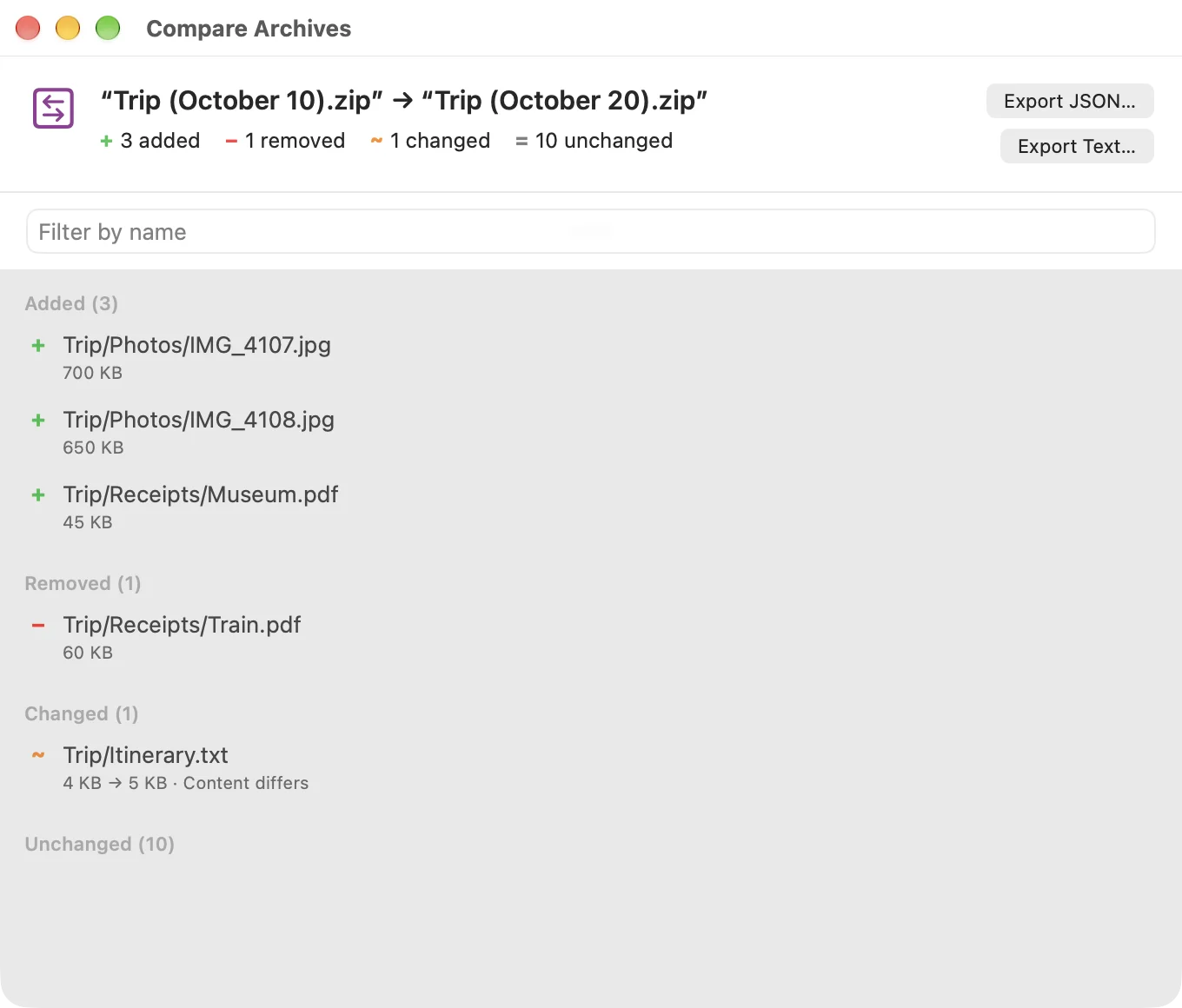
Reading the result
Each file is in one of four sections, with a count for each at the top:
| Section | Means |
|---|---|
Added (+) | Only in the archive on the right. |
Removed (−) | Only in the archive on the left. |
Changed (~) | In both, but different: the contents, a file that became a folder, or a link that points somewhere else. |
Unchanged (=) | The same in both. Collapsed at first; click it to open it. |
If nothing differs, the window says “No differences — every item is the same in both archives.”
How “changed” is decided. Files are matched by their path inside the archive. If the two copies have different sizes, the file is changed, and Purrchiver doesn’t need to read it. If they’re the same size, Purrchiver reads both and compares their SHA-256, so a same-size edit is still caught. Each archive is read at most twice, start to finish, and nothing is extracted to disk, except archives inside the archives (below).
“Modified date differs.” A file with the same contents but a different modified date is unchanged, with “Modified date differs” under it. Dates within two seconds of each other count as the same, because ZIP only stores times to the nearest two seconds.
Archives inside the archives. When both archives hold an archive at the
same path, and it changed, Purrchiver compares inside it too, one level
deep, and shows its differences under its row. It recognizes them by name
(.zip, .7z, .rar, .tar.gz, and so on, plus .jar, .apk, and
.ipa; not Office or Pages documents, which are ZIPs inside). To look
inside, Purrchiver unpacks both copies to a temporary folder, which it
deletes afterwards: up to 8 GB in all for one comparison, and never more
than half your free space. When there isn’t room, the row says “It wasn’t
compared inside: there isn’t room to unpack it.” It looks inside the first
32 changed archives; any after that are compared as files. It doesn’t ask for passwords for
archives inside; if one can’t be read, its row says “Couldn’t look inside”
and why.
Filter. Type in the Filter field (⌘F) to narrow every section to the paths that contain what you typed. An archive inside stays in the list when something inside it matches.
Encrypted archives
If either archive is encrypted, the Compare window asks for its password, naming the archive. Purrchiver keeps the password only while that window is open.
Export the result
Export Text… saves a plain-text report: both archives’ names, the
counts, and one line per difference (+ added, - removed, ~ changed).
Unchanged files are counted but not listed. Export JSON… saves the full
result, every file with its status, size, and SHA-256 where it was read, for
a script to use.
Exports carry only the two archives’ file names, never where they are on your Mac. The suggested name is the two names without their extensions, such as “Project-v1 vs Project-v2”.
In Shortcuts
The Compare Archives action does the same in the Shortcuts app. Give it a First Archive and a Second Archive; the first is “before”. It returns the same text report as Export Text… and shows the counts.
For an encrypted archive, leave First Password or Second Password empty and you’re asked when it runs. A password typed into the action is saved in the shortcut, and in any copy you share. See Shortcuts & automation.
Limits
- Up to a million items in each archive.
- Archives inside are compared one level deep, only when they changed, and at most 32 of them.
- Office and Pages documents are compared as files, not looked inside.
Part of the unlock
Comparing archives, in the window and in Shortcuts, is part of the one-time $9.99 unlock. Without it, Compare shows the unlock offer instead. See What’s free vs. the unlock.
Related
Don't have Purrchiver yet? It's free on the Mac App Store.