
Shortcuts & automation
Purrchiver integrates with Apple’s Shortcuts app with a full set of composable actions, so you can drop archiving into any automation — a Finder Quick Action, a folder-action, a menu-bar shortcut, or a spoken Siri request — without a script or the command line.
Some Shortcuts actions are free; the advanced create formats, all encryption authoring, and Purrchiver 1.1’s Compare Archives, Generate Checksums, and Add Recovery Data New in 1.1 need the one-time $9.99 unlock. See What’s free vs. the unlock.
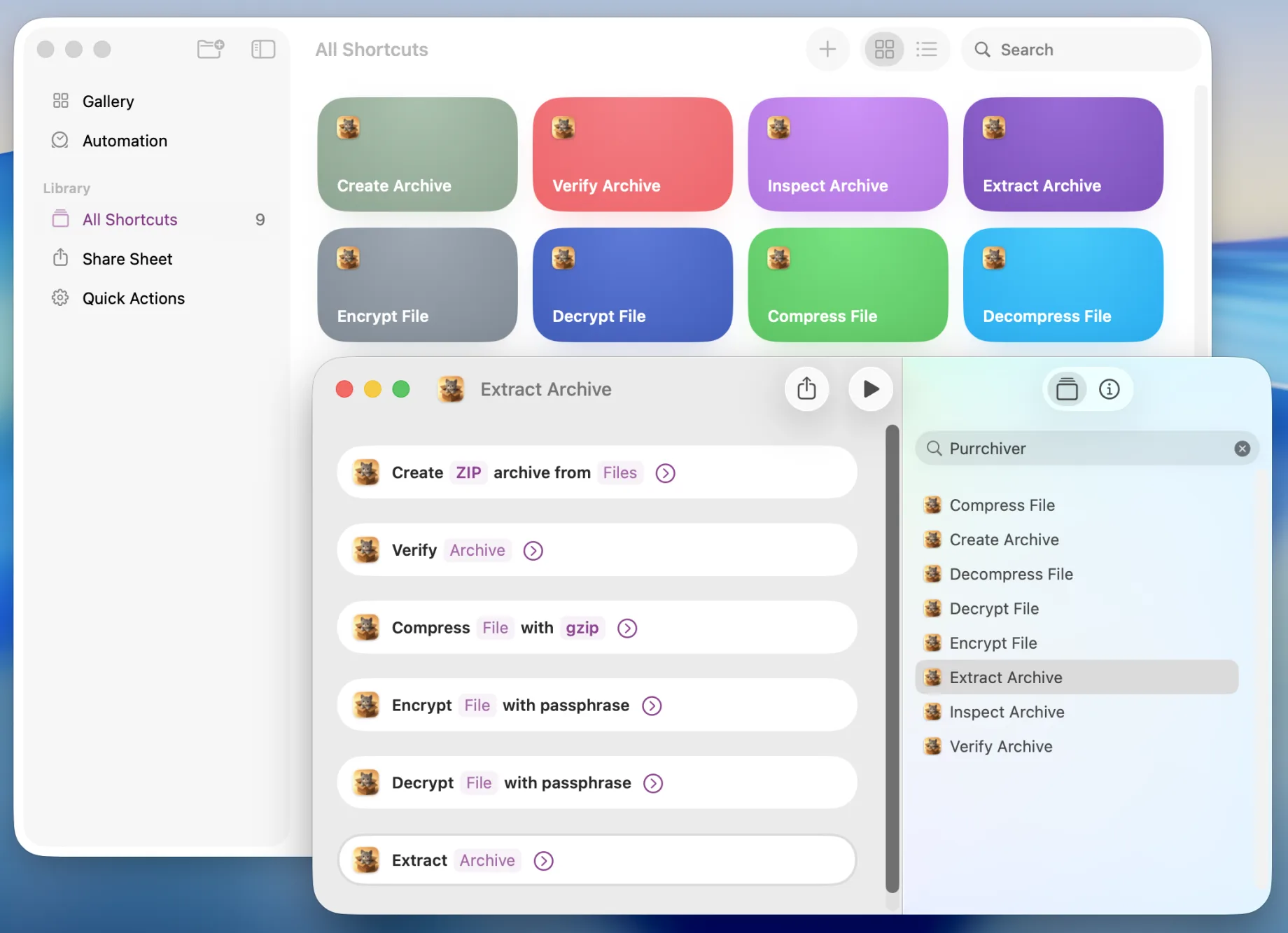
The actions
The catalog is symmetric — every create has its extract, every encrypt its decrypt:
| Action | What it does | Parameters | Returns |
|---|---|---|---|
| Extract Archive | Extracts an archive. | Archive (file), Password (optional) | The extracted files (a list you can save or iterate over) |
| Create Archive | Compresses files into a new archive. It leaves out what Settings → Compression → Leave out lists New in 1.1. | Files, Format (default ZIP), Archive Name (default “Archive”), Password (optional), Destination Folder (optional) New in 1.1 | The created archive file. With a Destination Folder, the archive is written straight into that folder instead of being handed to the next action, which suits large archives. |
| Verify Archive | Reads every entry to confirm the archive is intact, without extracting. | Archive (file), Password (optional) | Whether the archive is intact (true/false) |
| Recover Archive New in 1.1 | Recovers whatever is still readable from a damaged or partly downloaded archive. Partly recovered files are named “… (incomplete)”. Free. | Archive (file), Password (optional) | The recovered files |
| Repair Archive New in 1.1 | Repairs a damaged archive from its PAR2 recovery data, returning a copy identical to the original. Free. | Archive (file), Recovery Files (optional — defaults to the .par2 beside the archive) | The repaired archive |
| Add Recovery Data New in 1.1 | Creates PAR2 recovery data (5%, 10% or 20%) for an archive, so it can be repaired later. | Archive (file), Amount | The .par2 file |
| Inspect Archive | Lists an archive’s entries and metadata without extracting. | Archive (file), Password (optional) | Structured entries (name, size, isDirectory) you can iterate or filter over |
| Compare Archives New in 1.1 | Compares two archives without extracting them and reports what was added, removed or changed, by content. Needs the unlock. | First Archive, Second Archive, First Password and Second Password (optional) | A text report |
| Compress File | Compresses a single file to a stream format (gzip, xz, Zstandard, Brotli, …). | File, Format | The compressed file |
| Decompress File | Decompresses a single-stream .gz / .xz / .zst / .br / … file. | File | The decompressed file |
| Encrypt File | Wraps a file in a passphrase-based age envelope. | File, Passphrase | The .age-encrypted file |
| Decrypt File | Decrypts an age-encrypted file back to the original. | File, Passphrase | The decrypted file |
| Check File Checksum New in 1.1 | Hashes a file and compares it with a SHA-256 or SHA-512 checksum you paste — say, from a download page. Labels like SHA256:, capitals and stray spaces are fine. | File, Expected Checksum | Whether it matches (true/false) |
| Verify Checksums New in 1.1 | Checks an archive against a checksum file: the archive’s own published checksum, or every file inside, saying which match. Uses the checksum file beside the archive if you don’t pass one. | Archive, Checksum File (optional), Password (optional) | Whether everything matched (true/false) |
| Generate Checksums New in 1.1 | Writes a checksum file listing every file in an archive with its SHA-256 (or SHA-512). Standard shasum format, so anyone can check it without Purrchiver. | Archive, Algorithm (default SHA-256), Password (optional) | The checksum file |
Each action’s output flows into the next step of your shortcut — extract to a folder and then move it, create an archive and then share it, test an archive and branch on the result.
Running them by voice or search
Because these are registered App Shortcuts, they also show up in Spotlight and work with Siri using natural phrases:
- “Extract an archive with Purrchiver” (also “Unarchive…”)
- “Create an archive with Purrchiver” (also “Compress files…”, “Make an archive…”)
- “Verify an archive with Purrchiver” (also “Test…”, “Check…”)
- “Verify checksums with Purrchiver” New in 1.1
- “Check a file’s checksum with Purrchiver” New in 1.1 (also “Verify a download…”)
Passwords in automation
The Password parameter is optional on every action:
- Leave it empty for unencrypted archives.
- For Create Archive, supplying a password produces an AES-256 encrypted archive (ZIP or 7z), or — for the AAR format — an encrypted Apple Archive (the password must be 20 to 256 characters).
- For Extract Archive / Verify Archive, supply the password an encrypted archive needs.
A password you pass through Shortcuts is used for that run only — Purrchiver never stores it. If you hard-code a password into a saved shortcut, treat that shortcut as a secret. For interactive runs, use Shortcuts’ Ask Each Time so the password isn’t saved in the shortcut. See Encrypted archives for the password model.
Example shortcuts
- Extract to a specific folder on a schedule — Extract Archive → Repeat with each extracted file → Move File to your sorted-downloads folder.
- Make a dated backup — Create Archive (Format: 7z) → Rename with the current date → Save File.
- Verify a download before you trust it — Verify Archive → If intact → continue; otherwise notify.
What’s not here (yet)
- No command-line tool. Automation is via the Shortcuts actions above. A CLI is on the roadmap, not shipping today — if a terminal workflow matters to you, email corey@coreydaley.dev; user signal sets priority.
Related
Creating a new archive — the same formats and encryption, in the app
Compress or encrypt a single file — the single-file verbs behind Compress File / Encrypt File
The Tools menu — the same actions from the menu bar
Compare two archives New in 1.1 — the Compare window behind the Compare Archives action
Extracting files — the interactive extract flow
Encrypted archives — how passwords work
Ask Apple Intelligence about an archive — Inspect Archive plus Shortcuts’ Use Model
Don't have Purrchiver yet? It's free on the Mac App Store.