
The Tools menu
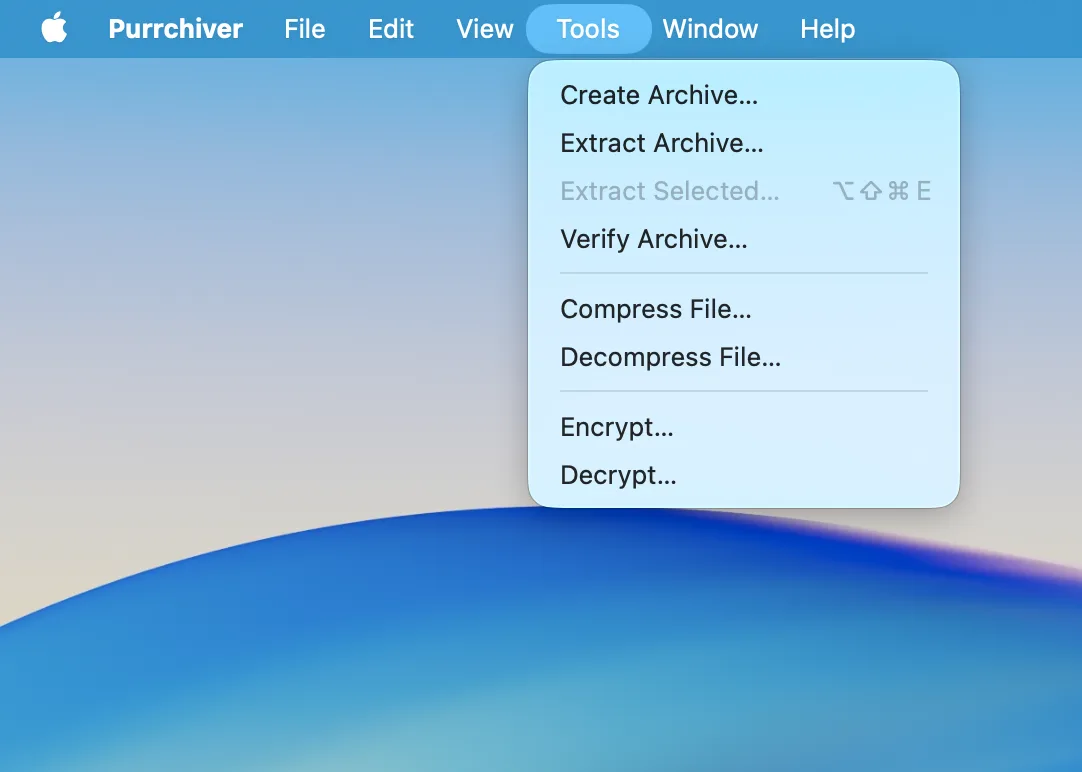
The Tools menu in Purrchiver’s menu bar is a catalog of standalone “pick-and-do” verbs. Each one opens its own file picker, so you can start any job straight from the menu bar without first dropping files or opening a window. It’s also full menu-bar parity for keyboard and VoiceOver users, who can reach every core action this way.
The verbs
| Item | What it does |
|---|---|
| Create Archive… | Pick files/folders and build a new archive — opens the Create staging flow. |
| Extract Archive… | Pick one archive and extract it to its sibling folder. |
| Extract Selected… (⌘⌥⇧E) | The one contextual item — enabled only when a loaded archive has rows selected, it extracts just those. Menu-bar parity for the loaded table’s right-click “Extract Selected to…”. |
| Verify Archive… | Pick one archive and run a full integrity check without extracting. |
| Recover What’s Readable…, Repair Using Recovery Data…, Save a Fixed Copy… New in 1.1 | Contextual, like Extract Selected…: enabled when the archive in front offers that fix in its result bar, and do the same as the bar’s button. Free. |
| Recover Damaged Archive… New in 1.1 | Pick a damaged or partly downloaded archive. With recovery data (.par2) beside it, it’s repaired to the exact original; otherwise Purrchiver recovers what’s readable into a new folder. Free. |
| Compare Archives… New in 1.1 | Pick two archives and see what was added, removed, or changed between them, without extracting. With an archive open in front, it asks only for the other one. Part of the unlock. |
| Split File… New in 1.1 | Cut any file into numbered parts (name.001, name.002, …) of a size you choose. More. Part of the unlock. |
| Join Parts… New in 1.1 | Put a split file’s parts back together into the original file. Free. |
| Compress File… | Compress a single file to a stream format (gzip, xz, Zstandard, Brotli, …). |
| Decompress File… | Reverse a single-stream file back to the original. |
| Encrypt… | Wrap a file in a passphrase-based age envelope. |
| Decrypt… | Reverse an age envelope back to the original. |
The catalog is symmetric — every “make” verb has its inverse: Create/Extract, Compress File/Decompress File, Encrypt/Decrypt, and in Purrchiver 1.1 Split File/Join Parts.
Compare Archives
New in Purrchiver 1.1. If you don't see it, update Purrchiver from the App Store.
Tools → Compare Archives… (or Compare in an open archive’s toolbar) lists what was added, removed, or changed between two archives, by content, without extracting either. Part of the one-time $9.99 unlock. How it decides what changed, exports, passwords, and the Shortcuts action are in Compare two archives.
Split File and Join Parts
New in Purrchiver 1.1. If you don't see it, update Purrchiver from the App Store.
Split File… cuts any file into numbered parts (name.001, name.002,
…) of a size you choose, with an optional .sha256 checksum file; it’s part
of the unlock. Join Parts… puts them back and checks the result against
that checksum; joining is free. Both open the same Split and Join
window. See Split a file and join the parts.
Free vs. the unlock
The menu items themselves are always present. What each does follows the normal tiering: extracting, verifying, recovering, joining parts, decompressing, and decrypting are free; creating advanced formats, compressing to an advanced stream, any encryption, comparing archives, and splitting a file are part of the one-time $9.99 unlock. See What’s free vs. the unlock.
The same verbs elsewhere
These aren’t menu-only — the same actions are available as:
- Finder Services — right-click a selection (see Finder integration).
- Shortcuts actions — for automation (see Shortcuts & automation).
The Tools menu is just the always-there, no-selection-required home for them.
Related
Don't have Purrchiver yet? It's free on the Mac App Store.