
Recovering files from a damaged archive
New in Purrchiver 1.1. If you don't see it, update Purrchiver from the App Store.
When an archive is damaged — a download that stopped early, a bad sector, a file mangled in transit — opening it normally fails at the first problem. Purrchiver can do three things about it:
- Repair it, back to the exact original, if it has recovery data (a
.par2file, or a RAR set’s.revfiles) beside it. See below. - Save a fixed copy, when what’s inside is fine and only the archive’s own bookkeeping stops it opening. See below.
- Recover what’s readable from it otherwise. Usually most of what’s inside is still fine.
All of these are free, and they’ll stay free. Getting your own files back is never part of the unlock.
Purrchiver never changes the damaged file. Everything it recovers, repairs or fixes is saved as a new copy, so trying it can’t make things worse, and you can still try another tool afterwards.
Repair with recovery data
Recovery data is a .par2 file kept beside an archive — Photos.par2 or
Photos.zip.par2 beside Photos.zip. Purrchiver
can add it when you create an archive,
and many people who share archives online include it. When an archive with
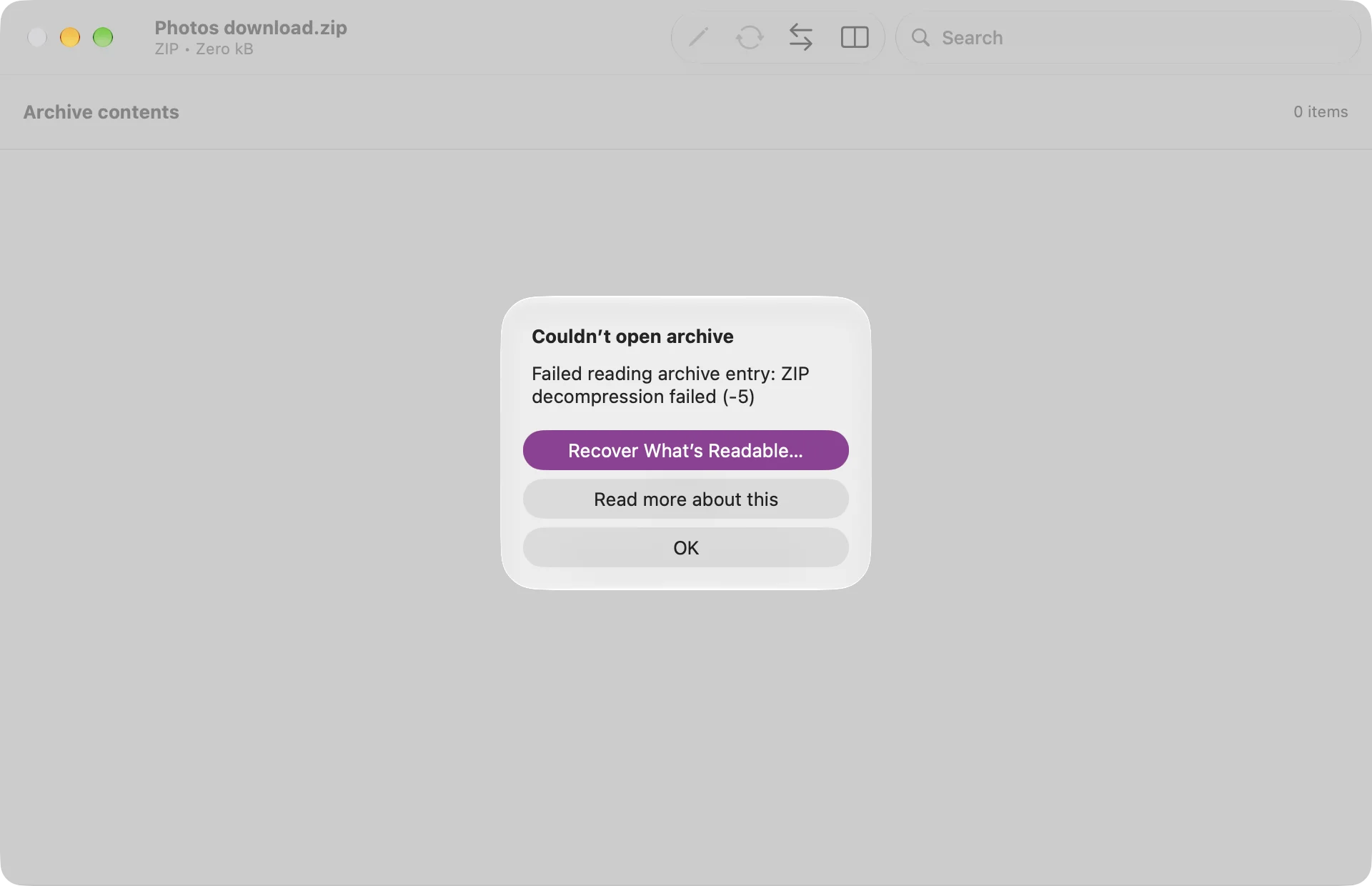
recovery data won’t open, the error offers Repair Using Recovery Data…
first.
Purrchiver writes a new copy — Photos (repaired).zip — in the folder you choose, starting in the archive’s own. The damaged file isn’t changed. The repaired copy is only kept if it matches the original’s checksum exactly, so “repaired” means identical, not “close”.
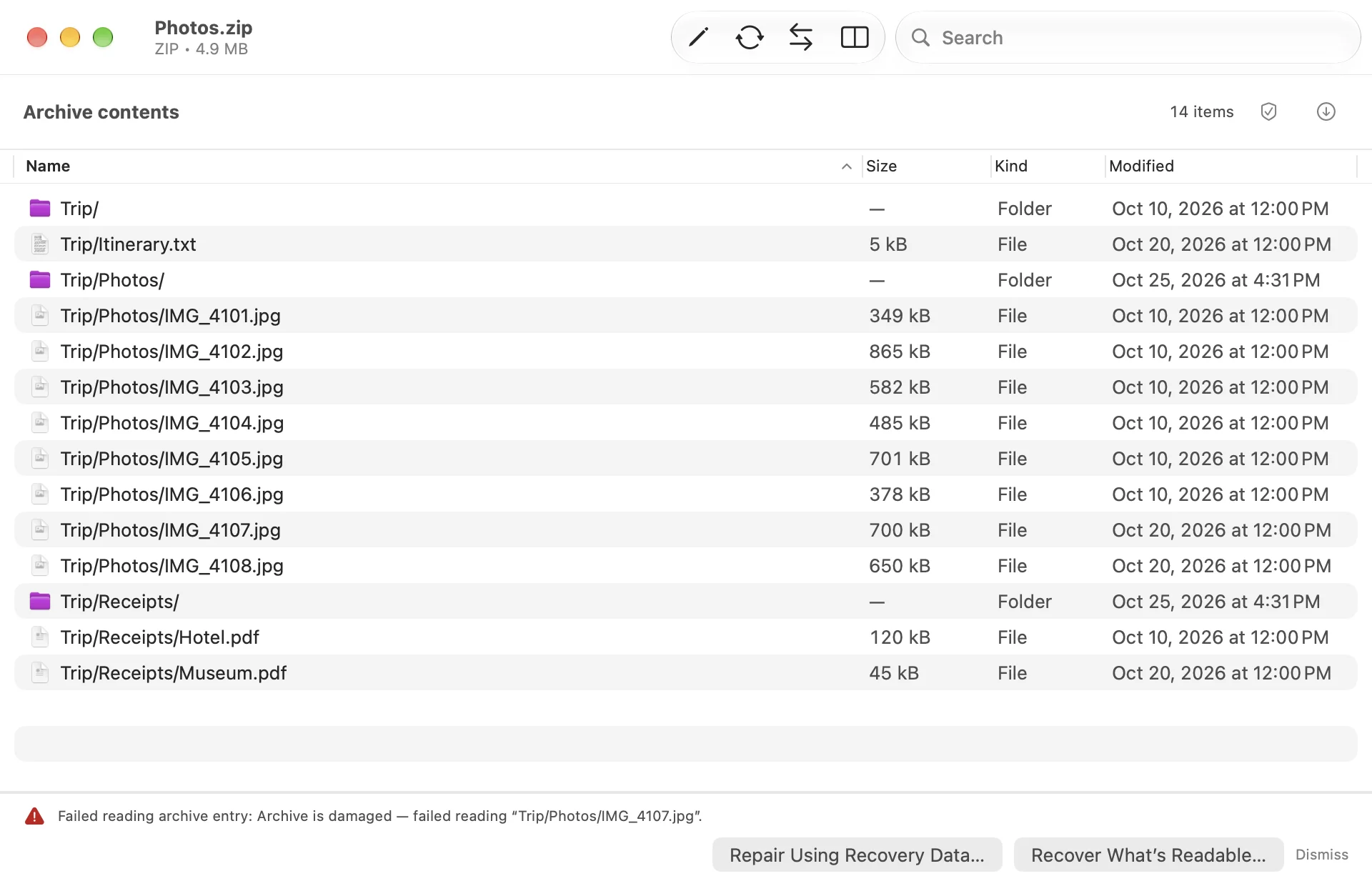
Repair works when no more of the archive is damaged than its recovery data covers: 10% recovery data repairs damage to up to about 10% of it. If more is damaged, Purrchiver says by how much and offers to recover what’s readable instead.
If the recovery data is split across several files (Photos.zip.par2,
Photos.zip.vol00+10.par2, …), keep them together beside the archive and
leave the destination as the archive’s own folder — that lets Purrchiver
use all of them. What recovery data can and can’t fix, including recovery
sets that cover several files, is in Recovery data (PAR2).
RAR recovery volumes (.rev)
A multi-part RAR often comes with recovery volumes: .rev files beside
the parts (movie.part1.rev, …). They can rebuild a part that’s missing or
damaged. When a part is missing, or a part is damaged and the set won’t
open, the error offers Repair Using Recovery Data… for these too.
Purrchiver works on a copy of the set, never the set itself: it puts the rebuilt set in a new folder, movie (repaired), in the folder you choose, with the intact parts copied as they are and the missing or damaged ones rebuilt. The result names the parts it rebuilt and offers to open the repaired set. It’s only kept if every file in it reads back and checks out. Nothing in the original folder is changed.
- Keep every part and every
.revfile in one folder. If Purrchiver asks for the folder the parts are in, choose it, so it can read all of them. - An encrypted set needs its password to be rebuilt.
- Only RAR5 recovery volumes are used.
.revfiles from WinRAR 3 or 4 are refused, and Purrchiver says WinRAR can rebuild from them. - If too much of the set is missing for its recovery volumes to cover, Purrchiver says so.
Recover what’s readable
How to recover
- When an archive won’t open or extract, the error says so and offers Recover What’s Readable…. That button only appears when the failure looks like damage — not for a wrong password, and not for a file that isn’t an archive.
- When Verify finds damage (the verify button in the archive’s window, ⌘T, or Tools → Verify Archive…), its result bar offers the same: Repair Using Recovery Data… when there’s recovery data beside it, and Recover What’s Readable….
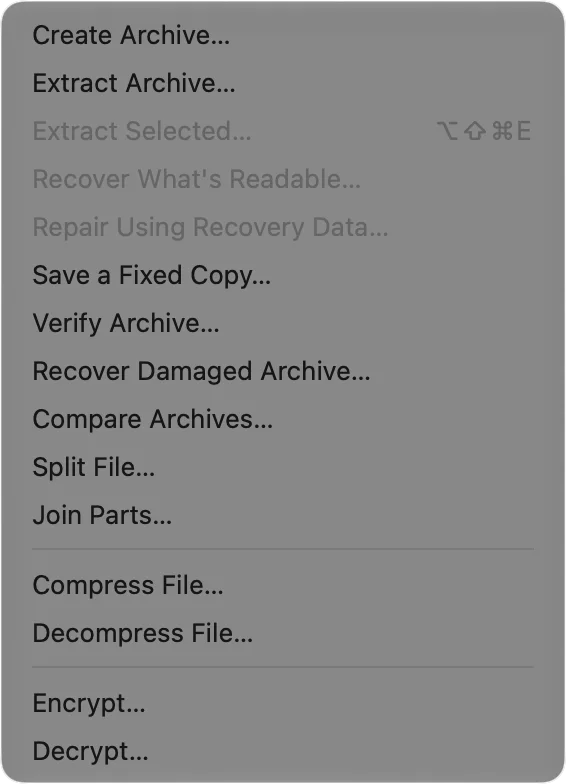
- Tools → Recover What’s Readable…, Repair Using Recovery Data… and Save a Fixed Copy… do the same as those buttons for the archive in front. Each is only available when that archive has offered it.
- Tools → Recover Damaged Archive… — if you already know a file is damaged, pick it here. With recovery data beside it, it’s repaired; otherwise Purrchiver recovers what’s readable.
- Shortcuts — Recover Archive and Repair Archive do the same in an automation. See Shortcuts & automation.
Purrchiver asks where to put the results, starting in the archive’s own
folder, and creates a new folder there named after the archive — for
Photos.zip, Photos (recovered). Nothing that already exists is touched.
What you get
Every file in the archive ends up in one of three groups:
- Recovered intact — read to the end with nothing wrong. For ZIP that includes its built-in checksum, so even one changed byte is caught.
- Partly recovered — the damage hit part-way through. What came out is
saved with (incomplete) in its name —
photo (incomplete).jpg— so it can never be mistaken for the real file. It’s the genuine beginning of the original; a cut-off document or photo is often still worth having. - Couldn’t be recovered — listed in the archive, but none of its data could be read.
When it’s done, a summary lists each group and why, with Show in Finder.
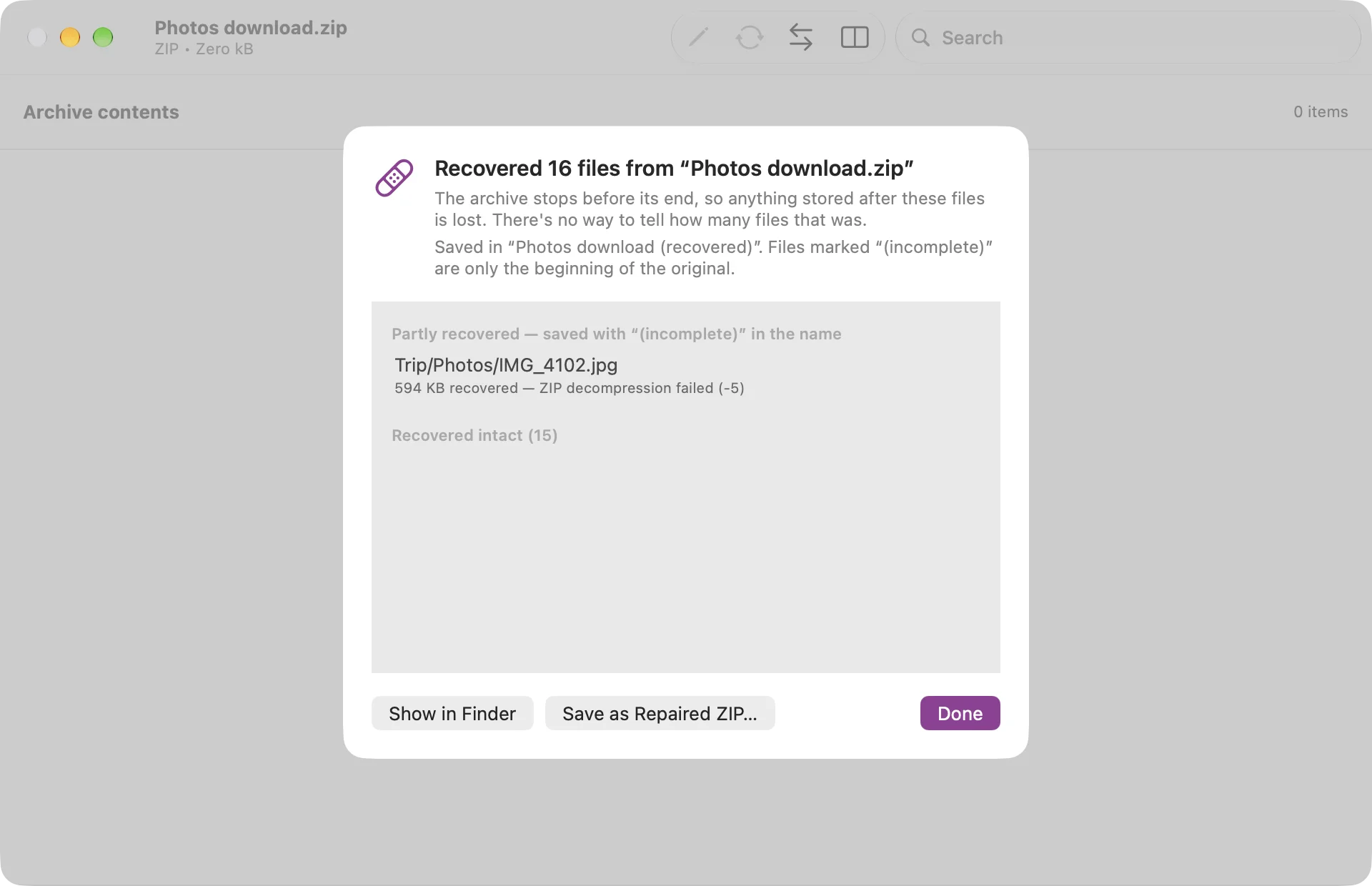
If the archive simply stops — the usual result of an interrupted download — whatever was stored after the cut is gone, and there’s no way to tell how many files that was. Purrchiver says the archive ends early rather than guessing a number.
A ZIP back. After recovering from a ZIP, if anything came out intact, the summary also offers Save as Repaired ZIP…. It writes a new ZIP — Photos (repaired).zip, beside the damaged one unless you choose otherwise — that other apps open: every file that checked out against its checksum, copied exactly as it was stored, with a new index. Files that didn’t check out are left out and listed with why.
A multi-part set with a part missing
When one part of a multi-part archive is missing, the error names it and offers Extract What’s in These Parts…. That gets back every file stored wholly in the parts you have:
- For a set split into numbered pieces (
.7z.001,.zip.001,.tar.001), Purrchiver reads the parts that are there in place, so each file is found where it should be. A file that touched the missing part fails its checksum and isn’t kept, not even as an incomplete file, since what’s in the gap isn’t its data. - For a multi-part RAR, Purrchiver reads again from the first part after each gap. A file that began in a missing part is lost; the rest come out.
The summary says which parts were missing, and for each file it couldn’t get back, which part it was in. If the set has recovery data, the error offers Repair Using Recovery Data… first, which may rebuild the missing part outright. More on sets that won’t open is in Multi-part archives.
Reading from a failing drive
When a drive can’t read part of a file (Finder calls it “error code -36”), Purrchiver says the disk can’t read part of the archive and offers to recover what’s readable. Recovery reads past the bad spots instead of stopping at the first one: whatever can’t be read is treated as missing, and everything else comes out.
- Files in formats that check their own data (ZIP, 7z, RAR, compressed tars) fail that check if they touch a bad spot. For formats that don’t (plain tar, cpio, ar, ISO), a file with data in a bad spot is listed as not fully recovered.
- The summary says how much couldn’t be read.
- Purrchiver suggests a folder on another drive for the results, starting at the Desktop, so they don’t go back onto the failing one.
- Repairing with recovery data reads past bad spots too, and rebuilds what couldn’t be read.
Copy anything else you need off that drive soon.
Save a fixed copy
Sometimes an archive won’t open, but nothing inside it is damaged: the problem is in how the archive was written. Then the error explains what’s wrong and offers Save a Fixed Copy…, which writes a new archive that opens, beside the original unless you choose otherwise. The original isn’t changed.
- A 7z whose start was lost. 7-Zip writes the start of a 7z last, so when making one is interrupted, the start can be left blank and nothing will open it, though its list of files at the end is intact. Purrchiver finds that list and rebuilds the start in Backup (fixed).7z.
- A ZIP over 4 GB made by Finder’s Compress. Archive Utility writes ZIPs over 4 GB (or with more than 65,535 files) without the ZIP64 records a ZIP that big needs. Most other apps, and Windows, don’t open all of it. Purrchiver usually does, and then a note says so and offers Save a Fixed Copy…; when it can’t, the error says why and offers the same. The fixed copy, Backup (fixed).zip, holds the same files, copied as they are, with the records other apps need.
What it can and can’t recover
| Damage | What Purrchiver recovers |
|---|---|
| ZIP cut off part-way (interrupted download) | Every file before the cut, intact. The file the cut landed in, as an incomplete file. |
| ZIP with its index (central directory) damaged | Everything whose data is intact — often the whole archive, even though it won’t open normally. |
| ZIP with a damaged file inside | Every other file, intact. The damaged one is flagged, never saved under its real name. |
.tar, .tar.gz, .tar.xz, … cut off part-way | Every file before the cut, intact. The cut file loses at most its last ~64 KB. |
| Multi-part set with a part missing | Every file stored wholly in the parts that are there. |
.7z whose start was lost (making it was interrupted) | Everything, as a fixed copy — see above. |
.7z cut off or damaged at the end | Nothing — see below. |
7z keeps its list of files at the very end of the archive. When the end is missing or damaged, there’s no way to find where any file starts, so nothing can be recovered. Purrchiver tells you that rather than pretending otherwise.
Encrypted archives still need their password — recovery decrypts what it reads, so it asks for the password the same way opening does.
Recovery data is what lets a damaged archive be repaired rather than
just salvaged — see above. Purrchiver uses
PAR2, and a RAR set’s .rev recovery volumes. RAR’s other kind, a
recovery record built into the archive itself, is WinRAR’s: Purrchiver
can’t repair with one, but when a damaged RAR has one, it says so, since
WinRAR (or rar r in Terminal) can use it.
Before you recover
If you can get the archive again — re-download it, copy it again from the original drive, ask the sender to re-send — do that first. A fresh copy beats any recovery.
Related
- Repair a damaged or corrupt ZIP on a Mac — the overview: what can be recovered, and what can’t
- Recovery data (PAR2)
- Multi-part archives
- Extracting files
- Common errors
- What’s free vs. the unlock
Don't have Purrchiver yet? It's free on the Mac App Store.